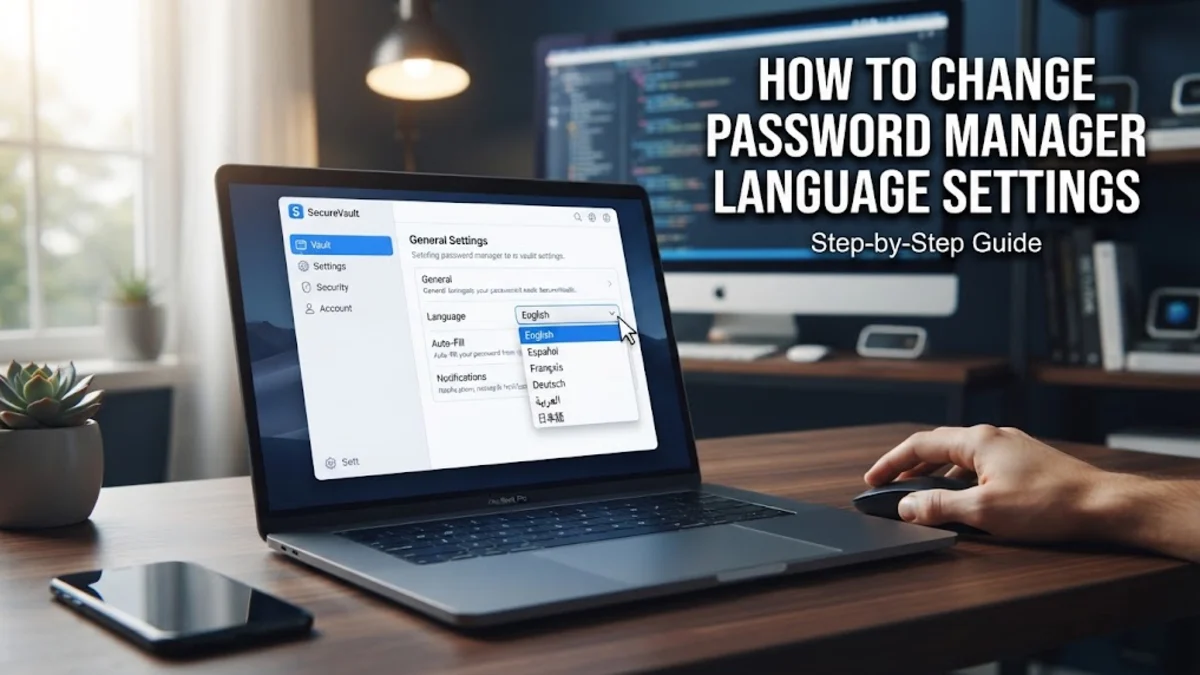
Finding your password manager suddenly displayed in German can be frustrating, especially when you need to access your credentials quickly. This issue often occurs when an application mistakenly identifies your browser locale or operating system settings as German, or if a recent update reset your default language preference to the installation's primary fallback language.
1Why Your Password Manager Switched Languages
The most common reason a password manager defaults to German is a miscommunication between your web browser or operating system and the software's localization settings. Many applications use an HTTP header called 'Accept-Language' sent by your browser. If your browser's language priority list includes German or if you are using a VPN or proxy that routes traffic through a German server, the password manager's web vault may automatically serve content in that language. Additionally, some software installers detect the region of your network IP address during the initial setup process. If you were traveling or connected to a global server during installation, the app might have installed the German language pack as the default, overriding your system's regional settings. In some rare cases, a software bug in a recent version release might cause the application to ignore your saved user profile settings and revert to the hard-coded default, which for some security software providers is German. Understanding that this is typically a configuration issue rather than a security breach is the first step toward regaining control of your user interface.
2Fixing Language Settings in Bitwarden
Bitwarden is highly configurable and allows you to override system language detection directly through its interface. If your vault is displaying in German, navigate to the web vault or the desktop application to adjust the settings. Once logged in, click on the Settings tab located in the navigation bar. From there, look for the Options menu, which holds the interface preferences. Inside the Options screen, you will see a dropdown menu labeled Language or Sprache if it is currently affected. Click the dropdown and select English (United States) or your preferred regional variant from the list. After making this selection, the interface might require a manual refresh or a restart of the application to apply the changes effectively. If you are using the browser extension, click the extension icon, go to Settings, and check the Language field there as well. Bitwarden syncs these settings across devices, so once updated in one location, the preference should propagate to your other synced instances within a few minutes. If it does not, you may need to force a manual sync by navigating to Tools and selecting Sync.
3Updating 1Password Language Preferences
1Password typically inherits the language settings from your operating system, but you can override this behavior in the desktop application settings. To fix an unexpected language switch, open the 1Password desktop app and go to the menu bar. Select Settings or Preferences depending on your platform. Within the General tab, look for a section specifically dedicated to language. If the option is set to System Default, the app is relying on your OS locale, which might be the source of the conflict. Change this setting to English specifically to force the application to ignore the OS locale. If you are using the 1Password web interface, the language is generally tied to your account profile. Log in to your account on the official website, click your profile name in the top right corner, and navigate to My Profile or Account Settings. Check the language or region preference fields to ensure they are set to English. After saving these changes, perform a full restart of the application to ensure that all localized strings are reloaded correctly from the server.
4Adjusting Dashlane Language Settings
Dashlane handles language localization through your account profile, which is stored in the cloud. If your interface is currently showing German, the first thing to check is the language settings in your browser-based dashboard. Log in to your account and select My Account, then navigate to Settings. Within this menu, look for Preferences where you can manually define the interface language. Changing this to English and saving the configuration will trigger an update across your connected devices. Because Dashlane relies heavily on its browser extension, the extension itself may sometimes cache the incorrect language file. If you have changed the account setting and the interface remains in German, try to remove and re-add the Dashlane browser extension. This process clears the local cache of the extension, forcing it to fetch the latest language configuration from the server upon re-installation. Always ensure you have your master password and emergency contact recovery information saved before removing and re-installing any password management software to prevent accidental lockouts during the troubleshooting process.
5Troubleshooting Browser-Level Conflicts
Sometimes the password manager is perfectly fine, but your web browser is forcing the website version of the vault to load in a specific language. Browsers like Chrome, Edge, and Firefox send language priority headers to every website you visit. If German is listed as a priority language in your browser settings, some web-based password vaults will default to that language to provide a better user experience, even if you do not want it. To fix this, navigate to your browser's Settings and search for Languages. In Chrome or Edge, click Languages and ensure that English (United States) is at the top of the list. If German is present, remove it from the list entirely. You may need to click the three-dot menu next to English and select Display Google Chrome in this language. Once you have reordered your browser's language preferences, clear your browser's cache and cookies for the password manager's domain. When you reload the vault page, the browser will no longer send a German priority header, forcing the website to fall back to English as the primary interface language.
6Preventing Future Language Errors
To prevent your password manager from reverting to German or other unintended languages in the future, it is vital to maintain consistent regional settings across your devices. Start by verifying that your operating system's region and language settings match your primary language. Avoid using public VPNs that default to European servers, as these can occasionally trigger location-based software installations. When installing a password manager, always opt for the manual installation process rather than a 'one-click' installer if available, as manual setups often allow you to select the language pack during the first stage of the process. Additionally, check your cloud account profiles on the password provider's website periodically. Many services have a Global Settings or Profile Preferences section that acts as a master switch for your account's regional behavior. By keeping these profiles updated and ensuring that your primary web browser does not have secondary languages prioritized in its configuration, you can effectively eliminate the risk of your software interface switching languages unexpectedly. Regular updates to the application itself are also crucial, as developers frequently patch localization bugs that might cause these types of unintended resets.
Frequently asked questions
Will changing the language settings delete my stored passwords?
No. Changing the language settings in your password manager only changes the display language of the user interface. Your encrypted vault and all stored credentials remain safe and unaffected by this change.
Can I have two different languages for my vault and extension?
Typically, no. Most password managers sync language preferences across all installations, including the browser extension, mobile app, and desktop client, to provide a consistent experience.
Why did my password manager suddenly change to German?
It is most likely due to an update that reset the cache, or your browser is sending a language priority header that the vault website misinterpreted as a preference for German.
What if the language settings menu is also in German?
If you cannot read the menu to change it back, look for icons or recognizable button shapes. Usually, the language setting is under an icon shaped like a globe or a gear. Alternatively, re-installing the extension or app usually forces it to detect your browser's primary language.
Do I need to contact support to fix the language issue?
Usually, you do not need to contact support. Following the steps in this guide to clear browser cache and adjust profile settings resolves the vast majority of localization issues.