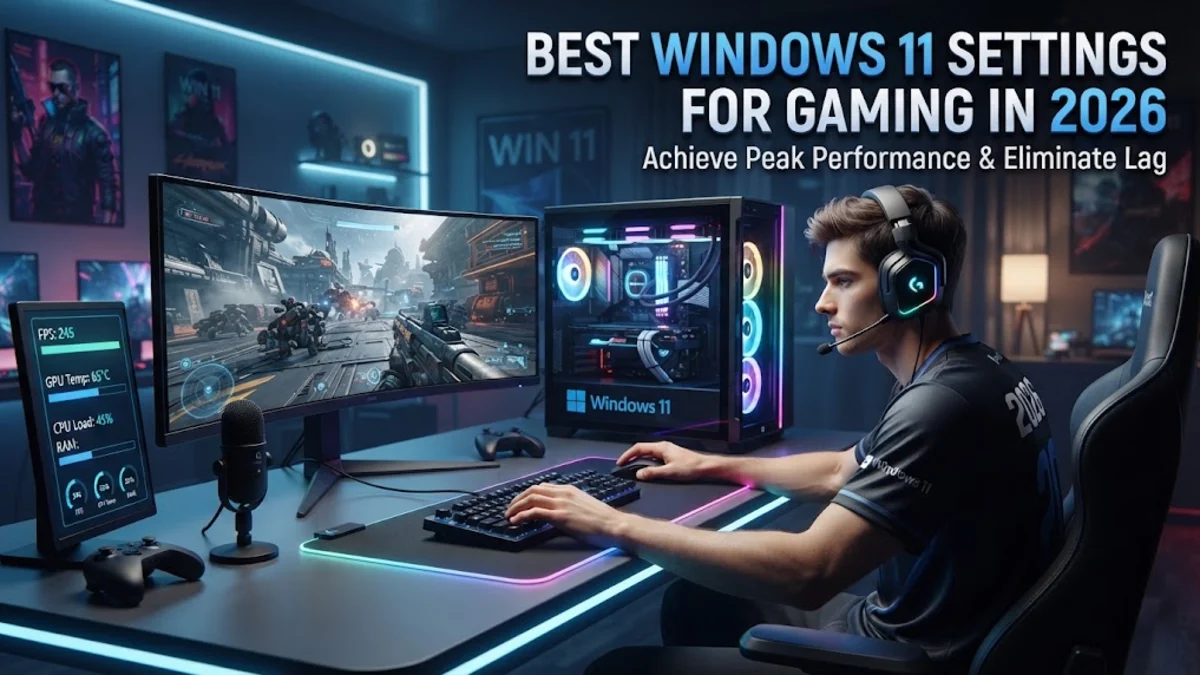
Optimizing your system with the best Windows 11 settings for gaming is the most effective way to eliminate stutters, boost frame rates, and unlock your hardware's full potential. Out of the box, Windows prioritizes background multitasking, visual effects, and general stability over raw gaming performance. By disabling unnecessary features and configuring your display and graphics preferences correctly, you can achieve smoother gameplay and lower input latency instantly.
Whether you are playing fast-paced competitive shooters or visually demanding role-playing games, tweaking a few hidden system menus will noticeably improve your frame rates. Below is a complete step-by-step guide to configuring your system with the most effective gaming optimizations available.
1Enable Game Mode and Graphics Preferences
Windows Game Mode is a built-in feature designed to prioritize your gaming experience by allocating maximum CPU and GPU resources to your active game while pausing background system tasks. To turn it on, press the Windows key, type Game Mode, and open the settings menu. Toggle the switch to on. Next, you should optimize your graphics preferences for individual games to ensure they run on your dedicated graphics card rather than integrated graphics. Navigate to Settings > System > Display > Graphics. Here, you can select your installed games and choose High performance under their specific options. This small change prevents Windows from routing heavy rendering tasks through your processor's built-in graphics chip, ensuring maximum frame rates and stable frame pacing during intense gameplay moments.
2Turn On Hardware Accelerated GPU Scheduling
Hardware-Accelerated GPU Scheduling (HAGS) allows your graphics card's processor to manage its own video memory directly, bypassing the operating system's scheduler to reduce latency and improve overall efficiency. To enable this feature, go to Settings > System > Display > Graphics, and click on Default graphics settings at the top of the window. Locate the toggle for Hardware-accelerated GPU scheduling and switch it to on. You will need to restart your computer for this change to take effect. While most modern graphics cards benefit significantly from HAGS, keep in mind that older hardware might experience inconsistent results. If you notice any stuttering after turning it on, simply return to this menu and toggle it back off.
3Configure Variable Refresh Rate and Auto HDR
If you own a gaming monitor that supports FreeSync or G-Sync, ensuring Variable Refresh Rate (VRR) is active in Windows is essential for eliminating screen tearing without introducing traditional V-Sync input lag. Navigate to Settings > System > Display > Graphics and ensure Optimizations for windowed games is checked, which applies VRR enhancements to games running in borderless windowed mode. Additionally, if you have a compatible HDR display, turn on Auto HDR through Settings > System > Display > HDR. Auto HDR automatically upgrades standard dynamic range games to high dynamic range, providing richer colors and deeper contrast without requiring manual configuration inside individual game menus.
4Disable Background Apps and Visual Effects
Windows 11 features numerous visual animations, transparency effects, and background processes that consume system RAM and CPU cycles. To reclaim these resources for your games, start by simplifying your visual interface. Go to Settings > Accessibility > Visual effects and turn off Transparency effects and Animation effects. Next, minimize background resource usage by opening Settings > Apps > Installed apps and reviewing programs that run at startup. You can also press Ctrl + Shift + Esc to open the Task Manager, click on the Startup apps icon on the left sidebar, and disable non-essential applications like chat clients, updaters, and cloud sync tools from launching automatically when your PC boots up.
5Adjust Power Mode and Core Isolation Settings
Your power plan directly dictates how much electrical current and thermal headroom your components receive under load. To maximize performance, go to Settings > System > Power & battery and set your Power mode to Best performance. For advanced users seeking even greater performance, you can check Core Isolation settings, which protect critical system processes from malware. However, virtualization-based security features within Core Isolation can sometimes reduce gaming performance by a few percentage points. If you prioritize absolute maximum frame rates over baseline security features, you can navigate to Settings > Privacy & security > Windows Security > Device security > Core isolation details and toggle off Memory integrity, though you should weigh the security trade-off before doing so.
6Keep Graphics Drivers and System Updated
Running outdated graphics drivers is one of the most common causes of game crashes, graphical glitches, and suboptimal performance. Make sure you regularly update your GPU software using NVIDIA GeForce Experience, the AMD Software Adrenalin Edition app, or Intel Graphics Command Center depending on your hardware manufacturer. Additionally, keep your operating system updated by navigating to Settings > Windows Update and checking for available patches. Microsoft regularly releases performance fixes and bug patches specifically tailored for gaming workloads. Always restart your computer after installing major driver updates to ensure all system components load their new configurations cleanly.
The bottom line
Applying these essential Windows 11 settings takes only a few minutes, but the payoff in smoother frame rates, reduced input latency, and overall system responsiveness is well worth the effort. By prioritizing gaming resources, eliminating unnecessary background tasks, and keeping your drivers current, you can ensure your gaming sessions remain fluid and uninterrupted.
Frequently asked questions
Does Windows Game Mode actually improve FPS?
Yes, Game Mode helps stabilize frame rates by preventing background applications and Windows updates from stealing CPU and GPU resources while you are in a game.
Should I turn on Hardware Accelerated GPU Scheduling?
In most cases, yes. HAGS reduces latency and improves overall efficiency on modern graphics cards, though users with older hardware should test it to ensure it does not introduce stuttering.
How do I stop apps from running in the background on Windows 11?
You can disable background apps by managing your startup applications through the Task Manager or by adjusting individual app permission settings under the privacy menu.
Is Best Performance power mode safe for my laptop?
Yes, it is safe, but it will consume more battery power and generate more heat. If you are gaming on a laptop, it is best to plug it into the wall outlet while using this mode.
How often should I update my graphics drivers?
You should check for new graphics drivers at least once a month, or immediately whenever a major game you play releases a large update or expansion.