How to Repair Google Sheets and Fix Common Errors
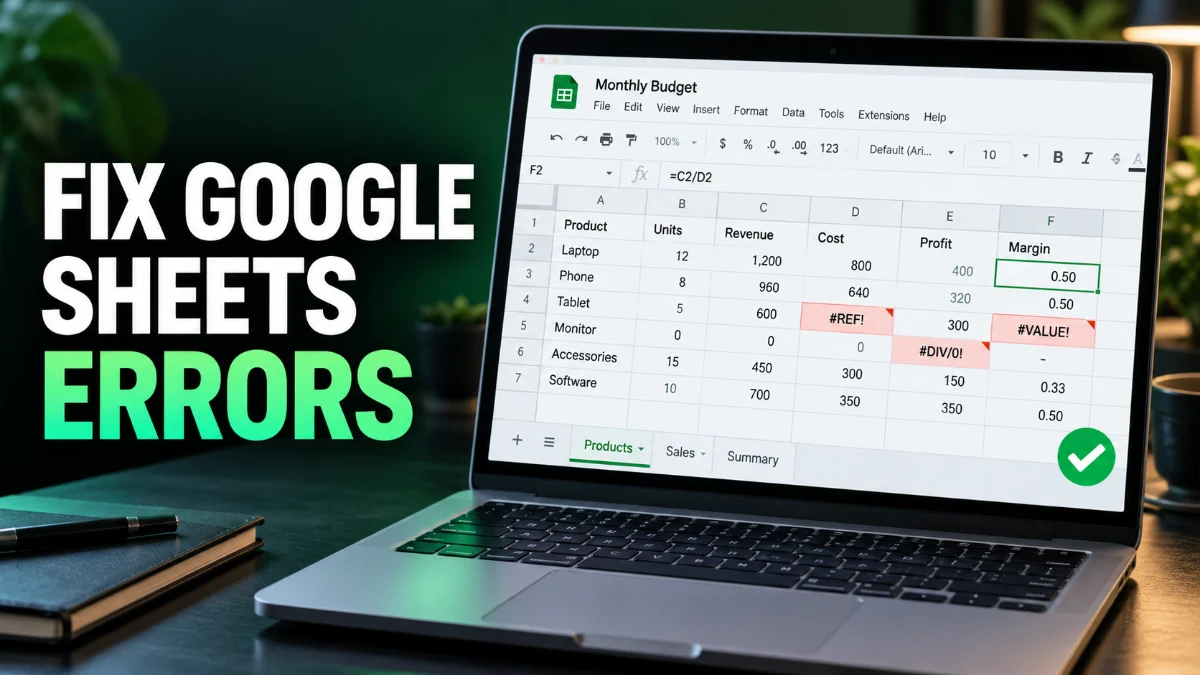
When Google Sheets freezes, displays formula errors, or fails to open your important data, productivity comes to a sudden halt. Fixing a malfunctioning spreadsheet usually involves identifying whether the issue stems from browser cache corruption, broken formula structures, or temporary server sync glitches.
This guide walks you through proven technical steps to repair Google Sheets, recover lost data versions, and get your spreadsheets working smoothly again across web and mobile platforms.
Clear Browser Cache and Disable Extensions
Corrupted browser cache files and aggressive ad blockers or extension scripts are among the most frequent reasons Google Sheets fails to load properly. When scripts conflict with Google's real-time synchronization engine, buttons become unresponsive, and cells refuse to update. To resolve this, start by opening your spreadsheet in an Incognito or private browsing window. If the file loads correctly without extensions running, you have isolated the culprit.
Next, clear your browser data specifically for Google domains. In Google Chrome, go to Settings > Privacy and security > Delete browsing data, select cached images and files, and click clear. Additionally, check your active browser extensions by navigating to Extensions > Manage extensions and temporarily disable script blockers or password managers that might interfere with web app execution.
Restore Previous File Versions and Revision History
If a collaborator accidentally overwrites vital data, or a bad script corrupts your rows and columns, you do not need to start over from scratch. Google Sheets automatically logs every modification made to a document, allowing you to roll back changes effortlessly. To access this feature, open your broken or altered spreadsheet, click on File > Version history > See version history.
On the right-hand panel of your screen, you will see a detailed timestamped list of every edit made by you and other users. Click on previous versions to preview how the sheet looked at that specific moment in time. Once you locate a clean, uncorrupted version of your data, simply click the Restore this version button at the top to revert your document instantly and eliminate errors.
Fix Broken Formulas and Circular Reference Errors
Massive performance slowdowns and unexpected errors often trace back to broken syntax or circular references within your formulas. A circular reference happens when a formula refers back to its own cell, creating an infinite calculation loop that freezes the entire worksheet. When this occurs, Google Sheets usually displays a warning banner at the top of the screen or outputs a #CIRCULAR_DEPENDENCY error.
To fix this, look for formula cells marked with error indicators like #REF!, #VALUE!, or #N/A. Use the formula auditing tools or manually inspect nested functions to ensure cell ranges do not cross-reference themselves. You can also press Ctrl + ` on Windows or Cmd + ` on Mac to display all formulas simultaneously, making it easier to spot syntax mistakes and incorrect argument definitions.
Troubleshoot Offline Mode and Sync Conflicts
Working without a stable internet connection can lead to synchronization conflicts when Google Sheets attempts to merge local cache data with cloud storage. If your changes are not saving or you notice a persistent offline cloud icon, your local cache may be desynchronized from your Google Drive account. Ensure your device has an active network connection before troubleshooting further.
To reset offline sync, open Google Drive in your browser, click the gear icon in the top right, and select Settings. Under the Offline section, uncheck the box for offline syncing, wait a few moments, and check it back on to force a fresh local database build. Alternatively, open your Google Chrome extension settings and ensure Google Docs Offline is enabled and updated to its latest version.
Import Corrupted Data Into a Clean Spreadsheet
Sometimes a specific Google Sheets file becomes deeply corrupted due to bloated script execution or excessive conditional formatting rules. If standard refreshing fails, you can salvage your data by migrating it into a completely fresh spreadsheet container. Create a new blank document by going to File > New > Spreadsheet.
Once the new file is open, use the File > Import command to upload or select the corrupted file from your Google Drive. Choose the Insert new sheet or Replace spreadsheet option depending on your recovery needs. This method strips away corrupted metadata and background formatting baggage, leaving you with a clean, functional copy of your tabular data.
Verify Google Workspace Status and Network Settings
Before assuming the problem lies entirely within your local setup, verify that Google's cloud servers are operating normally. Temporary outages or regional routing issues can prevent Google Sheets from loading or saving data. Visit the official Google Workspace Status Dashboard to check if green status indicators are displayed next to Google Drive and Google Sheets services.
If Google services are running smoothly, inspect your local network configurations. Corporate firewalls, strict VPN tunnels, or DNS filter restrictions frequently block the WebSocket connections that Google Sheets relies on for real-time collaboration. Try temporarily disabling your VPN or switching to a different Wi-Fi network to see if loading performance immediately returns to normal.
The bottom line
Repairing Google Sheets is usually a straightforward process when you systematically isolate browser issues, restore clean revision histories, and correct formula errors. By following these technical steps, you can recover lost information and maintain optimal spreadsheet performance.
Frequently asked questions
Why is my Google Sheets file stuck loading?
A stuck loading screen is usually caused by browser cache corruption, browser extension interference, or a temporary loss of internet connectivity. Try opening the sheet in an Incognito window or clearing your browser cache.
How do I recover data after a bad edit in Google Sheets?
You can easily restore previous versions by going to File, selecting Version history, and choosing See version history. From there, pick a stable timestamp and click Restore this version.
What causes the #CIRCULAR_DEPENDENCY error?
This error occurs when a formula explicitly or implicitly refers back to its own calculation cell, creating an infinite loop that freezes spreadsheet calculations until the syntax is corrected.
Can I repair a Google Sheet on my mobile phone?
Yes. If the mobile app is freezing or failing to sync, try clearing the app cache via your device settings, checking for app updates, or opening the file through a mobile web browser.