How to Fix Corrupted Files on Windows 11
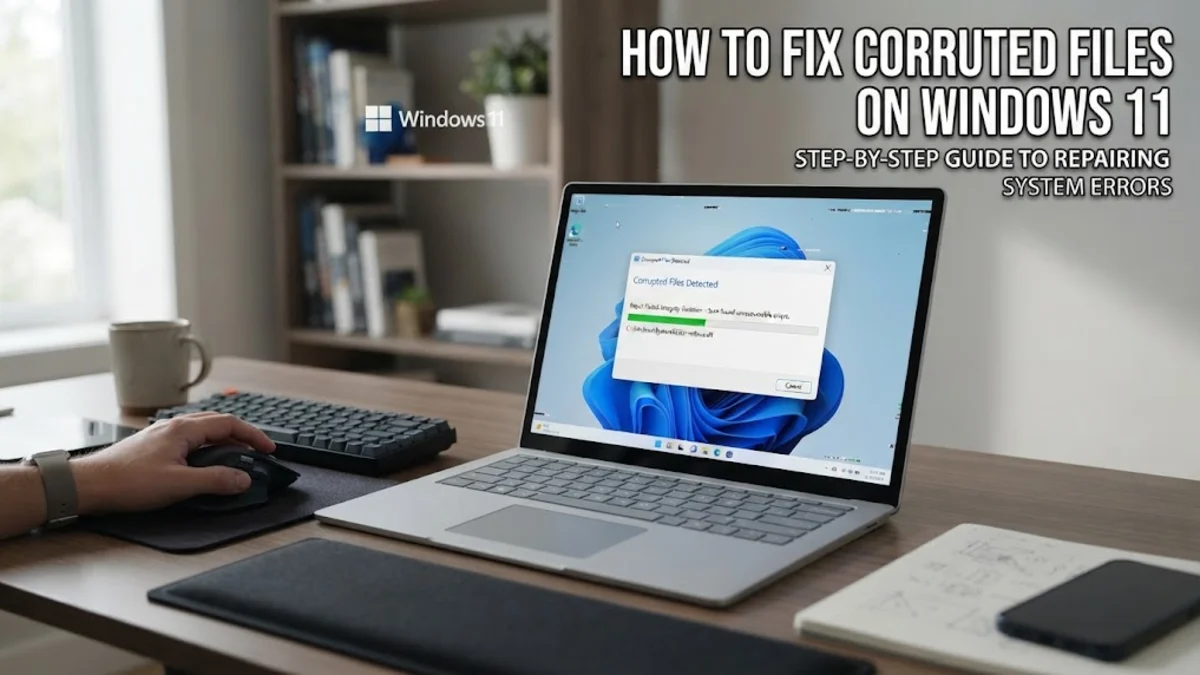
When critical system files become damaged on Windows 11, your computer may suffer from frequent blue screen crashes, lagging performance, app launch failures, or stuck system updates. Learning how to fix Windows 11 corrupted files allows you to repair damaged operating system binaries and regain system stability without losing your personal data or performing a complete disk wipe.
File corruption typically occurs during unexpected power outages, incomplete software updates, disk driver errors, or low-level storage sector defects. Windows 11 includes powerful built-in repair tools like System File Checker (SFC), Deployment Image Servicing and Management (DISM), and Check Disk (CHKDSK). Follow this step-by-step troubleshooting guide ordered from the fastest command-line fixes to advanced recovery options.
Recognize the Symptoms and Causes of Windows 11 File Corruption
System file corruption manifests in several distinct ways across Windows 11. You might encounter Blue Screen of Death (BSOD) stop codes such as CRITICAL_PROCESS_DIED or STATUS_SYSTEM_PROCESS_TERMINATED. Other frequent symptoms include missing dynamic link library (DLL) pop-up dialogs, frozen File Explorer windows, missing start menu icons, or Windows Update throwing error codes like 0x800f081f and 0x80070002 during routine maintenance routines.
Understanding the root causes helps prevent recurring damage to your system image. Common triggers include sudden loss of electrical power while the operating system is actively writing registry keys, unexpected system restarts during major feature updates, physical or logical bad sectors on hard drives or NVMe SSDs, and aggressive third-party security utilities that inadvertently quarantine protected system components.
Run System File Checker to Automatically Repair Corrupted Files
The System File Checker (SFC) utility is the quickest line of defense when you need to fix Windows 11 corrupted files. SFC scans all protected system files and replaces damaged, missing, or altered copies with verified versions located in the local cached Component Store folder at C:\Windows\WinSxS.
To launch and execute a full System File Checker scan on your computer, follow these exact steps:
- Press Win + X on your keyboard to open the Power User menu, then select Terminal (Admin) or Command Prompt (Admin).
- If prompted by User Account Control (UAC), click Yes to grant administrative privileges.
- In the terminal window, type
sfc /scannowand press Enter. - Allow the scanning process to complete fully. This typically takes between 5 and 15 minutes depending on your storage drive speed.
Once completed, review the console message. If Windows reports that it found corrupt files and successfully repaired them, restart your PC immediately. If the utility states that it found corrupt files but was unable to fix some of them, proceed directly to the DISM repair command in the next section.
Use DISM to Repair the Windows 11 Component Store
If System File Checker fails to resolve file corruption, it is usually because the cached local backup files inside the Component Store are damaged as well. Deployment Image Servicing and Management (DISM) is an advanced command-line tool that connects to Microsoft servers via Windows Update to download fresh, clean replacement binaries and repair the underlying system image.
Execute the DISM repair tool by following this precise sequence in an elevated terminal window:
- Open Terminal (Admin) by pressing Win + X and selecting Terminal (Admin).
- First, check the health status by typing
DISM /Online /Cleanup-Image /CheckHealthand pressing Enter. - Next, run a deeper system scan by executing
DISM /Online /Cleanup-Image /ScanHealthand pressing Enter. - Finally, initiate the full repair operation by entering
DISM /Online /Cleanup-Image /RestoreHealthand pressing Enter.
The RestoreHealth process may appear stuck at 62% or 100% for several minutes while downloading component files from Microsoft servers. Do not close the window. After DISM completes successfully, re-run sfc /scannow in the terminal window to allow SFC to repair remaining system files using the newly restored Component Store.
Check for Storage Drive Errors with CHKDSK
Persistent system file corruption often originates from logical file system errors or failing storage clusters on your solid-state drive (SSD) or hard disk drive (HDD). Running the Check Disk (CHKDSK) diagnostic utility scans drive integrity, isolates damaged disk sectors, and corrects file allocation table corruption.
To perform a thorough disk scan and repair operation on your primary drive, execute CHKDSK using administrator permissions:
- Press Win + X and choose Terminal (Admin).
- Type
chkdsk C: /f /rinto the prompt and press Enter. - The system will inform you that the volume is currently in use by another process and ask if you want to schedule the check for the next restart. Type
Yand press Enter. - Close all open applications and restart your computer.
During bootup, Windows 11 will display a dark diagnostic screen while CHKDSK scans your drive structure across multiple passes. Avoid powering off your computer during this repair sequence, as interrupting CHKDSK can lead to additional file allocation errors.
Restore Windows 11 to an Earlier Known Working State
When command-line utilities cannot resolve deep operating system issues, using System Restore allows you to roll back Windows 11 system files, drivers, registry settings, and installed applications to an earlier point in time before the file corruption occurred. System Restore does not alter or erase your personal files, documents, or photos.
Follow these steps to perform a restore operation on Windows 11:
- Press Win + R to open the Run dialog box, type
rstrui.exe, and press Enter. - When the System Restore window opens, click Next.
- Select a restore point timestamped prior to when you first noticed performance issues or corrupt file errors.
- Optionally click Scan for affected programs to view software drivers or updates that will be uninstalled during the rollback.
- Click Next, confirm your selection, and click Finish.
Your computer will restart automatically and process the restoration. Ensure your laptop is connected to wall power throughout this operation to prevent unexpected shut-offs.
Reset Windows 11 While Retaining Your Personal Files
If severe core component corruption prevents SFC, DISM, and System Restore from fixing your PC, performing a system reset is the definitive solution. The Reset This PC feature reinstalls clean Windows 11 operating system files while keeping all your personal data intact.
To initiate a fresh reinstall without losing your user documents, navigate to system recovery settings:
- Open system settings by navigating to Settings > System > Recovery.
- Under the Recovery options section, locate Reset this PC and click Reset PC.
- In the pop-up window, choose Keep my files to preserve user data while removing apps and custom settings.
- When asked how you would like to reinstall Windows, select Cloud Download to download a guaranteed clean, updated installation file directly from Microsoft.
- Review your configuration settings and click Reset to begin the process.
The reset process takes roughly 20 to 45 minutes depending on your internet connection and processing hardware. Once finished, Windows 11 boots into a pristine system state with brand-new system files and fully preserved personal folders.
The bottom line
Fixing Windows 11 corrupted files is straightforward when using the built-in diagnostic arsenal provided by Microsoft. By starting with sfc /scannow and leveraging DISM for Component Store repairs, you can resolve the majority of system stability issues in less than 20 minutes. If physical drive issues or severe operating system degradation persist, running CHKDSK or executing a cloud reset provides a definitive recovery path.
To minimize future file corruption, always perform proper system shutdowns, keep device drivers up to date through Windows Update, and maintain regular automated backups of your crucial files.
Frequently asked questions
What causes system files to get corrupted in Windows 11?
System files usually become corrupted due to sudden power outages during write operations, interrupted system updates, damaged storage drive sectors, or software conflicts caused by aggressive anti-malware tools.
Is it safe to run sfc /scannow on Windows 11?
Yes, running sfc /scannow is completely safe. It is a standard Microsoft diagnostic utility designed specifically to check and repair protected system files without modifying or deleting your personal files.
What should I do if SFC says unable to fix corrupted files?
If SFC cannot repair corrupted files, open Terminal as Administrator and run the command DISM /Online /Cleanup-Image /RestoreHealth. Once DISM finishes repairing the Component Store, re-run sfc /scannow.
Will fixing corrupted system files delete my personal documents?
No, utility commands like SFC, DISM, and CHKDSK only target protected operating system binaries and file allocation tables. Your personal photos, documents, and user folders remain completely untouched.
How long does a DISM scan take on Windows 11?
A DISM scan typically takes between 10 and 20 minutes. The time depends on your internet speed (for downloading repair files) and the speed of your storage drive.