How to Fix iCloud Not Syncing on iPhone and Mac
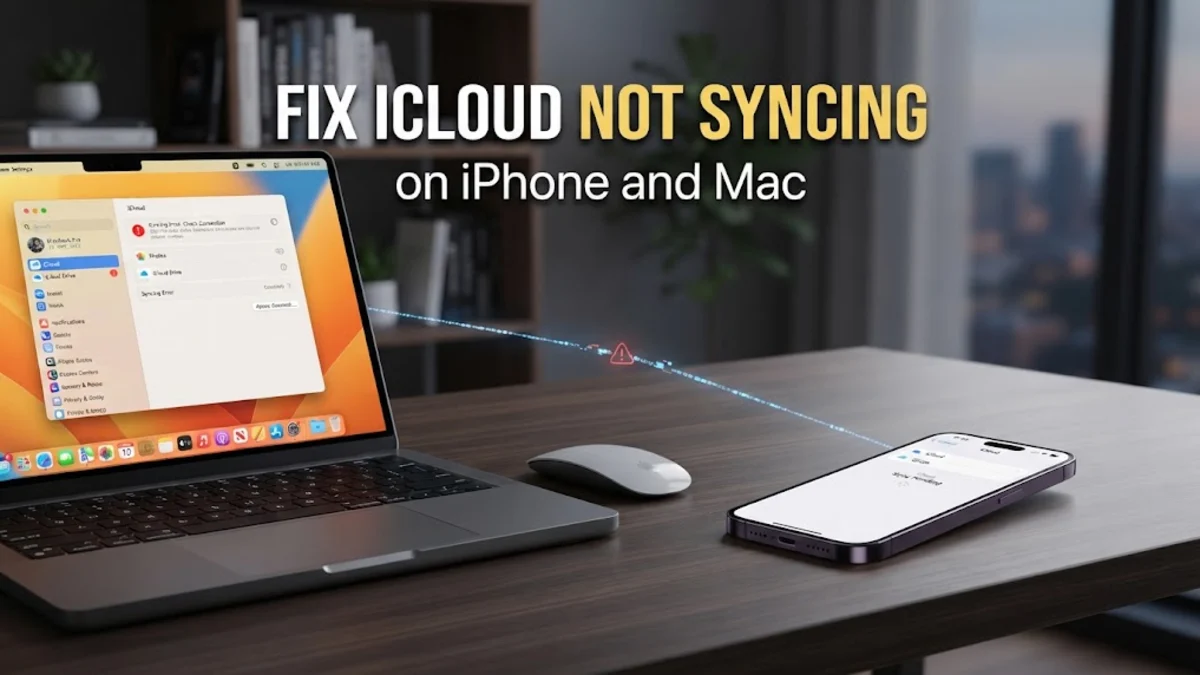
When your files, photos, or notes fail to appear across your devices, figuring out why iCloud is not syncing can be frustrating. This common issue usually stems from poor internet connections, incorrect account settings, or minor software glitches that interrupt background data transfer.
Fortunately, you can resolve most syncing roadblocks by verifying your server status, checking your Apple ID credentials, and adjusting individual app permissions. Follow this practical troubleshooting guide to restore seamless cloud synchronization across all your Apple devices.
Check Apple System Status and Internet Connection
Before changing any settings on your devices, you should rule out temporary server outages and connection problems. Apple occasionally performs maintenance on its data centers, which can pause iCloud services worldwide for short periods. Open a web browser on your device and visit the official Apple System Status page to verify that iCloud services have green indicator lights next to them. If you see a yellow or red indicator, the problem is on Apple's end, and you simply need to wait until engineers resolve the server-side disruption.
If Apple's servers are fully operational, your local internet connection is the next most likely culprit. iCloud requires a stable, active Wi-Fi or cellular connection to upload and download data packets. Try opening a web page or streaming a short video to confirm your internet works properly. If you are on a restricted cellular network, navigate to Settings > Cellular and ensure that iCloud Drive and specific apps are permitted to use mobile data. Switching your device to Airplane Mode for ten seconds and then turning it back off can also refresh your network handshake and clear out minor routing glitches.
Verify You Are Signed Into the Correct Apple Account
A surprisingly common reason for missing data is being signed into different Apple IDs across your devices without realizing it. If your iPhone uses one email address for iCloud and your iPad uses another, your files will never merge or synchronize. To check this on an iPhone or iPad, open Settings and tap your name at the very top of the screen. Look closely at the email address listed directly beneath your name and profile picture to ensure it matches the account you expect to use.
If you discover a mismatch, you will need to sign out of the incorrect account and sign back in with your primary credentials. Keep in mind that signing out of iCloud temporarily removes synced data from the local device cache until you sign back in and re-download it from the cloud. If you share devices with family members, double-check that you have not accidentally toggled on someone else's iCloud profile within shared apps like Notes, Reminders, or Photos, which can isolate your data and prevent it from propagating to your other hardware.
Check Individual App Sync Settings in iOS and macOS
Sometimes iCloud is working perfectly overall, but a specific app has lost permission to use cloud storage. Photos, Notes, and Pages each maintain individual toggles that dictate whether they can communicate with your iCloud storage space. On your iPhone, go to Settings, tap your name, select iCloud, and then tap See All under the Saved to iCloud section. Review the list of apps and verify that the toggles next to your essential applications are switched on.
If a toggle is already enabled but sync is still frozen, try turning the switch off, waiting about thirty seconds, and then turning it back on. This action forces the application to re-establish a secure link with your iCloud container and initiates a fresh metadata scan. On a Mac, you can check equivalent permissions by opening System Settings, clicking your Apple ID name, selecting iCloud, and inspecting the apps using iCloud list.
Sign Out and Sign Back Into Your Apple ID
When background synchronization services become completely unresponsive, clearing your local authentication tokens by signing out and back into your Apple ID often forces a hard reset. On your iOS device, open Settings, tap your name, scroll to the bottom of the screen, and tap Sign Out. You will be prompted to enter your Apple ID password to disable the Find My feature before the sign-out process can complete safely.
After you have successfully signed out, restart your device to clear out transient system memory. Once the device boots back up, return to the main settings menu, sign back into your Apple ID, and enter your device passcode or two-factor authentication code when requested. Give the system ten to fifteen minutes to re-authenticate with Apple's servers and rebuild your local database indexes. This process downloads account metadata anew and frequently clears out stubborn sync jams.
Free Up iCloud Storage Space
If your cloud storage quota is completely full, iCloud will immediately pause all incoming sync requests from your devices. When you hit your storage limit, new photos, document edits, and device backups cannot be uploaded until you make room or upgrade your plan. To check your current storage breakdown on an iPhone, open Settings, tap your name, select iCloud, and look at the storage status graph at the top of the interface.
If your storage meter is maxed out, tap Manage Account Storage or Upgrade to see which file categories are consuming the most space. You can permanently delete old device backups, clear out large video files from your iCloud Photos library, or remove bulky attachments from iCloud Mail. Alternatively, you can upgrade to a higher-tier iCloud+ subscription to instantly expand your available capacity and resume normal synchronization.
Update Your iPhone, iPad, or Mac Operating System
Running outdated software versions on your Apple devices can introduce compatibility bugs that break cloud synchronization protocols. Apple regularly issues system updates that include crucial security patches and backend framework improvements for iCloud. To check for pending updates on an iPhone or iPad, open Settings, tap General, and select Software Update. If an update is available, connect your device to a stable Wi-Fi network, plug it into a power source, and tap Update Now.
Similarly, Mac users should open System Settings, navigate to General, and click Software Update to install the latest macOS patches. Keeping your operating system current ensures that your device uses the most modern communication APIs, minimizing errors when exchanging encrypted data packets with iCloud data centers.
The bottom line
Troubleshooting iCloud sync issues requires patience, but working methodically through network checks, account verifications, and storage limits will almost always restore normal function. Once you identify the root cause, your files, photos, and settings will flow smoothly across all your devices again.
Frequently asked questions
Why does iCloud take so long to sync large photo libraries?
Large photo libraries contain gigabytes of high-resolution images and videos that require significant bandwidth. Apple intentionally throttles background uploads when your device battery is low or when you are connected to a metered cellular network to preserve data and battery life.
Will signing out of iCloud delete my photos and files?
When you sign out, iOS will ask if you want to keep a copy of your data on the device. If you choose to keep them, your local files remain safe, but they will stop syncing with the cloud until you sign back in.
How can I force iCloud to sync immediately?
You can force a manual sync in specific apps by pulling down to refresh in Notes or Mail, or by opening the Photos app and scrolling to the bottom of the Library tab to check sync progress.
Does low power mode stop iCloud syncing?
Yes, Low Power Mode temporarily pauses background activities, including iCloud Photos uploads and certain cloud synchronization tasks, to conserve battery power.
What should I do if only one app is not syncing to iCloud?
Go to your iCloud settings, locate that specific app in the app list, toggle its switch off, wait thirty seconds, and turn it back on to reset its connection.