How to Fix PC Crashing on Windows 11 and 10
Dealing with a computer that suddenly freezes, restarts, or displays a blue screen can be incredibly frustrating, especially when you are in the middle of important work or gaming. PC crashing is a common issue on Windows 11 and Windows 10, typically triggered by hardware overheating, driver conflicts, corrupted system files, or faulty memory modules.
Fortunately, you can systematically diagnose and resolve most stability issues at home without professional help. By following this step-by-step troubleshooting guide, you will learn how to identify the root cause of your system crashes and apply effective fixes to restore your computer to peak performance.
Check for Overheating and Clean Hardware Dust
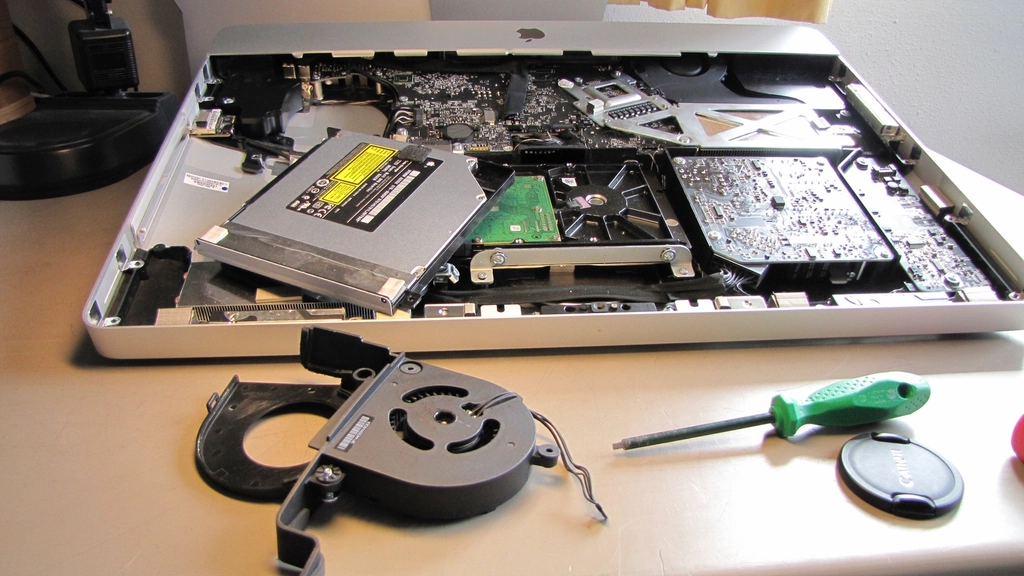
Hardware overheating is one of the most frequent physical causes of unexpected PC crashes and sudden shutdowns. When internal components like your CPU or graphics card exceed safe operating temperatures, your system automatically shuts down or crashes to prevent permanent thermal damage. Dust buildup inside the chassis, failing cooling fans, or dried thermal paste can severely restrict airflow and heat dissipation.
To fix this, start by powering down your computer completely and unplugging the power cable. Open the side panel of your PC case and use a can of compressed air to gently blow away dust from all fans, heat sinks, and ventilation grilles. Make sure that all case fans and the CPU cooler fan are spinning properly when you turn the computer back on. If your CPU temperatures remain abnormally high while idle, you may need to reapply fresh thermal paste between the processor and the cooler heatsink. You can monitor your temperatures using hardware diagnostic tools to confirm whether thermal throttling or overheating is triggering your crashes.
Update Outdated Graphics and System Drivers
Outdated, corrupted, or incompatible device drivers are another leading culprit behind random Windows crashes and Blue Screen of Death errors. Your graphics card, motherboard chipset, and network adapters rely on stable software communication with your operating system. When a driver encounters an unresolvable conflict or bug, it can drag down the entire operating system and cause a sudden system freeze or restart loop.
You can update your drivers easily through official channels. For Windows system updates, navigate to Settings > Windows Update and check for available updates. For graphics drivers, visit the official website of your GPU manufacturer or use their dedicated management software to download and install the latest stable release. Avoid third-party driver updater tools, as they often install incorrect versions or bundle adware. After updating your drivers, restart your computer to apply the changes and monitor system stability during your regular daily tasks.
Run System File Checker and DISM Scans
Corrupted or missing system files can destabilize Windows 11 and Windows 10, leading to erratic behavior, application errors, and sudden crashes. Windows includes powerful built-in command-line utilities designed to scan your storage drive, identify damaged system files, and automatically repair or replace them using a healthy cached copy from the system image.
To run these scans, click the Start menu, type cmd, right-click on Command Prompt, and select Run as administrator. First, type the deployment image servicing command DISM.exe /Online /Cleanup-image /Restorehealth and press Enter. Wait for the process to reach one hundred percent. Once completed, type the system file checker command sfc /scannow and press Enter. This scan may take several minutes. Once the tool finishes repairing any detected integrity violations, restart your PC and check whether the crashing behavior has stopped.
Test and Troubleshoot Faulty RAM Modules
Faulty, unstable, or improperly seated random access memory modules will almost always cause severe system instability, application crashes, and unpredictable blue screens. If a memory stick fails to communicate correctly with the motherboard or develops bad sectors, Windows will crash whenever it attempts to read or write data to that specific memory address.
Begin troubleshooting by powering off your computer, opening the case, and reseating your RAM sticks. Carefully unlatch each module, wipe away any dust from the slots, and click them firmly back into place until the retention clips lock securely. If your PC continues to crash, use the built-in Windows Memory Diagnostic tool to test your hardware. Press Windows Key + R, type mdsched.exe, and select Restart now and check for problems. Your PC will reboot into a diagnostic screen and scan your memory for errors. If errors are detected, you will need to replace the faulty RAM stick.
Check for Conflicting Third-Party Software and Malware
Aggressive background applications, conflicting security suites, and malware infections can severely disrupt system operations and trigger sudden crashes. Certain third-party antivirus programs, overclocking utilities, or improperly uninstalled software remnants can hook deeply into the Windows kernel and cause fatal system exceptions.
To rule out software conflicts, perform a clean boot to start Windows with a minimal set of drivers and startup programs. Press Windows Key + R, type msconfig, go to the Services tab, check Hide all Microsoft services, and click Disable all. Next, go to the Startup tab, open Task Manager, and disable non-essential startup items. Restart your computer and test system stability. If the crashes stop, re-enable your programs one by one to identify the culprit. Additionally, run a full system scan using Windows Security to ensure malicious software is not causing the instability.
Reset or Reinstall Windows as a Last Resort
If you have exhausted all hardware checks, driver updates, and software troubleshooting steps without success, deep-seated operating system corruption may be the underlying cause. When core Windows registries or system architecture become permanently damaged, performing a clean reset or reinstallation is often the most efficient way to restore full stability.
Before proceeding, ensure you back up all important personal files to an external drive or cloud storage. In Windows 11 or Windows 10, navigate to Settings > System > Recovery. Under Recovery options, locate Reset this PC and click Reset PC. Choose whether to keep your personal files or remove everything for a completely clean slate. Follow the on-screen prompts to complete the reset process. Once Windows reinstalls itself, your computer will run with a fresh configuration, effectively eliminating persistent crashing issues caused by software anomalies.
The bottom line
Fixing a crashing PC requires a methodical approach, starting with basic hardware maintenance like cleaning dust and progressing to driver updates, system scans, memory tests, and software audits. By following these structured troubleshooting steps, you can pinpoint the exact cause of system instability and restore your Windows computer to reliable, smooth performance.
Frequently asked questions
Why does my PC crash only when I play video games?
Gaming places heavy demands on both your graphics card and processor, which frequently triggers crashes caused by overheating, insufficient power supply wattage, or unstable GPU overclocks.
How can I tell what caused my PC to crash?
You can check the Windows Event Viewer by typing eventvwr in the Run dialog and looking under Windows Logs > System for critical Kernel-Power errors or driver failures.
Can an unstable XMP or EXPO profile cause PC crashes?
Yes, running your RAM at aggressive overclocked memory profiles via BIOS settings can easily lead to system instability and random crashes if your hardware cannot sustain the rated speed.
Should I use third-party driver updater software?
No, third-party driver updaters are generally discouraged because they can install incorrect drivers, cause system instability, or bundle unwanted bloatware and ads. Stick to official manufacturer downloads or Windows Update.
What should I do if my PC crashes to a blue screen with a stop code?
Note down the specific stop code or error message displayed on the blue screen, such as MEMORY_MANAGEMENT or CRITICAL_PROCESS_DIED, as this will point you directly toward the failing component or driver.