How to Fix Windows 11 Freezing
When your computer suddenly locks up and stops responding, trying to fix Windows 11 freezing can be a frustrating experience. Random system freezes often stem from outdated drivers, corrupted system files, background software conflicts, or underlying hardware issues that disrupt normal operations.
By following a systematic troubleshooting approach, you can identify the root cause of the freezes and restore your system's stability without needing a complete reinstallation. Here is how to diagnose and resolve freezing issues on your Windows 11 PC step by step.
Boot Into Safe Mode to Diagnose Third-Party Conflicts
Safe Mode starts Windows in a basic state, using a limited set of files and drivers. If your PC does not freeze in Safe Mode, you can rule out core hardware failure and narrow the culprit down to a third-party app or driver.
To enter Safe Mode, open the Start menu and click on the Power icon. Hold down the Shift key on your keyboard while clicking on Restart. Your computer will boot into a blue options screen. Navigate to Troubleshoot > Advanced options > Startup Settings and click Restart. Once your PC reboots, press 4 or F4 to enable Safe Mode. Observe your system's behavior for a while; if the freezing stops, a recently installed program or utility is likely causing the conflict and should be uninstalled through your system settings.
Update Outdated Graphics and System Drivers
Outdated or corrupted display drivers are one of the most common catalysts for sudden system freezes, especially during gaming or video playback. Ensuring your hardware communicates correctly with the operating system is vital for seamless performance.
Right-click the Start button and select Device Manager. Expand the Display adapters category, right-click your graphics card, and choose Update driver. Select Search automatically for drivers and follow the on-screen instructions. Additionally, check for optional updates by going to Settings > Windows Update > Advanced options > Optional updates to install any pending hardware or firmware updates provided by your manufacturer.
Run System File Checker and DISM Scans
Corrupted system files can destabilize Windows 11 and cause random system locking. Running built-in command-line tools helps repair missing or damaged operating system components automatically.
Click the search bar in your taskbar, type cmd, right-click on Command Prompt, and select Run as administrator. In the console window, type DISM.exe /Online /Cleanup-image /Restorehealth and press Enter. Let the tool finish completely. Afterward, type sfc /scannow and press Enter. This second command scans all protected system files and replaces corrupted files with a cached copy. Once the verification reaches 100 percent, restart your computer to apply the repairs.
Adjust Virtual Memory and Page File Settings
When your physical RAM fills up, Windows utilizes virtual memory on your storage drive to handle excess data. If the page file configuration is mismanaged or corrupted, your entire system can lock up abruptly.
To adjust this, open the Start menu search, type View advanced system settings, and open the control panel item. Under the Advanced tab, click the Settings button in the Performance section. Navigate to the Advanced tab again, click Change under Virtual memory, and uncheck Automatically manage paging file size for all drives. Select your main drive, choose System managed size or set a custom initial and maximum size, click Set, and then restart your computer.
Perform a Clean Boot to Isolate Background Apps
Background services and startup applications launched by third-party software can frequently trigger sudden software freezes. A clean boot disables these non-essential programs so you can test system stability.
Press Windows Key + R to open the Run dialog box, type msconfig, and press Enter. In the System Configuration window, go to the Services tab, check the box for Hide all Microsoft services, and then click Disable all. Next, go to the Startup tab, click Open Task Manager, and disable any startup programs listed there. Close Task Manager, click OK on the System Configuration window, and restart your computer.
Check for Overheating and Hardware Instability
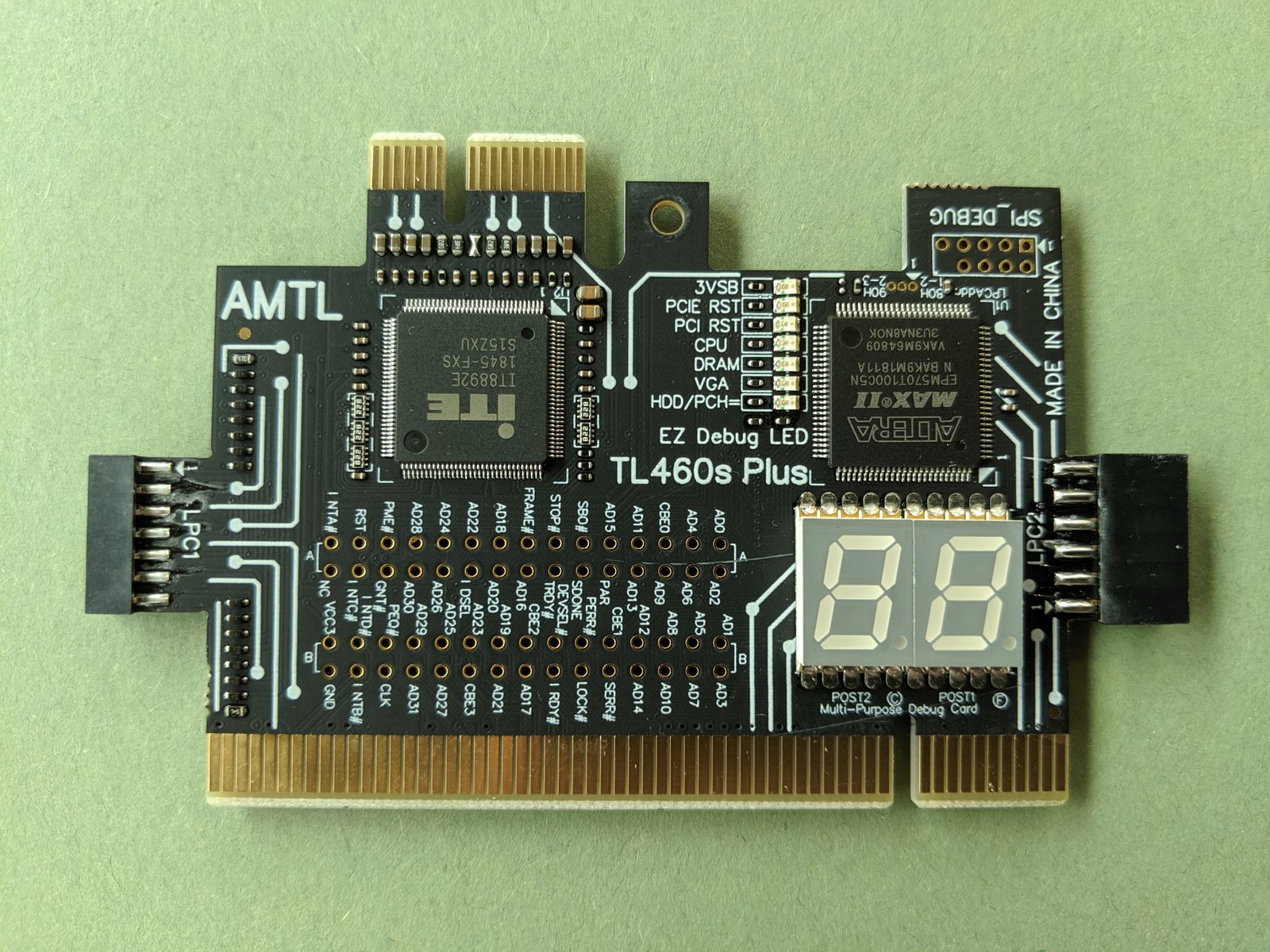
Physical hardware issues such as overheating components, failing storage drives, or poorly seated RAM modules can cause your Windows 11 PC to freeze instantly without logging an error code.
Ensure your computer's cooling fans and vents are free from dust buildup and that air flows freely around the chassis. You can download hardware monitoring software to check your CPU and GPU temperatures under load. If your system freezes only when tasks become demanding, thermal throttling or power supply inconsistencies may be the root cause. Reseating your RAM sticks or testing them individually can also rule out memory stick failure.
The bottom line
Fixing Windows 11 freezing requires patience as you systematically eliminate potential software conflicts, driver bugs, and hardware problems. By following these structured troubleshooting steps, from Safe Mode diagnostics to system file repairs, you can restore your PC to peak stability and prevent future lockups.
Frequently asked questions
Why does my Windows 11 PC freeze randomly?
Random freezes are usually caused by outdated graphics drivers, corrupted system files, faulty RAM, background software conflicts, or overheating hardware components.
How do I force restart a frozen Windows 11 computer?
If your computer is completely unresponsive, press and hold the physical power button on your PC or laptop for about 5 to 10 seconds until it turns off completely. Wait a few seconds before turning it back on.
Can a bad Windows update cause freezing?
Yes, occasionally a buggy operating system update can cause stability issues. If freezing started immediately after an update, you can go to your update history and uninstall the recent update.
Does reinstalling Windows fix freezing permanently?
A clean installation of Windows 11 will eliminate all software-based freezes and corrupted files. However, if the issue persists after a fresh install, the root cause is likely hardware-related.
How do I know if RAM is causing my PC to freeze?
You can test your memory by searching for Windows Memory Diagnostic in your taskbar search, running the tool, and letting your computer check your memory modules for hardware errors.