Why Is My Windows 10 So Slow? How to Speed It Up
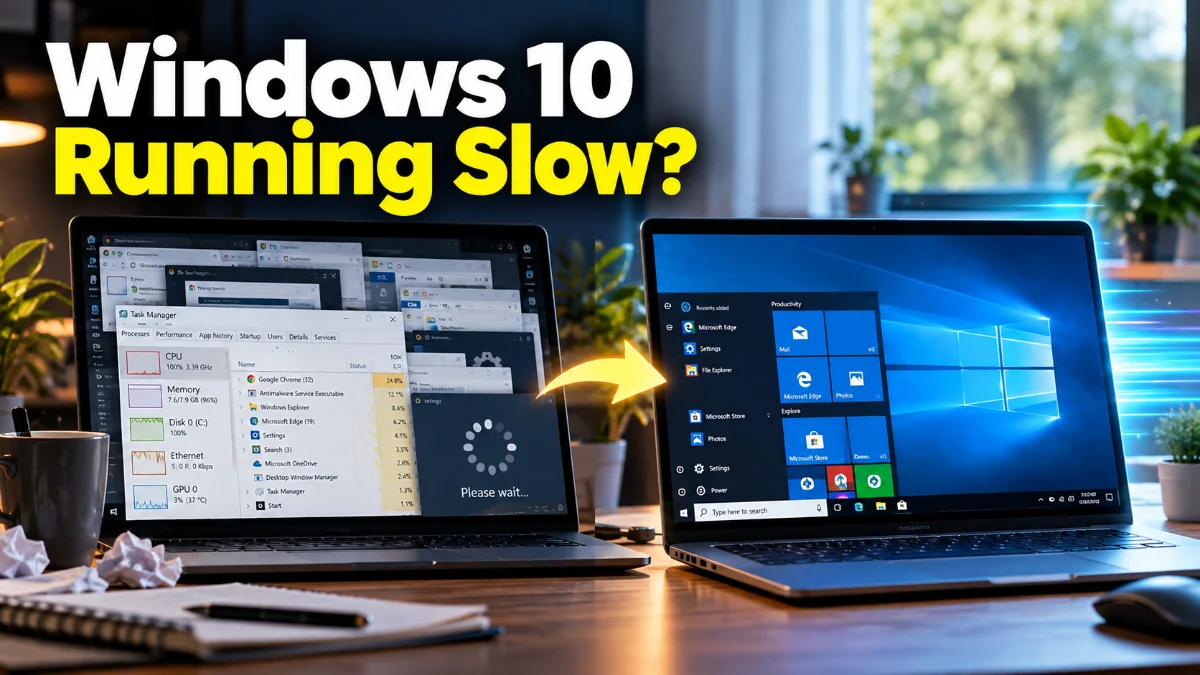
A slow Windows 10 computer usually stems from resource-heavy startup apps, low system drive space, background processes, or outdated drivers. Over time, cached temporary files, corrupted system assets, and fragmented data accumulate, forcing your processor and memory to work much harder than necessary.
If your PC takes minutes to boot up, delays when opening applications, or stutters during simple multitasking, you do not need to replace your hardware immediately. Following a structured troubleshooting approach will help you pinpoint the bottleneck and restore your computer to peak performance.
Disable High-Impact Startup Programs
When you turn on your PC, many applications automatically launch in the background. While cloud syncing tools and security utilities benefit from starting automatically, chat apps, game launchers, and media players frequently add unnecessary delay to your boot time and consume memory before you even start working.
To stop unnecessary startup programs, open Task Manager by pressing Ctrl + Shift + Esc. Click More details if you see the compact view, then navigate to the Startup tab. Examine the Startup impact column for applications marked as High or Medium. Right-click any non-essential application, such as third-party updaters or launcher services, and select Disable. Disabling these entries prevents them from loading automatically without deleting the software from your computer.
Clear Disk Space and Run Storage Sense
Windows 10 requires adequate free storage space on your primary system drive (usually C:) to manage virtual memory paging files and temporary system files. When free space drops below 15 percent of total capacity, system performance degrades noticeably, causing app crashes and slow file indexing.
You can quickly clear junk files using built-in maintenance tools. Navigate to Settings > System > Storage. Toggle the switch under Storage Sense to On to allow Windows to delete temporary files automatically. Next, click Temporary files in the main window, wait for the scan to finish, select items like Previous Windows installations, Delivery Optimization Files, and Temporary Internet Files, then click Remove files. For mechanical hard drives, type Defragment and Optimize Drives into the Start menu search, select your C: drive, and click Optimize to reorder stored data blocks.
Troubleshoot High CPU and Memory Usage
Background services can quietly consume processor cycles and RAM, leaving insufficient resources for active applications. Common culprits include misbehaving browser processes, rogue background tasks, or Windows system services like SysMain (formerly SuperFetch) and Windows Search when they get stuck in indexing loops.
Press Ctrl + Shift + Esc to launch Task Manager, and click the Processes tab. Click the top of the CPU or Memory column to sort running tasks from highest to lowest consumption. If a specific application is consuming over 80 percent of your resources continuously, select it and click End task.
If a system service like SysMain consistently causes 100 percent disk usage, you can temporarily disable it to verify if performance improves:
- Press Windows Key + R, type
services.msc, and press Enter. - Scroll down to find SysMain.
- Right-click SysMain and select Properties.
- Change the Startup type to Disabled, click Stop under Service status, and click OK.
Adjust Power Settings and Visual Effects
Windows 10 features visual animations and balanced power saving modes that prioritize battery life or low energy consumption over maximum computing speed. On older desktops and laptops, these settings can cause micro-stutters and delayed window rendering.
To optimize power performance, navigate to Settings > System > Power & sleep, then click Additional power settings on the right side of the window. Change your active plan from Balanced to High performance. If you are using a laptop, keep in mind that High performance uses more battery power when unplugged.
To reduce graphical overhead and increase window responsiveness:
- Press Windows Key + R, type
sysdm.cpl, and press Enter. - Go to the Advanced tab and click Settings under the Performance section.
- Select the radio button for Adjust for best performance or uncheck Animate windows when minimizing and maximizing and Show shadows under windows.
- Click Apply and then OK.
Repair Corrupted System Files with SFC and DISM
Corrupted system libraries and missing Windows component files can cause overall system sluggishness, unresponsiveness, and slow context menus. Windows includes two command-line diagnostic utilities designed to verify file integrity and restore corrupted data from a healthy system image.
To scan and repair core system files, follow these steps:
- Type
cmdin the Start menu search bar. - Right-click Command Prompt and choose Run as administrator.
- Type
DISM.exe /Online /Cleanup-image /Restorehealthand press Enter. Wait for the deployment image tool to complete its online repair process. - Type
sfc /scannowand press Enter.
The System File Checker will scan protected system resources and replace corrupted files automatically. Once finished, restart your computer to apply the changes.
Update Hardware Drivers and Check for Malware
Outdated chipset, storage controller, or graphics card drivers can cause poor hardware optimization and slow down task execution. Similarly, malicious background processes like ad miners or spyware silently drain system memory and processing bandwidth.
Start by checking for essential system updates. Go to Settings > Update & Security > Windows Update, and click Check for updates. Be sure to review the View optional updates link to install pending driver software for your motherboard and storage devices.
Next, perform a deep security scan. Search for Windows Security in the Start menu, navigate to Virus & threat protection, click Scan options, choose Full scan, and click Scan now. Alternatively, running the official Microsoft Safety Scanner can detect hidden malware that traditional real-time protection might miss during standard operation.
The bottom line
Addressing a slow Windows 10 PC involves clearing startup bloat, freeing storage space, checking background tasks, and repairing corrupted system files. Following these maintenance steps regularly ensures smooth system responsiveness. If performance remains sluggish after exhausting these software tweaks, upgrading from a traditional mechanical hard drive to a Solid State Drive (SSD) or expanding your RAM capacity provides the most effective hardware speed boost.
Frequently asked questions
Why is my Windows 10 PC slow all of a sudden?
A sudden drop in speed is often triggered by a stuck background process consuming 100% CPU or disk resources, a pending Windows update installing in the background, low system drive space, or recent malware infection.
Will clearing temporary files delete my personal photos or documents?
No. Temporary files consist of cached app data, web browser logs, and temporary installation packages. Using Storage Sense or Disk Cleanup safely removes unneeded system cache without affecting personal files saved in your documents or photos folders.
Does fast startup actually help a slow PC?
Fast Startup reduces boot time by saving system state information to a hibernation file. However, if that file becomes corrupted, it can cause system lag over time. Performing a full system restart clears RAM and refreshes core services.
How much free hard drive space does Windows 10 need to run smoothly?
Windows 10 requires at least 15 to 20 percent of free space on the primary C: drive to manage system updates, virtual memory page files, and temporary application caches efficiently.