Why Is My Router Flashing Red and How to Fix It
When you notice your wireless router flashing a persistent red light, it usually means your internet connection has dropped entirely or the hardware has encountered a critical system fault. Because your home network relies on a stable link between your ISP and your devices, a red indicator demands immediate troubleshooting to get you back online.
This guide walks you through the primary causes behind a red flashing router light and provides clear, actionable steps to diagnose and resolve the issue quickly, whether you are dealing with loose cables, regional outages, or firmware glitches.
Understanding Why Your Router Flashes Red
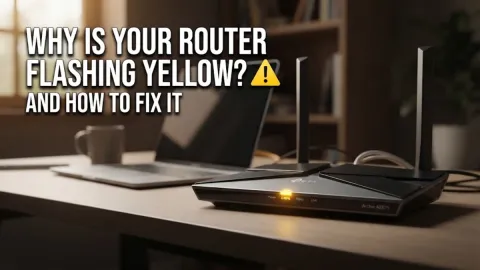
A flashing red light on most modern routers serves as an urgent status warning. Unlike a blinking green or blue light which often indicates data transmission or connection pairing, red signals a failure state. The most common cause is a complete loss of internet service from your provider, meaning the router cannot establish a handshake with the wider network. Other frequent culprits include an interrupted firmware update, physical overheating, or a severe power fluctuation that disrupted internal components.
Before you start pulling cables or changing settings, take a moment to observe the exact pattern of the light. Is it blinking rapidly, pulsing slowly, or staying solid red? A rapid flash usually indicates a hardware boot failure or authentication error, while a slow pulse typically points toward an upstream ISP issue. Knowing this distinction helps you apply the correct fix right away without wasting time on unnecessary steps.
Step 1: Inspect All Cable Connections
The quickest and most common reason for a red router light is a loose or disconnected cable. Over time, vibrations, pets, or accidental bumps can cause Ethernet cables, coaxial lines, or fiber optic cords to slip out of their ports. Start by examining the back of your router and your modem or optical network terminal (ONT). Ensure every cable is clicked firmly into place. If you notice any frayed wiring, bent pins, or damaged connectors, you will need to replace the cable immediately to restore a reliable signal.
Pay special attention to the internet port, often labeled as WAN or Internet. If the Ethernet cord connecting your modem to your router is plugged into a regular LAN port by mistake, your network will fail. Unplug the cable, wait five seconds, and plug it back into the designated internet port until you hear a distinct click. Check that the wall outlet and power adapter are also securely connected with no loose contacts.
Step 2: Perform a Complete Power Cycle
Temporary software glitches and memory overflows can cause your router to crash and display a flashing red light. A complete power cycle clears the router's volatile memory and forces it to re-establish a fresh connection with your internet service provider. Unplug the power adapter from the back of your router and your modem. Leave both devices completely unpowered for at least 60 seconds to allow all internal capacitors to drain fully and reset their operating states.
Once the minute has passed, plug your modem in first and wait a couple of minutes until its status lights stabilize. Next, plug the power cable back into your router. Watch the indicator lights as the router boots up through its startup sequence. In many cases, this simple power reset clears out transient software errors and turns the flashing red light back to a steady, operational green or white.
Step 3: Check for an ISP Outage or Line Fault
If your physical connections are secure and a power cycle fails to fix the issue, the problem likely originates outside your home. Internet service providers frequently perform maintenance or experience unexpected infrastructure outages that sever your connection at the street level. Check your smartphone using mobile data to see if your provider has posted an outage notice on their official website or social media channels. You can also log into your provider's mobile app to run an automated line diagnostic.
If there is a confirmed outage in your local area, your router will continue to flash red until technicians repair the external line. If no outage is reported, call your provider's customer support line. Ask them to run a remote port check on your account to verify if your modem and router are properly communicating with their local exchange servers or fiber nodes.
Step 4: Inspect for Overheating and Environmental Factors
Routers generate significant heat during normal operation, and restricted airflow can push internal temperatures past safe thresholds. When a router overheats, its internal safety protocols may trigger a hardware freeze, resulting in a flashing red warning light. Check the physical temperature of your router by touching the casing. If it feels excessively hot, it may be struggling in a confined space, such as a closed entertainment center, a media cabinet, or direct sunlight near a window.
Move your router to an open, well-ventilated area elevated off the floor on a hard surface. Avoid placing it near other heat-producing appliances or behind heavy books and electronics. If dust has accumulated inside the ventilation grilles, use a can of compressed air to clear the airways. Let the device cool down for fifteen minutes before plugging it back in to see if thermal protection mode was the root cause.
Step 5: Perform a Factory Reset as a Last Resort
When all else fails and your router remains stuck on a flashing red light, corrupted configuration settings or a failed firmware update might be to blame. A factory reset wipes all custom settings, passwords, and connected device profiles, returning the router to its original out-of-the-box state. Locate the recessed Reset button on the back or bottom panel of your router. Use a paperclip or a SIM ejector tool to press and hold the button for approximately 10 to 15 seconds until all indicator lights flash simultaneously.
Release the button and allow the router five minutes to complete the factory restore and reboot process. Once it restarts, you will need to reconnect to the default Wi-Fi network name printed on the sticker underneath the device and log into the admin panel to set up your network name and password again. This drastic step almost always resolves deep software corruption issues.
The bottom line
A flashing red router light can be frustrating, but working through systematic checks from cable inspections to power cycles usually resolves the issue quickly. Always verify your hardware connections before contacting your provider, and keep your firmware updated to prevent future network drops.
Frequently asked questions
What does a flashing red light mean on my router?
It typically indicates a complete loss of internet connection, an authentication failure with your ISP, or a critical hardware malfunction.
How long should I leave my router unplugged during a power cycle?
You should leave both your modem and router unplugged for at least 60 seconds to ensure all residual electrical charge dissipates and memory clears completely.
Will a factory reset erase my Wi-Fi password?
Yes. A factory reset returns the router to its default settings, which means your custom Wi-Fi network name and password will revert to the factory defaults printed on the device label.
Can bad weather cause my router to flash red?
Yes. Lightning storms, power surges, or heavy rain can damage external telephone lines, coaxial cables, or neighborhood node equipment, causing your router to drop its connection.
When should I contact my internet service provider?
You should contact your provider if you have replaced all suspect cables, performed a factory reset, and verified that your area has no active hardware damage or local outages.