Why Is My Router Flashing Blue? How to Fix It
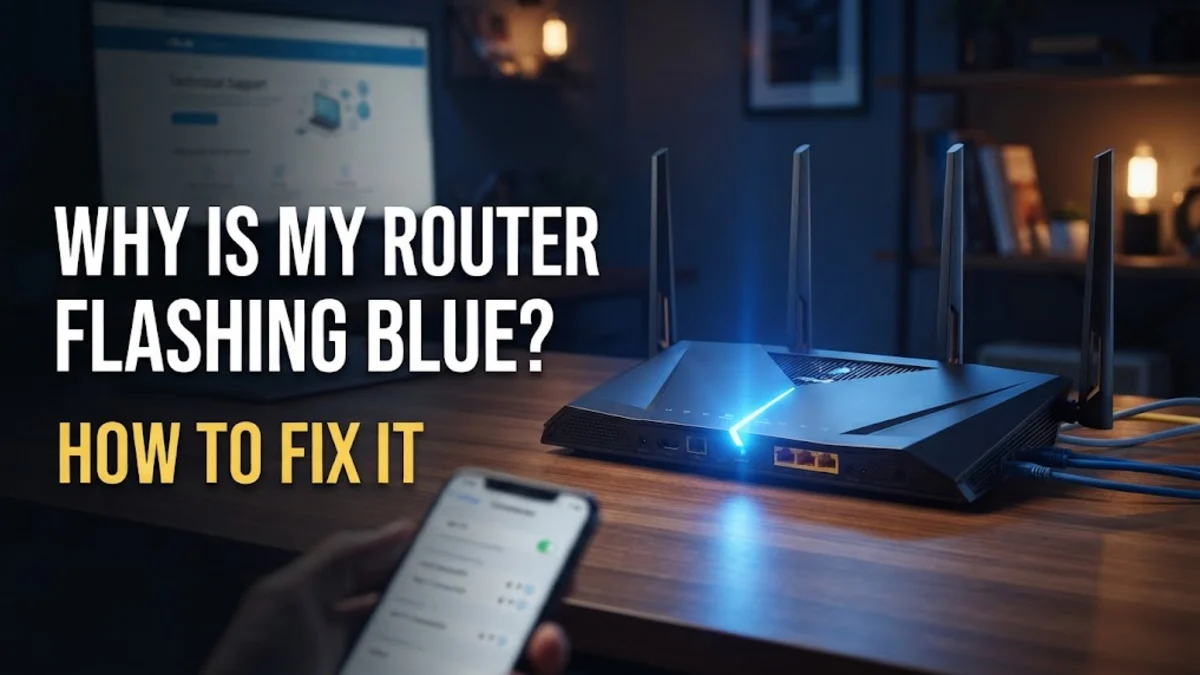
A flashing blue light on your router typically indicates that the device is attempting to establish a connection with your internet service provider or is currently undergoing a firmware update. While some manufacturers use a flashing blue LED to signal normal pairing or startup activity, a continuous blue blink often means your connection is stalled.
Understanding what this indicator light means allows you to troubleshoot the issue efficiently and get your home network back online without unnecessary frustration.
Understanding Your Router Status Lights
A flashing blue light on your router usually signals that the device is trying to connect to the internet, searching for a Wi-Fi client to pair with, or downloading a critical firmware update. Different internet service providers and router manufacturers assign specific meanings to their LED indicator lights. For instance, on some modern mesh systems, a pulsing blue light indicates that the satellite unit is ready to be paired with the main router.
However, if the blue light continues to flash indefinitely without turning solid, it means the hardware cannot establish a stable upstream connection. Before panicking, check your router manual or look up your specific model online to confirm what a flashing blue light represents for your brand. Recognizing this baseline behavior helps you determine whether your router is performing a normal routine operation or facing a genuine network failure.
Check All Physical Cable Connections
Loose, damaged, or disconnected cables are the most common culprits behind unexpected connection drops and flashing status lights. Go to your router and examine every wire plugged into the back ports. Ensure that the Ethernet cable connecting your modem to the router is clicked securely into place. If you use a cable or fiber setup, verify that the coaxial or optical line is screwed in tightly and free from sharp bends or physical damage.
Sometimes, a cable might appear plugged in while the internal pins fail to make proper contact. Unplug both the power cord and all network cables, wait a moment, and plug them back in firmly. If you have a spare Ethernet cable lying around, swap it out to rule out a faulty wire causing the persistent blue blinking. Securing your physical hardware eliminates hardware communication barriers immediately.
Perform a Power Cycle Reset
Routers operate like miniature computers that run continuously, which can lead to memory leaks, overheating, or frozen background processes. A simple power cycle often clears temporary glitches that prevent your device from reaching the internet. Begin by unplugging the power adapter from the back of both your modem and your router. Leave both devices completely unpowered for at least 30 to 60 seconds to allow all internal capacitors to drain fully.
Once the waiting period is over, plug your modem back in first and wait a minute or two until its connection lights stabilize. Next, plug the power cord back into your router. Watch the indicator lights as the router boots up; the flashing blue light should eventually transition to a solid color, indicating a successful connection to the network. This reliable method fixes a vast majority of temporary synchronization errors.
Check for Local ISP Outages
Even if your hardware functions perfectly, your router will continue to flash blue if your internet service provider is experiencing an outage in your area. Providers frequently perform scheduled maintenance or suffer unexpected line disruptions due to weather or hardware failures at local switching stations. To check for outages, visit your provider is official website or mobile app using your smartphone while connected to mobile data.
You can also check community outage trackers or social media channels to see if other customers in your neighborhood are reporting the same issue. If an outage is confirmed, there is little you can do on your end except wait for the provider to restore service. Once the upstream connection comes back online, your router should automatically stop flashing blue and resume normal operations.
Perform a Factory Reset
If you have checked your cables, power cycled the equipment, and confirmed there are no local outages, your router might have corrupted configuration files or corrupted firmware settings. In this scenario, performing a factory reset restores the device to its original out-of-the-box state. Locate the small recessed reset button on the back or bottom of your router, typically labeled Reset.
Using a paperclip or a SIM ejector tool, press and hold the reset button for about 10 to 15 seconds until the status lights begin to flash or turn off. Release the button and allow the router a few minutes to reboot completely. Keep in mind that a factory reset will erase your custom Wi-Fi network name and password, so you will need to reconnect your devices using the default login credentials printed on the bottom label of the router.
The bottom line
Dealing with a flashing blue light on your router can be frustrating, but following a systematic troubleshooting approach helps you identify and resolve the issue quickly. By checking your physical connections, power cycling your equipment, verifying service status, and performing a factory reset if necessary, you can restore your home internet connection without unnecessary stress.
Frequently asked questions
What does a flashing blue light mean on my router?
A flashing blue light typically means the router is trying to connect to the internet, updating its firmware, or waiting to pair with a satellite device.
How long should I wait during a router power cycle?
You should leave both your modem and router unplugged for at least 30 to 60 seconds before plugging them back in.
Will a factory reset delete my Wi-Fi password?
Yes, a factory reset clears all custom settings, returning your Wi-Fi name and password to the factory defaults listed on the device sticker.
Can bad weather cause my router to flash blue?
Yes, severe weather can cause outages at your internet service provider's local infrastructure, cutting off the signal to your home.
When should I call my internet service provider?
You should contact your provider if you have reset your hardware, checked all cables, and confirmed there are no local outages, yet the connection still fails.