How to Fix a PC Not Working Properly
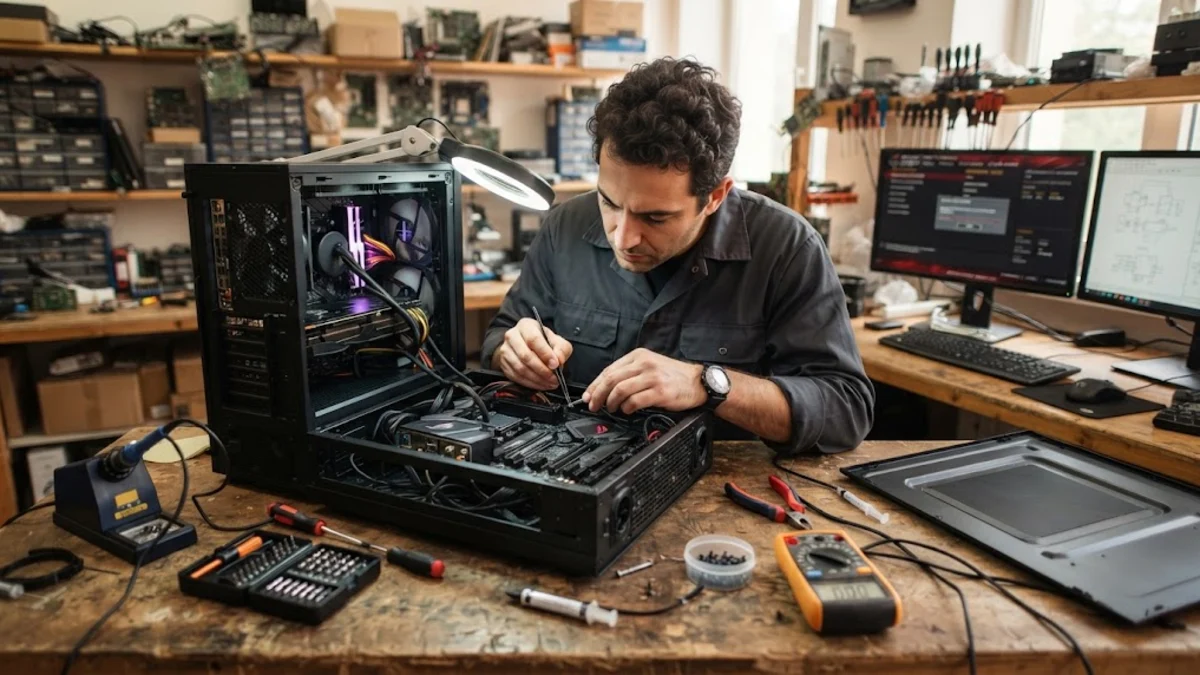
When your PC is not working properly, it can manifest as anything from a sluggish response to a complete system failure. Unlike laptops, desktop PCs often suffer from modular hardware issues, such as loose power connectors, failing CMOS batteries, or dust accumulation in the cooling fins of the CPU and GPU. Identifying whether the root cause is a software conflict in Windows 11 or a hardware component reaching the end of its lifespan is the first step toward a permanent fix.
Check Power Stability and External Connections
Perform a Clean Boot to Isolate Software Conflicts
msconfig, and press Enter. In the Services tab, check Hide all Microsoft services and then click Disable all. Next, go to the Startup tab and click Open Task Manager. Disable every item in the startup list. Restart your PC to see if the performance improves. If the PC works properly in this state, the issue is one of the services you disabled. You can then re-enable services in small groups to identify the specific software causing the conflict. This is much more effective than a standard 'Safe Mode' boot because it allows you to test the system in a near-normal state while still excluding non-essential background tasks that often cause memory leaks or high CPU spikes in 2026-era Windows environments.Repair Corrupt Windows System Files
cmd in the taskbar. Type DISM /Online /Cleanup-Image /RestoreHealth and press Enter. This command connects to Windows Update to download fresh copies of corrupted system components. Once that process finishes, type sfc /scannow and press Enter. The SFC tool will compare your local files against the repaired component store and fix any discrepancies. Technicians often make the mistake of running SFC first, but running DISM beforehand ensures that the repair source itself is healthy, leading to a much higher success rate for the final repair.Monitor Internal Temperatures and Thermal Throttling
Heat is a silent killer of PC performance. If your PC works fine for twenty minutes and then starts lagging or shuts down, it is almost certainly overheating. Modern CPUs and GPUs in 2026 utilize aggressive thermal throttling; when temperatures exceed 90-100 degrees Celsius, the hardware slows down to prevent physical damage. Open your PC case and check for dust buildup on the CPU heatsink and the GPU fans. Use a can of compressed air to clear out debris, holding the fan blades still to prevent them from spinning at high speeds, which can generate static electricity and damage the bearings. If cleaning the dust doesn't help, the thermal paste between your processor and the cooler may have dried out. Reapplying a pea-sized amount of high-quality thermal compound can often drop temperatures by 15-20 degrees. Also, check that your AIO (All-In-One) liquid cooler pump is still vibrating; a dead pump will cause a PC to overheat within seconds of reaching the desktop, making the system virtually unusable.
Test RAM and Storage Health
mdsched.exe, and select Restart now and check for problems. Your PC will reboot into a diagnostic blue screen; if it reports any hardware errors, your RAM sticks are faulty and need replacement. For storage issues, Windows includes a tool called CHKDSK. Open Command Prompt as admin and type chkdsk C: /f /r. This will schedule a scan for the next time you restart. It checks for 'bad sectors' on your drive and attempts to recover readable information. If you are using an older NVMe SSD, check its health percentage using manufacturer software. SSDs have a finite number of write cycles, and as they approach 0% 'Remaining Life,' the PC will experience extreme lag and data corruption. If CHKDSK finds numerous errors that keep reappearing, it is a sign that you should back up your data immediately and replace the drive before it fails completely.Use Windows Recovery and Reset Options
The bottom line
Fixing a PC that is not working properly requires a systematic approach, starting with the power supply and moving through software diagnostics to hardware health checks. By ruling out cables and software conflicts first, you can avoid the cost of unnecessary hardware replacements. If your PC continues to struggle after a full Windows reset and a deep cleaning, the motherboard or CPU may be reaching the end of its functional life.
Frequently asked questions
Why does my PC keep freezing for a few seconds?
This is often caused by 'DPC Latency' or a failing storage drive. Check your SSD health and update your chipset drivers from the motherboard manufacturer's website. If you are using an older HDD as a secondary drive, it may be struggling to spin up, causing the entire OS to hang briefly.
Can a low CMOS battery cause a PC to act strangely?
Yes. If the CR2032 battery on your motherboard is dying, your PC may lose its BIOS settings, resulting in incorrect system time, boot order errors, or failure to wake from sleep mode. These batteries are inexpensive and usually last 3 to 5 years.
Why is my PC loud even when I am not doing anything?
This is usually due to background processes like Windows Update or a hidden malware miner using your CPU resources. Open Task Manager with Ctrl + Shift + Esc and sort by CPU to see which app is taxing your system. If no apps are high, your fan curves might be set too aggressively in the BIOS.
Is it worth repairing an old PC in 2026?
If your PC is more than 6-7 years old and uses outdated DDR4 memory, the cost of a new motherboard and CPU might be more efficient than replacing individual failing parts. However, for systems built within the last 4 years, a simple SSD upgrade or PSU replacement can restore performance for a fraction of the cost of a new machine.