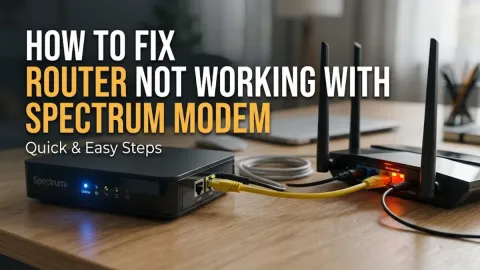
How to Fix Telus Wi-Fi Not Working

Dealing with sudden internet outages can disrupt your work, streaming, and daily communication. If your Telus Wi-Fi network has stopped working, the issue is often related to a temporary router glitch, loose cabling, or a regional service interruption.
This troubleshooting guide walks you through proven, practical steps to diagnose the root cause of your connection failure and get your Telus home network back online quickly without needing to call support immediately.
Check for Regional Telus Service Outages
Before you start tinkering with your hardware, verify whether the problem is on your end or coming directly from your internet service provider. Sometimes, routine maintenance or neighborhood-wide outages can take down your broadband connection entirely. You can check the current status of your network by opening the My Telus app on a cellular data connection or visiting the official Telus network status page from your phone.
If a local outage is reported in your area, your equipment is functioning correctly, and you will simply need to wait for Telus field technicians to resolve the issue. If the status page shows all systems operational in your neighborhood, the problem is isolated to your home network, and you should proceed with troubleshooting your local modem, router, and connected devices step by step.
Power Cycle Your Telus Modem and Wi-Fi Router
The most common and effective fix for a frozen or unresponsive home network is a complete power cycle. Over time, your Telus Network Access Hub or Boost Wi-Fi gateway can experience memory leaks or firmware hiccups that sever your wireless signal. Unplug the power cord from the back of your primary Telus gateway device. Wait a full 60 seconds to allow the internal capacitors to drain completely and clear any residual corrupted data states.
After the minute has passed, plug the power cable back into the gateway firmly. Watch the front indicator lights as the device boots up. It typically takes between two to five minutes for the gateway to re-establish a secure handshake with the Telus fiber or copper network. Once the internet and Wi-Fi indicator lights turn solid white or green, reconnect your devices and test the connection by opening a browser.
Inspect Physical Cables and Wall Connections
Loose or damaged physical connections can easily cause your Telus Wi-Fi to drop out intermittently or stop working altogether. Navigate to your primary gateway and inspect every cable plugged into the back panel. Ensure that the fiber optic cable or coaxial cable is tightly screwed or clicked into the correct port. A slightly loose line can prevent your modem from receiving a clean signal from the street.
Next, check the Ethernet cables connecting any secondary hardware, such as Telus Boost Wi-Fi access points or television set-top boxes. If a cable clip is broken or the wire is pinched, replace it immediately with a certified Category 6 Ethernet cable. Never force a cable into the wrong port, and make sure all connections are secure and free from dust buildup.
Manage Telus Boost Wi-Fi Extenders
If you use Telus Boost Wi-Fi extenders to cover a larger home, a failing extender can block devices in certain rooms from accessing the internet. Check the LED indicator light on your Boost units. A solid red or flashing light indicates a lost connection to the main gateway. Unplug the extender from the wall outlet, wait 30 seconds, and plug it back in to force a fresh pairing sequence.
To ensure optimal wireless performance, make sure your Boost units are placed within reasonable range of your primary gateway—usually no more than two rooms apart. Avoid placing extenders inside closed cabinets, behind large metal appliances, or near thick concrete walls that severely dampen the 2.4GHz and 5GHz wireless frequencies.
Forget and Reconnect Your Wi-Fi Network
Sometimes your home gateway is broadcasting a healthy signal, but your specific smartphone, laptop, or tablet refuses to connect due to corrupted network cache profiles. On your device, navigate to your wireless settings, select your Telus Wi-Fi network name, and choose the option to forget or delete the network. This clears out old IP configurations and saved passwords that might be causing authentication errors.
Once the network has been removed from your device's memory, turn your Wi-Fi toggle off for 10 seconds, then turn it back on. Scan for available networks, select your Telus network name, and carefully re-enter your Wi-Fi password. Check that Caps Lock is disabled if you are typing the password manually, and verify that your device successfully obtains a valid local IP address.
Perform a Factory Reset on Your Gateway
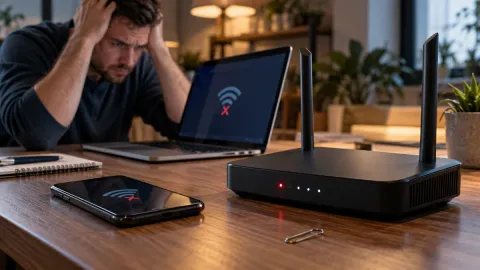
If you have exhausted all other troubleshooting steps and your Telus Wi-Fi remains completely non-functional, a factory reset may be required to restore default firmware settings. Locate the small recessed reset button on the back or bottom of your Telus gateway device. Take a paperclip or a SIM card ejector tool, press and hold the button down for approximately 10 to 15 seconds, and release it when the front indicator lights begin to flash.
The gateway will automatically reboot and wipe all custom Wi-Fi names, passwords, and advanced firewall rules you may have configured previously. Once the device finishes booting, you will need to connect via an Ethernet cable or use the default Wi-Fi credentials printed on the sticker at the bottom of the unit to access the setup portal and reconfigure your network settings.
The bottom line
Fixing Telus Wi-Fi issues usually comes down to performing a proper power cycle, checking physical cable integrity, and ensuring your devices have fresh network profiles. By systematically ruling out regional outages and hardware faults, you can restore a fast and reliable internet connection to your home.
Frequently asked questions
Why is my Telus Wi-Fi light blinking red?
A blinking red light on your Telus gateway indicates a complete loss of internet signal or a failed connection to the Telus network. Check your main incoming cables and power cycle the device.
How do I restart my Telus Wi-Fi router?
Simply unplug the power cord from the back of your Telus gateway, wait 60 seconds, and plug it back in. Allow up to 5 minutes for the device to fully reboot and reconnect.
Can I use the My Telus app to fix Wi-Fi problems?
Yes, the My Telus app allows you to check local service outages, run automated network diagnostics, and manage connected devices directly from your smartphone.
What should I do if my Telus Boost Wi-Fi light is red?
Unplug the Boost unit from the wall, wait 30 seconds, and plug it back in closer to your main gateway to re-establish a stable wireless backhaul connection.
How do I change my Telus Wi-Fi password?
You can securely change your Wi-Fi network name and password by logging into the My Telus app or accessing the gateway admin portal through your web browser.