How to Fix Google Pixel Green Screen
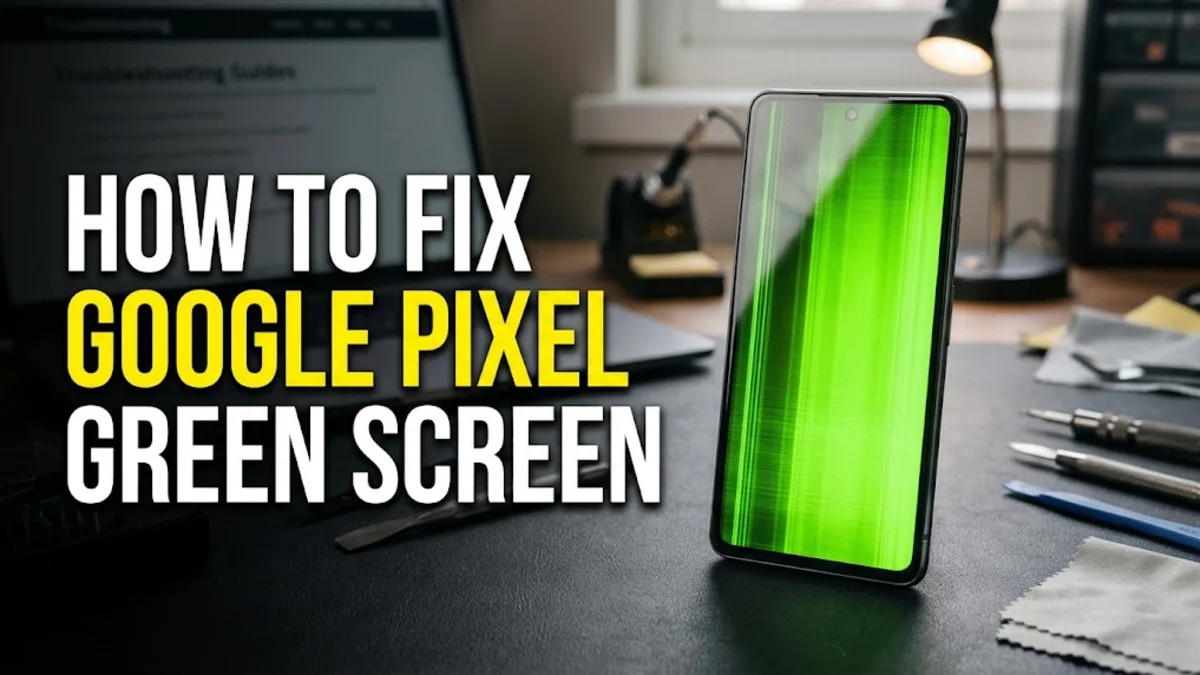
A green screen on your Google Pixel is a frustrating display issue that can turn your phone into an unresponsive brick, rendering the panel completely tinted or lined with harsh emerald light. Fortunately, this glitch is often caused by software crashes, temporary graphics driver hangs, or minor bugs that you can resolve at home without immediately rushing to a repair shop.
In this guide, you will learn the primary causes behind the Pixel green screen phenomenon and follow a series of troubleshooting steps designed to restore your phone display, starting from the quickest fixes and moving toward advanced recovery methods.
Force Restart Your Pixel
The quickest and most effective first step when facing a sudden green screen or display freeze on your Google Pixel is performing a hard reboot. When the operating system experiences a severe kernel panic or graphics driver crash, the display buffer can lock up, displaying solid green or flickering scan lines across the OLED panel. Forcing the hardware to completely power down and clear its volatile memory often resolves this temporary glitch instantly.
To force restart your Google Pixel, press and hold both the Power button and the Volume Up button simultaneously for roughly 15 to 30 seconds. Do not let go when the standard power menu appears; continue holding until the screen turns completely black and the Google logo appears. Once the device boots back up into the lock screen, check if the green tint or flashing lines have completely disappeared from your display.
Check for Pending System and Security Updates
Software bugs in older Android builds frequently trigger display abnormalities, particularly on devices running outdated firmware versions where known display driver vulnerabilities have not yet been patched by Google. If your Pixel experiences intermittent green flashing or color distortion when launching specific apps, a missing security patch or system update is a likely culprit. Updating your phone ensures that the latest display calibration and graphics management fixes are actively running on your hardware.
To check for available software updates, navigate to Settings > System > System update. Tap on Check for update and allow your Pixel to search, download, and install any waiting packages. Keep your phone connected to a stable Wi-Fi network and ensure your battery is charged above fifty percent before initiating the installation process to prevent unexpected interruptions during the reboot.
Boot into Safe Mode to Diagnose Third-Party Apps
Misbehaving third-party applications, screen overlay tools, or poorly optimized custom launchers can interfere with your Pixel's graphics rendering pipeline, resulting in severe visual glitches including green tinting. To determine whether an installed application is causing your display problems, you need to boot your phone into Safe Mode. Safe Mode temporarily disables all downloaded applications, allowing the device to run exclusively on core system software and pre-installed Google services.
Press and hold the physical Power button until the power menu pops up on your screen. Next, tap and hold the Power off icon until a prompt appears asking if you want to reboot to Safe Mode. Tap OK or Restart. Once your Pixel boots up with the Safe Mode label visible in the bottom corner, monitor your display for a few minutes. If the green screen issue stops occurring while in Safe Mode, you should uninstall recently downloaded third-party applications one by one until the culprit is removed.
Clear App Cache and Adjust Display Settings
Corrupted cache data inside system display components or specific high-usage applications can trigger rendering errors that manifest as green screens or discoloration. Clearing system-level caches or adjusting your adaptive display settings can relieve the strain on your phone graphics processor. While you cannot clear the entire system cache partition directly on modern Android versions without a factory reset, clearing cache for suspected apps or tweaking display features makes a significant difference.
Go to Settings > Display and review your configuration. Try toggling off features like Smooth Display or Always-on display to see if the green screen disappears. Additionally, go to Settings > Apps > See all apps, select any recently problematic application, tap Storage & cache, and choose Clear cache to remove corrupted temporary data.
Inspect for Hardware Damage and Loose Connectors
If software troubleshooting methods fail to resolve the green screen, the issue may stem from physical hardware damage. Drops, impacts, or exposure to moisture can cause the internal display flex cable or screen ribbon connector to become slightly dislodged from the motherboard. This loose connection disrupts the data signals traveling between the processor and the OLED panel, often resulting in permanent green lines, half-screen discoloration, or a completely washed-out green display.
Carefully inspect your Pixel exterior for cracks, dents, or signs of pressure around the bezels. If your phone recently suffered a drop or liquid exposure, software fixes will be ineffective. In such cases, the hardware requires professional repair. Reach out to an authorized Google repair partner or certified technician to inspect the internal display connectors and replace the OLED screen assembly if physical damage is confirmed.
Perform a Factory Reset as a Last Resort
When software corruption runs deep within the Android operating system and standard troubleshooting steps do not yield results, performing a factory reset is your final option before seeking hardware repairs. A factory reset wipes all user data, system settings, and corrupted files, returning your Pixel software environment to its pristine factory state. Be sure to back up your photos, contacts, and important documents to Google Drive before proceeding with this step.
To wipe your device, open Settings > System > Reset options > Erase all data (factory reset). Tap Erase all data at the bottom of the screen and enter your PIN or lock screen password to confirm. Your Pixel will wipe its storage and restart. Set up the phone as a new device and observe the display before restoring your backup to ensure the green screen issue is completely resolved.
The bottom line
Fixing a Google Pixel green screen requires a systematic approach, beginning with a simple forced restart and progressing through software updates, Safe Mode diagnostics, and display adjustments. Most software-related display anomalies can be successfully cleared using these built-in troubleshooting steps.
If software solutions and a full factory reset fail to restore normal colors to your display, the underlying cause is likely physical hardware failure or a loose internal connector. In this scenario, contact Google Support or visit a certified repair center to evaluate your warranty and screen replacement options.
Frequently asked questions
Why is my Google Pixel screen turning green?
A green screen on a Google Pixel is usually caused by a software crash, an outdated display driver, corrupted system cache, or physical hardware damage to the OLED panel or internal ribbon cables.
Can a software update fix the Pixel green screen issue?
Yes. If the green screen is caused by a known software bug or graphics driver conflict, installing the latest system update from Google will often patch the problem and restore normal display function.
Does a factory reset fix green display lines?
A factory reset will fix green display issues caused by severe software corruption or rogue third-party apps. However, if the green lines are caused by physical screen damage or a loose hardware connector, a reset will not work.
Is screen replacement covered under the Google Pixel warranty?
If your Pixel developed a green screen defect due to a manufacturing fault and the phone has no signs of accidental physical damage or water exposure, it is typically covered under the standard manufacturer warranty.
How do I force my Pixel to restart when the screen is frozen?
Press and hold both the Power button and the Volume Up button simultaneously for about 15 to 30 seconds until the phone screen turns black and the Google logo appears on screen.