How to Fix Wi-Fi Not Working on Your Laptop
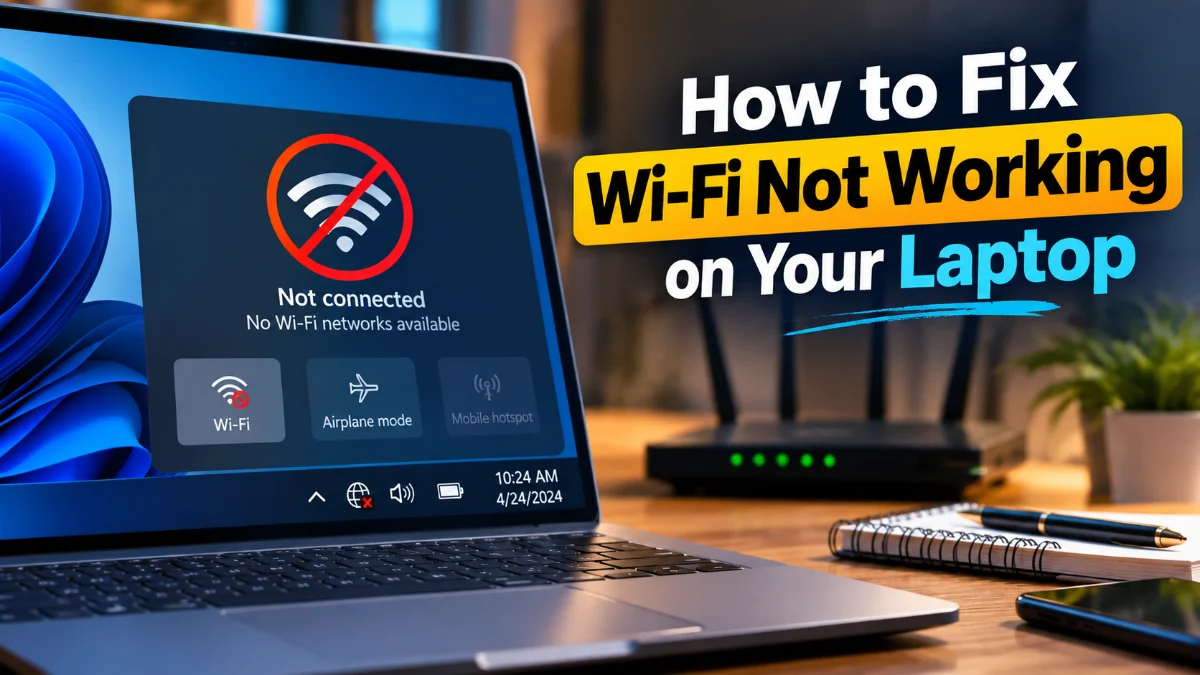
When your Wi-Fi is not working on your laptop, it usually happens at the most inconvenient moment. This issue typically stems from a few specific areas: a disabled wireless adapter, corrupted network drivers, or a conflict within the operating system's network stack. In some cases, external interference or router settings might be preventing your specific device from authenticating properly, even if other devices in your home are connecting without a hitch.
To resolve this, we will move from the simplest physical checks to more advanced software configurations. Whether you are using a modern Windows 11 machine or the latest macOS version in 2026, these steps are designed to identify the root cause and restore your connection. We will prioritize non-destructive fixes first, ensuring you do not lose saved passwords or custom configurations unless absolutely necessary to fix the hardware communication.
Verify Physical Switches and Airplane Mode
Power Cycle Your Laptop and Router
It sounds cliché, but power cycling remains the most effective fix for 'zombie' processes that hang the network adapter. On your laptop, perform a full restart rather than just closing the lid (which often just puts the device into Sleep or Hibernation). A full restart flushes the system RAM and reinitializes the driver for the Wi-Fi card. If the laptop has been running for weeks without a reboot, the network stack can become unstable, leading to an 'Identifying...' or 'No Internet' status even when the signal is strong.
Simultaneously, you should power cycle your router. Unplug the power cable from the back of the router, wait exactly 30 seconds to allow the capacitors to discharge, and plug it back in. As the router reboots, it will re-assign IP addresses via DHCP and clear any IP conflicts that might have occurred. In 2026, many Wi-Fi 7 routers handle hundreds of device requests simultaneously; occasionally, the routing table becomes overwhelmed, and a fresh start allows your laptop to negotiate a clean handshake with the latest WPA3 security protocols.
Update or Roll Back Network Drivers
Reset the TCP/IP Stack and Flush DNS
cmd in the Windows search bar, right-click the result, and choose Run as Administrator.
In the black window, type the following commands one by one, pressing Enter after each: netsh winsock reset and then netsh int ip reset. After these are complete, type ipconfig /flushdns to clear the cache of website addresses that might be outdated or incorrect. These commands force Windows to rebuild its network map from scratch. You will need to restart your laptop after running these commands for the changes to take effect. This is a powerful fix for laptops that get 'stuck' on a specific network configuration and refuse to adapt to a new environment.Adjust Power Management Settings
Use the Built-In Network Reset Tool
/Library/Preferences/SystemConfiguration/ and delete specific .plist files related to network interfaces, though simply using the Network settings UI to 'Make Service Inactive' and then 'Active' again is safer for most users. This process clears the system's memory of all previous connections and forces it to treat the Wi-Fi hardware as if it were being installed for the first time.The bottom line
Fixing a laptop that won't connect to Wi-Fi is usually a process of elimination. By starting with physical toggles and moving through driver updates to a full network reset, you can identify whether the issue is a simple setting or a deeper software conflict. If your laptop still refuses to connect after a full network reset, it may be a sign of hardware failure in the internal wireless card. In such cases, using a compact USB Wi-Fi adapter is a cost-effective way to restore connectivity without needing a professional hardware repair.
Frequently asked questions
Why does my laptop say 'Connected, no internet'?
This means your laptop has successfully linked to the router, but the router is not communicating with the internet service provider (ISP). Try restarting your modem/router or check if there is a local service outage in your area.
Can a VPN cause my Wi-Fi to stop working?
Yes, if a VPN crashes or its 'Kill Switch' feature is active, it will block all internet traffic to prevent data leaks. Try disabling your VPN software or ending its process in Task Manager to see if the connection returns.
Should I use 2.4GHz or 5GHz for my laptop?
In 2026, 5GHz or 6GHz (Wi-Fi 6E/7) is preferred for speed and less interference. However, 2.4GHz has a longer range. If you are far from the router and the 5GHz signal is dropping, try switching to the 2.4GHz band for better stability.
What if my Wi-Fi works on my phone but not my laptop?
This confirms the router is working. The problem is specific to your laptop's wireless adapter or software. Follow the driver update and TCP/IP reset steps mentioned in this guide to fix the device-specific conflict.