If your Google Pixel camera is showing a black screen, crashing instantly, or failing to focus, you are likely dealing with a software conflict rather than a hardware failure. Google’s computational photography relies heavily on the Pixel Camera app and the dedicated Image Signal Processor (ISP) within the Tensor chip. When these two components lose synchronization, the camera app may freeze or display a "Fatal Error" message that prevents you from capturing photos or videos. To fix Google Pixel camera problems, you need to systematically isolate whether the issue lies within the app’s temporary files, a third-party application hijacking the camera hardware, or a pending system-level update that hasn't been applied to the Android 17 firmware. This guide provides a professional-grade troubleshooting sequence to restore your camera’s functionality without losing your precious photos.
1Perform a Force Restart and Clear Camera Cache
The first and most effective step to fix Google Pixel camera glitches is to clear the application's temporary cache. Over time, the Pixel Camera app accumulates data that can become corrupted, especially after a major Android version update. When this happens, the app may struggle to initialize the sensor. Start by navigating to Settings > Apps > See all apps > Camera. Tap on Force Stop to kill any active processes, then select Storage & cache. Tap Clear cache. It is important to note that clearing the cache will not delete your photos, but it will reset temporary configurations that might be causing the hang. If the app still fails to load, go back to the same menu and tap Clear storage. This resets the camera app to its factory defaults, which often resolves deeper configuration errors. After doing this, restart your phone by holding the Power button and selecting Restart. This ensures that the system kernel re-establishes a fresh connection with the camera hardware modules.
2Identify Third-Party App Conflicts via Safe Mode
Many users find that their camera works perfectly in the native app but fails in Instagram, TikTok, or Snapchat. Conversely, a poorly optimized third-party app with camera permissions can sometimes 'lock' the camera resource, preventing the official Google app from using it. To determine if an external app is the culprit, you should boot your Pixel into Safe Mode. To do this, swipe down the Quick Settings panel, tap the Power icon, and then long-press on the Restart option until a Reboot to safe mode prompt appears. Tap OK. While in Safe Mode, only pre-installed Google apps will run. Open the camera; if it functions perfectly here, then one of your recently installed third-party apps is causing the conflict. You will need to exit Safe Mode by restarting normally and then uninstalling apps that have camera permissions, starting with the most recent ones. This is a common requirement in 2026 as newer social media filters often push the Android 17 camera API to its limits, leading to resource deadlocks.
3Update System Software and Google Play Services
Google frequently releases 'Camera Services' updates through the Google Play Store and monthly security patches that include driver optimizations for the Tensor ISP. If your Pixel camera is lagging or failing to switch between lenses, you may be running an outdated version of the core imaging software. First, open the Google Play Store, tap your profile icon, and select Manage apps & device to check for updates to the Pixel Camera app. Next, go to Settings > Security & privacy > System & updates. Check both the Google Play system update and the System update menus. It is a common mistake to ignore the Google Play system updates, which often contain the actual drivers for the camera's autofocus and color processing units. Ensure both are fully up to date and that you have restarted the device after any installation. These updates are critical for maintaining the handshake between the Android operating system and the physical camera sensors.
4Inspect the Laser Autofocus and Physical Sensors
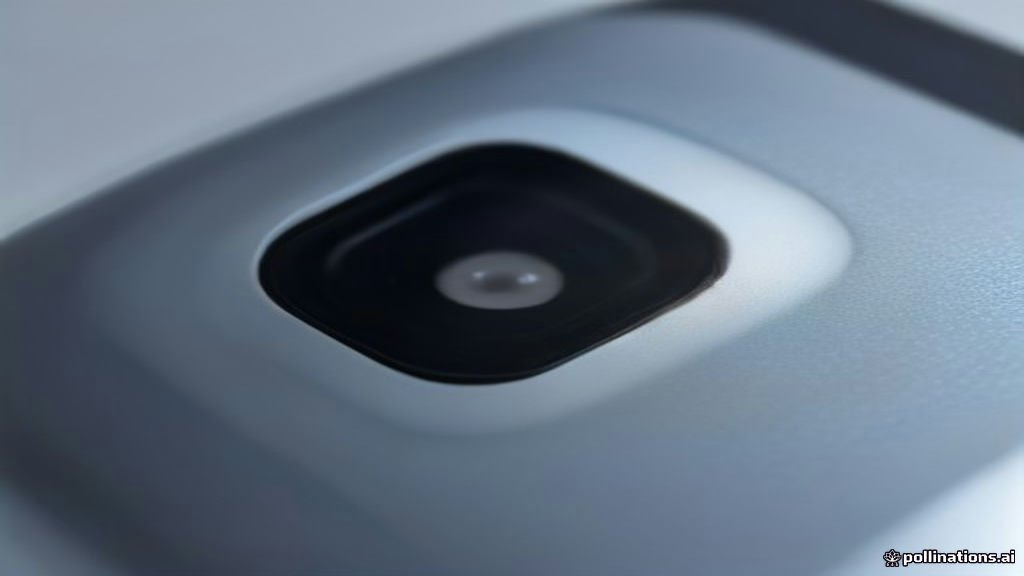
If your camera opens but cannot focus, or if it produces blurry images, the issue is likely physical. Modern Pixels use a Laser Detection Auto Focus (LDAF) sensor, which is the small black circular dot located near the main camera lenses on the rear bar. If this sensor is covered by even a thin layer of dust, fingerprints, or a poorly designed third-party case, the camera will 'hunt' for focus unsuccessfully. Use a clean, dry microfiber cloth to gently wipe the entire camera bar. Ensure there is no moisture trapped under the lens glass. Additionally, check if your phone case is slightly overlapping the LDAF sensor or the flicker sensor. Many rugged cases are known to interfere with the laser's flight path, causing the camera to default to an infinite focus distance. If you are using a lens protector, remove it temporarily; these often cause internal reflections and light scattering that confuse the Pixel's AI-driven sharpening algorithms, especially in low-light environments.
5Check Thermal Limits and App Preferences
The Google Pixel is designed to protect its hardware from heat damage. If you have been recording high-frame-rate 4K or 8K video, or if the phone has been sitting in direct sunlight, the system will intentionally disable the camera to prevent the Tensor chip from overheating. If you see a message stating 'Phone is too hot,' you must let the device cool down for at least ten minutes before the camera will function again. If heat is not the issue, try resetting your app preferences. Go to Settings > System > Reset options > Reset app preferences. This action restores all disabled apps, notification settings, and permission restrictions to their defaults. This is particularly helpful if you accidentally denied a background system service the permission to 'Manage Media' or 'Access Sensors,' which can indirectly break the camera's ability to save files to your internal storage. Resetting preferences is a 'soft' reset that solves complex permission loops without affecting your personal data.
6Use Repair Mode Before a Factory Reset
If none of the previous steps work, you might consider a factory reset, but Google now provides a more convenient tool called Repair Mode. This feature, found in Settings > System > Repair mode, allows you to create a secure environment for a technician (or yourself) to test the hardware without exposing your personal photos and messages. If the camera still fails to work in Repair Mode, it is a definitive sign of a hardware failure, such as a detached ribbon cable or a failed sensor module. If the camera DOES work in Repair Mode, a full factory reset is required to clear the underlying software corruption. To perform a factory reset, go to Settings > System > Reset options > Erase all data (factory reset). Always back up your data to Google One before doing this. If the hardware is indeed faulty, check your warranty status through the Google Store, as modern Pixel devices often have extended coverage for known sensor issues.
Frequently asked questions
Why does my Pixel camera say 'Fatal Error'?
A 'Fatal Error' typically occurs when the camera app cannot communicate with the physical sensor. This is usually caused by a software crash in the background image processing service. Try clearing the Camera app storage and restarting your phone to re-establish the connection.
Can a screen protector affect my Pixel's front camera?
Yes, if the screen protector is not perfectly aligned or if it doesn't have a cutout for the front-facing lens, it can cause 'milky' or blurry photos. It can also interfere with the proximity sensor, causing the screen to stay black during calls.
How do I fix the camera if it keeps switching to the front lens?
This is often caused by the 'Flip to Shutter' gesture or a stuck UI element. Check Settings > System > Gestures and disable 'Flip camera for selfie' to see if the behavior stops. Also, ensure your screen is clean, as phantom touches can trigger the lens toggle.
Is my Pixel camera broken if it makes a clicking sound?
Not necessarily. The Pixel uses Optical Image Stabilization (OIS), which involves a physical lens element suspended by magnets. You may hear a faint clicking or rattling sound if you shake the phone or when the camera app first opens; this is the OIS engaging and is considered normal behavior.