How to Fix Google Pixel Not Working on Wi-Fi
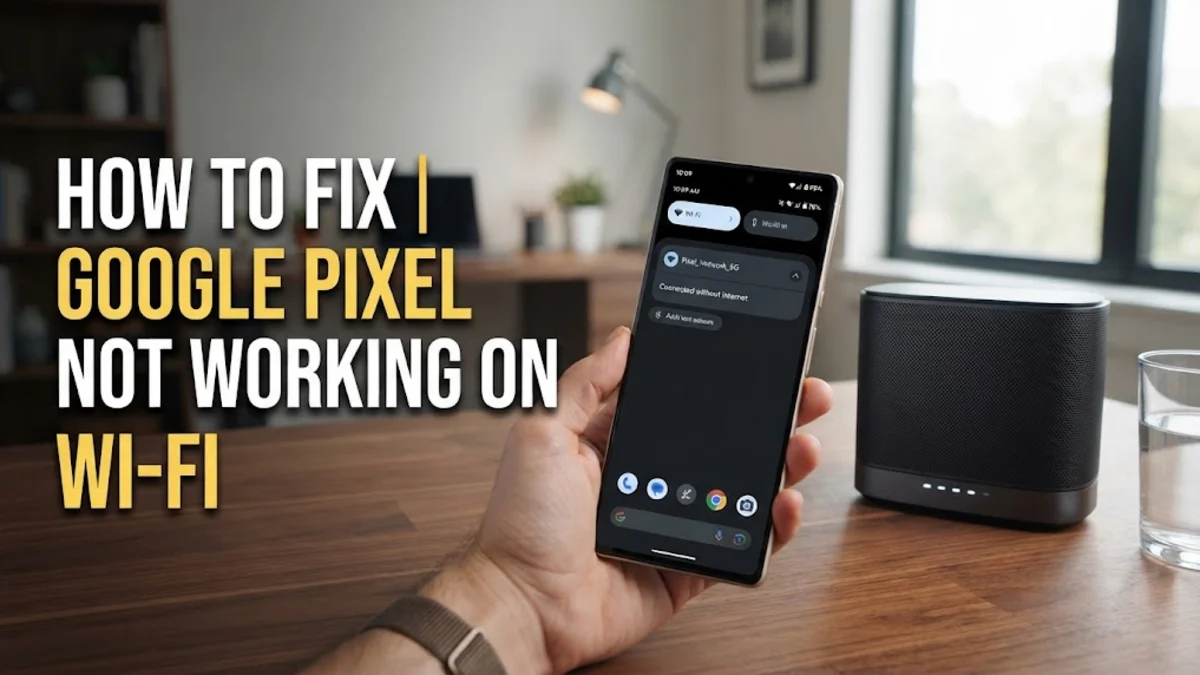
Finding that your Google Pixel is not working on Wi-Fi can be incredibly frustrating when you need to browse, stream, or work. Fortunately, most wireless connectivity issues stem from temporary software glitches, router conflicts, or minor network setting errors that you can resolve in a few minutes.
This troubleshooting guide walks you through proven, step-by-step solutions to get your Google Pixel back online, starting with the quickest fixes and moving toward more advanced network resets.
Toggle Airplane Mode and Check Basic Settings
When your Google Pixel suddenly drops its Wi-Fi connection or refuses to load pages, the fastest way to kickstart the wireless radio is by toggling Airplane Mode. This action forces your phone to disconnect and refresh all cellular, Bluetooth, and Wi-Fi connections simultaneously without needing a full reboot.
Swipe down from the top of your screen twice to open the Quick Settings panel. Tap the Airplane mode tile to turn it on, wait about ten seconds, and tap it again to turn it off. Next, tap and hold the Internet tile to ensure your home or office network is selected and that Wi-Fi is actively enabled. If your Pixel is connected to a network with an exclamation mark, it indicates your router has no active internet access, meaning the issue might reside with your Internet Service Provider rather than the phone itself.
Restart Both Your Google Pixel and Router
A simple reboot clears out temporary system cache and resolves background glitches that often interfere with network adapters. Press and hold the Power button and Volume Up button simultaneously on your Google Pixel, then tap Restart on the screen. Let your phone boot up completely before testing the connection.
At the same time, unplug your Wi-Fi router and modem from the wall outlet. Wait at least 30 seconds to allow the hardware to completely discharge its memory, then plug the power cords back in. Once the router indicator lights stabilize, try connecting your Pixel to the network again. This dual restart clears stale IP address assignments and re-establishes a clean handshake between your phone and the wireless access point.
Forget and Reconnect to the Wi-Fi Network
Corrupted network profiles can prevent your Google Pixel from authenticating correctly with your router. Deleting the saved network forces your device to treat the Wi-Fi network as completely new, generating fresh security credentials and configuration files.
Open your phone settings by going to Settings > Network & internet > Internet. Find your Wi-Fi network in the list, and tap the Settings gear icon next to its name. Tap Forget at the top right corner. Once forgotten, return to the main Wi-Fi list, tap your network name again, re-enter your Wi-Fi password carefully, and tap Connect to establish a fresh link.
Reset Network Settings on Your Pixel
If refreshing individual networks does not work, you can perform a comprehensive network reset. This process reverts all Wi-Fi, mobile data, and Bluetooth configurations back to their factory default state, wiping away deep-seated system bugs that block internet access.
Navigate to Settings > System > Reset options > Reset Wi-Fi, mobile & Bluetooth. Tap Reset settings at the bottom of the screen and confirm your choice by entering your device PIN or password. Keep in mind that this step will erase all previously saved Wi-Fi passwords and paired Bluetooth devices, so you will need to reconnect to your wireless accessories afterward.
Check for System Software Updates
Bugs in outdated Android operating system versions can occasionally break Wi-Fi functionality or cause intermittent disconnections. Google regularly patches these connectivity vulnerabilities through monthly security updates and system drops.
Connect your Pixel to a temporary cellular data connection or another working network, then open Settings > System > Software updates > System update. Tap Check for update. If a new update is available, download and install it immediately, then restart your phone once the installation finishes to apply the network fixes.
Boot Into Safe Mode to Check App Interference
Third-party applications, especially rogue VPN clients, custom firewall apps, or security utilities, can block network traffic and stop your Wi-Fi from functioning correctly. Testing your phone in Safe Mode temporarily disables all downloaded apps so you can isolate the cause.
Press and hold the physical Power button until the power menu appears on your screen. Tap and hold the Power off icon until a prompt appears asking if you want to reboot to Safe mode. Tap OK. Once your Pixel reboots with Safe mode displayed at the bottom of the screen, test your Wi-Fi connection. If the internet works normally, a recently installed third-party app is causing the interference and should be uninstalled.
The bottom line
Troubleshooting a Google Pixel that is not working on Wi-Fi usually comes down to resetting network profiles, restarting hardware, or clearing out software glitches. By systematically working through these methods, you can identify the root cause and restore a stable internet connection on your phone.
Frequently asked questions
Why does my Google Pixel keep disconnecting from Wi-Fi?
Intermittent disconnections are usually caused by router interference, outdated software, or saved network profile corruption. Try forgetting the network and reconnecting, or restart your router.
Will resetting network settings delete my personal data?
No. Resetting network settings only clears saved Wi-Fi passwords, paired Bluetooth devices, and mobile network configurations. Your photos, messages, and apps remain completely safe.
What should I do if my Pixel connects to Wi-Fi but has no internet?
This usually indicates an issue with your internet router or broadband provider. Restart your modem and router, and check if other devices in your home can access the internet.
Can a VPN app cause Wi-Fi to stop working on Android?
Yes. Poorly configured VPN apps or strict firewall tools can block web traffic entirely. Try disabling or uninstalling your VPN app to see if your Wi-Fi starts working again.