Best Copilot Prompts for Meeting Notes in 2026
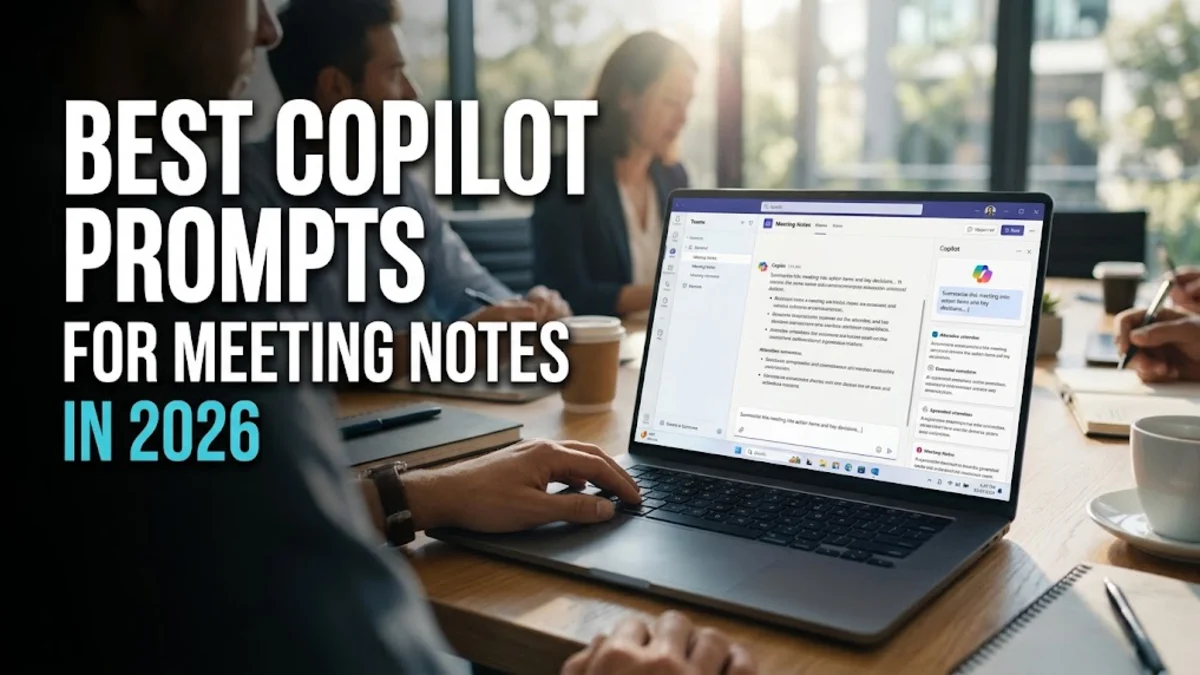
Taking manual meeting notes often leads to missed details, messy transcripts, and wasted time trying to figure out who agreed to do what. Using Microsoft Copilot with the right prompts transforms messy raw text into structured, actionable summaries in seconds.
Whether you are joining a quick sync or a lengthy strategy session, applying specific prompt templates ensures you get clean outputs every single time without endless back-and-forth editing.
Structuring Raw Transcript Text into Clear Summaries
When you feed a messy transcript into Copilot, the AI needs clear instructions to avoid returning a wall of text. If you simply ask it to summarize, you will likely get a generic overview that lacks the specific context you need for your team. Instead, you must define the exact structure you want the summary to follow right from the start.
To fix this, provide a prompt that breaks the text down by agenda items or major discussion themes. For example, instruct Copilot to categorize the discussion points by the specific topics listed in your calendar invite. You can also specify tone, such as requesting a professional, concise executive summary that eliminates small talk, greetings, and tangents. This saves you from wading through conversational filler and gets straight to the core business value discussed during the call.
Common mistakes include pasting too much text at once or failing to remove irrelevant pre-meeting chatter before hitting enter. Always trim the initial transcript where possible, or instruct Copilot to ignore any text prior to the official meeting start time. By setting these strict boundaries, your resulting summary will remain tightly focused on productive outcomes rather than casual remarks.
Extracting Action Items and Assignees Efficiently
One of the most frustrating parts of any meeting is figuring out who is responsible for what once the call ends. If action items are buried deep within paragraphs of discussion, tasks frequently fall through the cracks. You need a dedicated prompt that forces Copilot to scan for commitments, deadlines, and owners with absolute clarity.
Try using a prompt that explicitly asks Copilot to generate a markdown table with columns for the task description, the assigned owner, and the target deadline. If someone volunteered for a task during the call, Copilot can isolate that sentence and attribute it correctly. If a deadline was not explicitly stated, you can instruct the AI to flag it as unassigned or pending so your team can address the gap immediately.
When this step fails or misses a task, it is usually because people referenced names casually or used pronouns instead of full names. To solve this, you can provide a quick participant list to Copilot before pasting the transcript so the AI has a clear reference dictionary for matching names to commitments.
Drafting Professional Follow-Up Emails from Notes
Once you have your clean summary and action items, you usually need to email them out to stakeholders who missed the call or need a written record. Writing these emails manually takes up valuable time that could be spent executing the actual work. Copilot can automate this entire communication loop with a single well-crafted prompt.
Direct Copilot to take the summarized notes and draft a professional follow-up email addressed to the attendees. You should specify the desired format, such as a friendly greeting, a brief high-level recap paragraph, a bulleted list of key decisions, and a clean table of next steps with assignees. You can even instruct the AI to adopt a specific communication style, whether that is formal corporate language or a casual internal team update.
Always review the generated email draft before hitting send to ensure the tone matches your company culture and that no critical context was distorted during the transformation process. Making small tweaks here ensures your team receives accurate, polished communications every time.
Condensing Long Discussions into Executive Summaries
Executive stakeholders rarely have time to read through multi-page transcripts or detailed minute-by-minute logs. When reporting upward, you need high-level brevity that highlights risks, blockers, and major milestones without getting bogged down in technical arguments.
To achieve this, prompt Copilot to condense the entire discussion into three distinct bullet points focusing exclusively on strategic impact, budget or timeline changes, and high-level decisions reached. This forces the AI to filter out day-to-day operational details and elevate only the metrics and resolutions that matter to leadership.
If the summary feels too wordy, refine your prompt by adding a strict word count constraint or requesting a specific sentence limit. Combining structural constraints with length limits ensures your executive reports remain sharp, readable, and immediately actionable.
Identifying Key Decisions and Open Questions
Meetings often end in ambiguity where options were discussed but no final choice was officially locked in, or important questions were raised but left unanswered. Tracking these open threads is essential for preventing duplicated effort in future syncs.
Use a specialized prompt designed to separate finalized consensus items from unresolved questions. Ask Copilot to output two distinct sections: one labeled 'Confirmed Decisions' and another labeled 'Open Questions & Blockers'. This clarity helps project managers see instantly where momentum is stalled and where further investigation is required before the next meeting.
If Copilot struggles to differentiate between a casual idea and a firm decision, adjust your prompt to look for agreement keywords such as 'approved', 'agreed', or 'let's go with'. Training the AI to recognize these conversational anchors yields much cleaner categorization.
The bottom line
Mastering the best copilot prompts for meeting notes turns a tedious administrative chore into an automated, highly efficient workflow. By giving Copilot precise structural instructions, clear formatting rules, and defined categories, you ensure that every meeting produces crisp summaries and reliable action items.
Frequently asked questions
Can Copilot join live meetings to take notes automatically?
Yes, depending on your organization's Microsoft 365 licensing, Copilot can integrate directly with Microsoft Teams to record, transcribe, and summarize live meetings in real time.
What should I do if Copilot misses an action item from the transcript?
You can reply to Copilot with a follow-up prompt specifying the exact context or person involved, asking it to update the previous action item table with the missing task.
Can I use custom prompt templates in Copilot?
While Copilot does not always have a dedicated template button in every app interface, you can save your favorite prompts in a separate text document or notes app and paste them whenever needed.
Does Copilot work with meeting transcripts from apps other than Teams?
Yes. As long as you can export or copy the transcript text from Zoom, Google Meet, or Webex, you can paste it directly into Copilot along with your formatting prompt.
How do I keep meeting transcripts secure and private?
Enterprise versions of Microsoft Copilot are designed to protect corporate data and ensure that your company's inputs are not used to train public AI models.