How to Wrap Text in Google Sheets
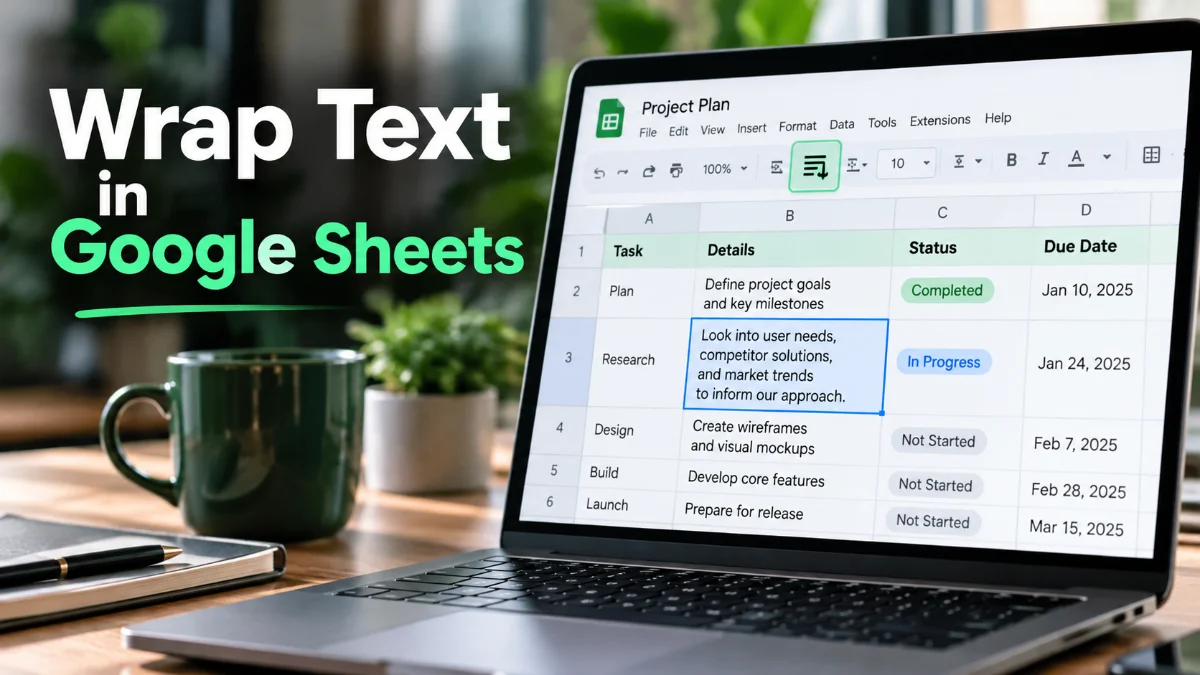
When you enter long sentences or paragraphs into a Google Sheets cell, the text naturally spills over into adjacent empty cells or gets cut off if those cells contain data. Wrapping text solves this problem by forcing the content to display on multiple lines within the same cell, automatically expanding the row height to fit everything neatly.
Why Text Overflow Happens in Spreadsheets
By default, Google Sheets treats text entry as an overflow element. If cell A1 contains a long sentence and cell B1 is completely empty, the excess characters will visually bleed across the boundary. While this keeps your sheet looking clean initially, it creates major layout issues the moment you add data to cell B1, which abruptly truncates your text view and hides critical information from your readers.
Understanding this behavior helps you decide when to use text wrapping versus clipping or truncating. Wrapping is ideal for descriptions, customer feedback notes, project descriptions, and address fields where data visibility is critical for readability and daily data auditing. When building reports shared with team members or clients, maintaining visible text prevents misunderstandings and ensures a professional presentation without requiring manual column expansion every single time a new sentence is added.
How to Wrap Text Using the Toolbar
The quickest way to wrap text on a desktop web browser is by using the formatting toolbar located directly beneath the main menu bar. First, open your spreadsheet and click on the specific cell or highlight the range of cells containing the long text you want to adjust. You can select entire columns or rows if you are preparing a template for future data entry.
Next, look closely at the toolbar for the text wrapping icon, which resembles a small box with an arrow bending downwards inside it. Click this icon to open the dropdown menu, and select the middle option representing the wrap function, which is visually depicted by lines folding inside the cell box. Your text will instantly adjust to fit within the designated column width, expanding the vertical row size automatically to accommodate every single word.
Using the Format Menu for Advanced Text Options
If you prefer navigating through traditional menu options rather than relying on toolbar icons, Google Sheets provides a dedicated formatting path to control cell behavior. Highlight the cells you wish to modify, then navigate to the top menu bar and click Format > Wrapping.
From the submenu that appears, choose Wrap to enable multi-line text display. You will also notice alternative choices here, including Overflow and Clip, which allow you to customize how edge cases behave if you ever need to revert your formatting choices later on. Using the Format menu is especially helpful when working on shared enterprise documents where toolbar layouts might vary depending on screen resolutions or user interface zoom levels.
How to Wrap Text on Mobile Devices
Managing spreadsheets on smartphones and tablets requires a slightly different approach due to touch-optimized user interfaces. Open the Google Sheets app on your iOS or Android device, tap the specific cell containing your text, and tap the cell editor bar or selection handles to target the cell precisely.
Tap the formatting icon (usually represented by a stylized 'A' with horizontal formatting lines) located at the top of the screen interface. Go to the Cell tab in the menu drawer that slides up, locate the Wrap text toggle switch, and tap it to enable multi-line text display inside your chosen cell. The mobile application will dynamically recalculate the row height based on your current screen orientation and zoom settings.
Quick Keyboard Shortcuts for Formatting
While Google Sheets does not feature a single dedicated one-button keyboard shortcut solely for text wrapping, you can navigate the menus rapidly using standard keyboard navigation combinations. On Windows operating systems, press Alt + O to open the Format menu, then press W followed by W to activate text wrapping on your active cell selection.
On macOS devices, use Control + Option + O to open the Format menu, then navigate to the wrapping options using your arrow keys and confirmation buttons. Learning these quick keystrokes dramatically speeds up your daily workflow when formatting large, data-dense spreadsheets containing hundreds of individual rows.
Troubleshooting Common Text Wrapping Issues
Sometimes text wrapping appears not to work because the row height has been manually fixed to a specific pixel size in the past. If your wrapped text looks cut off vertically or hidden at the bottom, right-click the row header, select Resize row, and choose Fit to data to let Google Sheets auto-fit the height correctly.
Another common hurdle is merged cells. Google Sheets restricts certain text-wrapping functions across multi-column merged ranges because calculating dynamic heights becomes mathematically complex. If you encounter errors or unexpected layout behavior, unmerge your cells before applying the standard wrap formatting rule to ensure seamless visual consistency.
The bottom line
Wrapping text in Google Sheets is a simple yet essential skill that transforms cluttered, unreadable spreadsheets into clean, professional documents. Whether you use the toolbar shortcut on your desktop or the mobile menu on your phone, mastering this feature ensures your data is always clear, organized, and accessible to everyone viewing your workspace.
Frequently asked questions
Why is the wrap text option greyed out in Google Sheets?
The option may be greyed out if you are trying to apply it to a single cell that is part of a complex merged range, or if you lack edit permissions for a shared spreadsheet document.
Can I set text wrapping as the default for all new spreadsheets?
Google Sheets does not currently offer a global default setting for text wrapping across all new files, so you must apply it manually or use a custom template where wrapping is pre-configured.
What is the difference between wrap, clip, and overflow?
Wrap forces text onto multiple lines within the cell bounds, clip cuts off text at the cell edge without spilling over, and overflow lets text spill into adjacent empty cells naturally.
Does text wrapping affect my formulas or data calculations?
No, text wrapping is purely a visual formatting option and does not alter the underlying text string, numerical values, or formula results inside the cell database.
How do I unwrap text once it is applied?
Simply select the wrapped cell range, return to Format > Wrapping, and choose Overflow or Clip to revert to the default view.