How to Recall an Email in Outlook
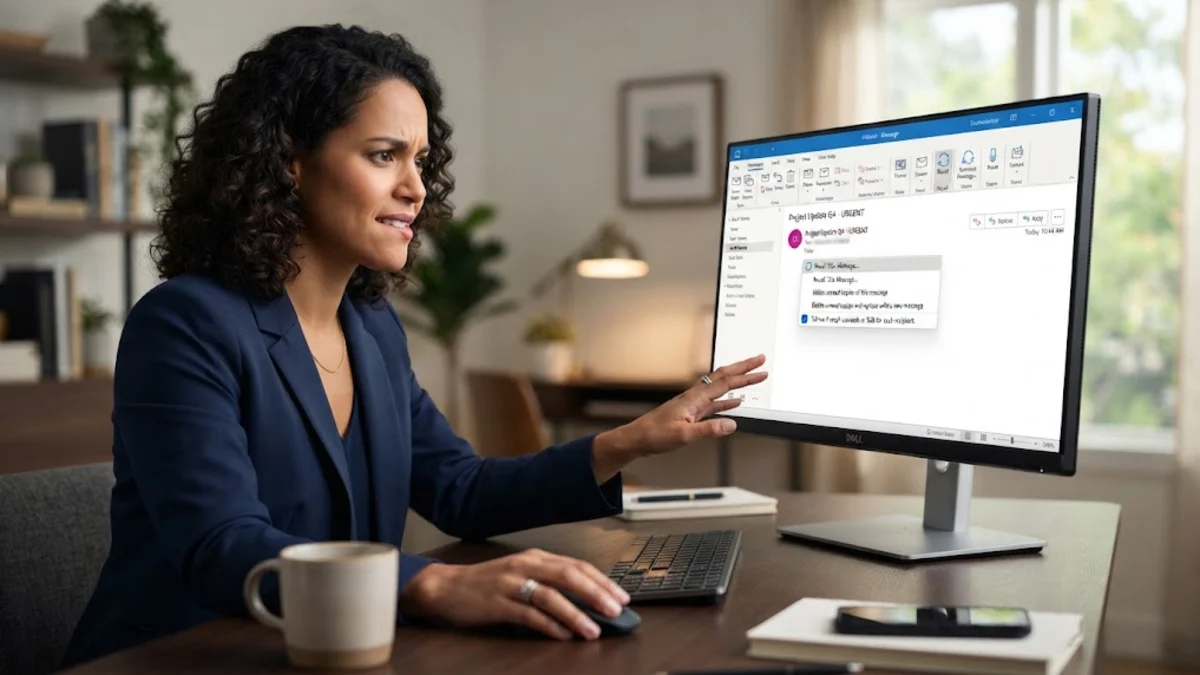
You hit send on an important email, only to realize seconds later that you forgot an attachment, selected reply-all by mistake, or sent sensitive details to the wrong colleague. Microsoft Outlook offers a built-in Message Recall feature designed to retrieve or replace messages before your recipient opens them.
However, recalling an email does not work under every circumstance. In modern versions of Outlook, success depends on whether you and your recipient share the same Microsoft 365 organization, which version of Outlook you run, and how quickly you act. This guide outlines the exact steps to recall an email in Outlook and explains how to monitor your recall report.
Conditions Required for Outlook Message Recall to Work
Outlook Message Recall relies on Microsoft Exchange backend architecture rather than a universal email protocol. Because standard Internet mail protocols like SMTP do not permit senders to pull back messages from third-party mail servers, strict conditions govern whether a recall will succeed.
For a message recall to work as intended, your situation must meet the following criteria:
- Same Microsoft 365 or Exchange Organization: Both you and the recipient must have email accounts hosted on the same Microsoft 365 tenant or on-premises Exchange organization. You cannot recall an email sent to an external service like Gmail, Yahoo Mail, iCloud, or a different corporate domain.
- Unread Status (in legacy environments): In classic standalone setups, if the recipient has already opened the email, moved it via a folder rule, or marked it as read, the recall fails. Microsoft 365 cloud recall can now retract read messages if your organization tenant administrator enables it, though the recipient still receives notification that an email was retracted.
- Desktop or Web Client Support: You must initiate the recall from Outlook for Windows (Classic or New) or Outlook on the web. Outlook mobile apps for iOS and Android do not currently support initiating message recalls.
How to Recall an Email in the New Outlook and Outlook on the Web
The redesigned New Outlook for Windows and Outlook on the web share the same cloud architecture. Microsoft handles message recall directly on the Exchange Online server, ensuring faster execution and higher success rates across your team.
Follow these steps to recall a sent message in New Outlook or webmail:
- Open the Sent Items folder from your navigation pane on the left side of the window.
- Locate and double-click the message you want to retrieve so it opens in its own window (or select it directly in your reading pane).
- Click the More options button (the three dots ...) located on the action bar at the top right of the message header.
- Navigate to Advanced actions and select Recall message.
- A confirmation dialog appears stating that the recall process will attempt to retrieve the message from all cloud mailboxes. Click OK to confirm.
Once confirmed, Outlook submits the command directly to Exchange Online. Unlike older versions, you do not need to keep your email application open for the server to process the retraction.
How to Recall an Email in Classic Outlook for Windows
Many corporate environments still utilize Classic Outlook for Windows. The classic client provides two distinct recall choices: deleting unread copies entirely, or replacing the original message with a revised draft.
To recall a message in Classic Outlook:
- Navigate to your mail folders and click Sent Items.
- Double-click the message to open it in a dedicated window. The recall command is unavailable if the message is only viewed in the reading preview pane.
- Make sure the Message tab is selected on the ribbon.
- In the Move group, click Actions > Recall This Message. (If you use the simplified ribbon, click the three horizontal dots on the far right, select Actions, and pick Recall This Message).
- In the popup window, choose either Delete unread copies of this message or Delete unread copies and replace with a new message.
- Check the box labeled Tell me if recall succeeds or fails for each recipient, then click OK.
If you selected the replacement option, Outlook opens a new composition window prefilled with your original subject and body text. Make your edits and click Send to dispatch the corrected version.
Checking Your Message Recall Status Report
Initiating a recall does not guarantee instant removal from the recipient mailbox. Modern Microsoft 365 accounts provide a centralized web report that shows the real-time status of your request for every person on the recipient list.
A few moments after initiating the recall, you receive an automated notification email in your inbox with the subject line Message Recall Report for message [Your Subject]. Open this email and click the View Message Recall Report link. The web-based dashboard displays individual recipient lines categorized into specific states:
| Status | Meaning | Action Needed |
|---|---|---|
| Recalled | The message was successfully removed from the recipient inbox before being read. | None. The message is gone. |
| Failed | The recipient is outside your organization, or tenant rules blocked the recall. | Send a manual follow-up clarification. |
| Pending | Exchange is still querying the destination mailbox or shared mailbox replica. | Refresh the report after two to three minutes. |
This report removes the guesswork that plagued older Outlook editions, allowing you to identify immediately who saw the original message and who did not.
Configuring Undo Send to Prevent Email Mistakes
Because recall cannot retrieve emails sent to external clients such as clients, contractors, or personal addresses, setting up Undo Send is the most reliable safety net. Undo Send introduces a brief artificial delay between clicking send and actual server transmission, giving you a cancellation window.
To activate Undo Send in New Outlook and Outlook on the web:
- Click the Settings gear icon in the top right corner of the window.
- Select Mail from the left menu, then choose Compose and reply.
- Scroll down to the Undo send section.
- Move the slider from 0 seconds to your preferred buffer window (up to 10 seconds).
- Click Save at the bottom of the settings pane.
With this feature enabled, every time you click send, a small prompt with an Undo button remains visible at the bottom of your screen for the duration of the selected delay. Clicking Undo aborts the transmission and reopens the email draft immediately.
Professional Follow-Up Strategies When Recall Fails
When a message goes to an external contact or your recall report confirms a failure, attempting repeated retractions looks unprofessional and often draws extra attention to the error. Handling the situation with a transparent, prompt follow-up is the best approach.
Apply these practical steps depending on the nature of the error:
- Missing Attachment or Link: Send a brief, single-sentence follow-up: "Apologies, please find the attachment referenced in my previous email attached here." Avoid elaborate apologies for minor oversights.
- Incorrect Information: Reply to the original email chain using the same subject line. State clearly: "Please disregard the figures in my previous note; the verified numbers are provided below." This keeps the correct context consolidated in one thread.
- Misdirected Sensitive Information: If you accidentally disclosed confidential data to an unauthorized party, immediately contact your organization's IT security or compliance officer. They can assess data exposure risks and, if necessary, coordinate administrative tenant-level purges or formal non-disclosure requests.
The bottom line
Recalling an email in Outlook is a powerful tool when working within a Microsoft 365 corporate environment, but it cannot override external email protocols. If your recall fails or your recipient uses an external provider, address the mistake quickly with a clear, professional follow-up. For daily peace of mind, enable Undo Send in your Outlook settings to catch typos and missing attachments before they ever leave your outbox.
Frequently asked questions
Can I recall an Outlook email sent to a Gmail address?
No. Outlook Message Recall only works between mailboxes hosted on the same Microsoft 365 or Exchange tenant. Emails sent to external domains like Gmail, Yahoo, or other companies cannot be retracted once transmitted.
Does the recipient know if I recalled an email?
If the recall succeeds before the recipient opens the message, the email is quietly removed from their inbox. However, depending on tenant administrative settings, they may see a brief system notice that an item was recalled, or classic Outlook may generate an automated recall notice.
Why do I not see the Recall Message option in Outlook?
You will not see the recall option if you are using Outlook mobile apps, if you configure your account via IMAP or POP3 instead of Microsoft Exchange, or if you opened the message in the preview reading pane rather than double-clicking it into its own window.
Can I recall an email in Outlook on Mac?
New Outlook for Mac connected to a Microsoft 365 cloud account supports cloud-based recall through the message options menu. Legacy Mac Outlook profiles connecting through IMAP cannot perform message recalls.