How to Change Your Google Account Password
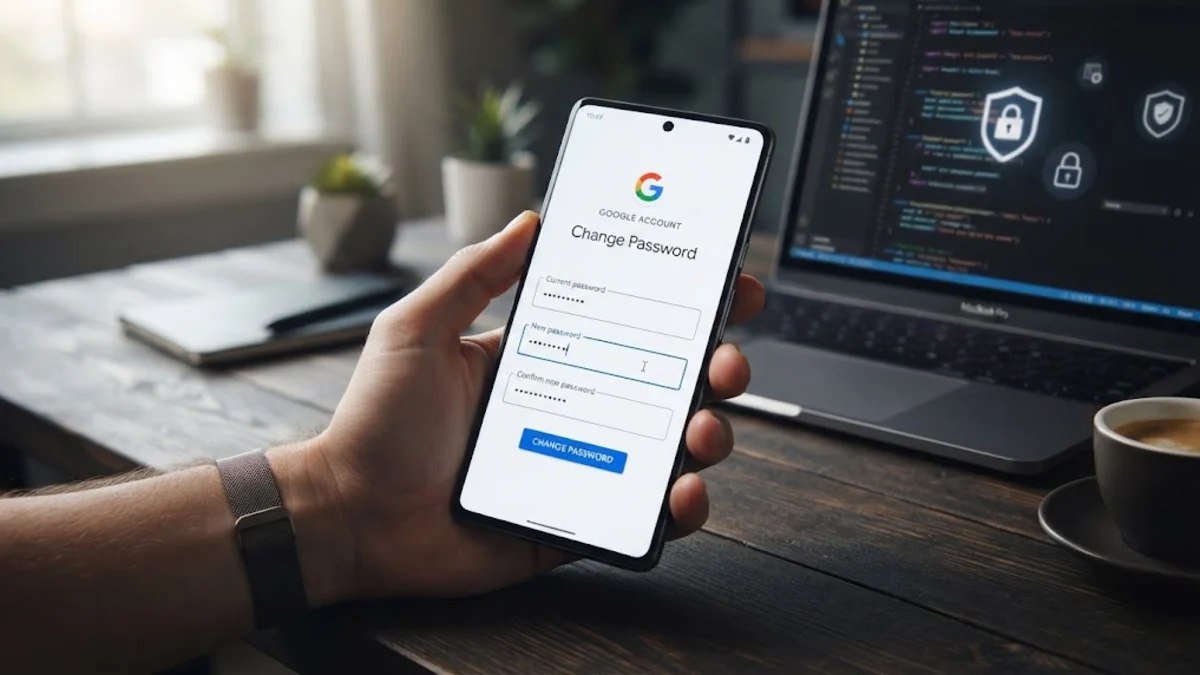
To change your Google account password, open your Google Account page, navigate to the Security tab, and select Password under the signing in section. Entering a strong, unique replacement immediately protects your emails, documents, and linked services from unauthorized access.
Updating your credentials regularly or after suspecting a security breach is a vital habit for maintaining robust digital privacy. Follow this straightforward procedure to update your login information safely across all your devices without losing access to your services.
Accessing Your Google Account Security Settings
The first step in updating your login credentials is navigating to the correct security management dashboard associated with your profile. Open any web browser on your computer or mobile device and go to your Google account management page. If you are not already logged in, enter your current email address and existing password to proceed.
Once you arrive at the main dashboard overview, look at the navigation panel on the left side of your screen or the top menu tabs depending on your device type. Click or tap on the Security tab to view all settings related to your account protection, recovery options, and sign-in methods. This area centralizes every tool you need to manage your digital safety, including two-factor authentication and connected device logs.
Locating and Selecting the Password Option
After opening the security settings page, scroll down until you find the section labeled Signing in to Google. Within this block, you will see several entries detailing your recovery phone number, recovery email, passkeys, and your current password status showing the last time it was modified.
Click on the Password entry to begin the update process. Google will prompt you to verify your identity before allowing any changes to critical security credentials. This protective measure ensures that even if someone temporarily leaves their device unattended while logged in, unauthorized users cannot easily alter core account details without knowing the existing password.
Verifying Your Identity with Your Current Password
When prompted by the verification screen, type your current, active password into the designated entry field. If you have forgotten your existing password entirely, you will need to select the recovery option instead, which requires access to your recovery phone number or secondary email address to confirm your identity before proceeding.
After typing the correct current password, click the Next button. If you have two-step verification enabled on your account, Google will send a prompt to your trusted smartphone or require an authentication code generated via an app or hardware key. Complete this secondary prompt accurately to unlock the password modification interface.
Creating and Confirming a Strong New Password
Once identity verification is complete, the system will present you with two new input fields: New password and Confirm new password. This is where you must type a robust, unpredictable combination of letters, numbers, and symbols to ensure maximum security against brute-force attacks and credential stuffing techniques.
Avoid reusing passwords from other websites or incorporating easily guessable personal information such as birthdates or pet names. Type your chosen strong password into both fields identically, then click the Change password button to save the new credentials to Google's secure servers immediately.
Managing Connected Devices and Active Sessions
Changing your password invalidates your old credentials immediately, but devices currently logged into your Google ecosystem may retain active sessions for a short duration. It is crucial to review where your account is currently active to ensure that unauthorized third-party devices are forcefully disconnected from your profile.
Navigate back to the security dashboard and locate the Your devices section. Review the list of smartphones, tablets, and computers currently signed in. If you notice any unfamiliar hardware or locations, click on the device name and select the Sign out option to revoke its access permanently.
Updating Your Credentials Across Mobile Devices
After successfully changing your password on the web, your smartphone and tablet apps like Gmail, Google Drive, and YouTube will prompt you for the new login information. When a notification appears stating that a sign-in error has occurred, tap it to re-authenticate your account.
Enter your new password when requested by the mobile operating system or application prompt. Ensuring that all trusted devices are updated promptly prevents synchronization errors and guarantees that your automated backups and real-time notifications continue functioning without interruption.
The bottom line
Changing your Google account password takes only a few minutes but significantly enhances your overall digital safety. By maintaining a unique password and verifying your active devices regularly, you keep your personal data secure from potential breaches.
Frequently asked questions
Will changing my password sign me out of all devices?
Yes, changing your Google account password typically signs you out of most devices, except for select trusted devices and third-party apps that use specific authorization tokens, which you may need to sign into manually.
How often should I change my Google account password?
You only need to change your password if you suspect a security breach, notice unauthorized activity, or receive a notification about a data leak. Routine changes are no longer strictly necessary if your password is strong and two-factor authentication is active.
What should I do if I forget my current password?
If you cannot remember your current password, click the Forgot password link on the sign-in screen and follow the recovery prompts using your recovery phone number or backup email address.
Can I use the same password I used previously?
No, Google security policies require you to choose a new password that differs from your recent previous passwords to prevent account compromise.
Does changing my password affect my Android phone backup?
Your Android backup data remains safe, but your phone will prompt you to enter the new password to resume syncing services like Gmail, Photos, and Google Drive.