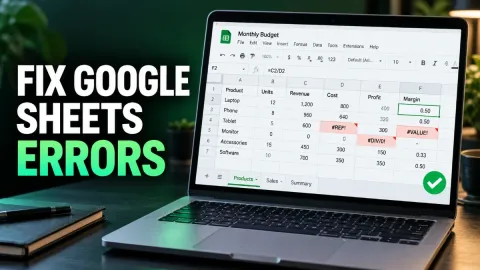
How to Fix Google Sheets Not Loading in 2026

When Google Sheets fails to load, your workflow comes to an immediate halt. This issue typically stems from browser cache corruption, conflicting extensions, or temporary server outages.
Check Your Internet Connection and Network Settings
A weak or unstable internet connection is the most common reason Google Sheets fails to load properly. Because Sheets continuously saves your changes to the cloud in real-time, even a brief drop in connectivity can cause the interface to hang on a blank white screen or display loading errors. Start by opening a new tab and visiting a few other websites to verify that your network is functioning correctly.
If other websites load fine but Google Sheets remains stuck, try restarting your Wi-Fi router or switching to a different network if one is available. You can also flush your computer's DNS cache to clear out stale network configurations that might be blocking Google services. On Windows, open Command Prompt and type ipconfig /flushdns, while Mac users can run the corresponding network reset command in the Terminal. Once your network is refreshed, reopen Google Sheets in a fresh tab to see if the spreadsheet loads successfully.
Clear Browser Cache and Accumulated Site Data
Over time, your web browser collects cache and cookies to help pages load faster, but corrupted data files frequently cause web applications like Google Sheets to malfunction. When your browser tries to read outdated cache files instead of fetching the latest scripts from Google servers, the application may freeze during startup or refuse to render cells entirely. Clearing your browser cache forces it to download fresh files and often instantly resolves stubborn loading loops.
To clear your cache in Google Chrome, press Ctrl + Shift + Delete on Windows or Cmd + Shift + Delete on Mac to open the browsing data menu. Select Time range as All time, check the boxes for Cached images and files and Cookies and other site data, and click Clear data. Keep in mind that this will log you out of some websites, so ensure you have your passwords saved before proceeding with this step.
Disable Conflicting Browser Extensions and Ad Blockers
Many third-party browser extensions—especially aggressive ad blockers, privacy enhancers, and script blockers—can mistakenly block the critical background scripts that Google Sheets requires to operate. If an extension blocks a necessary tracking or data-fetching script, the spreadsheet will remain stuck on the loading screen indefinitely. Testing your browser without active extensions is a reliable way to isolate whether a plugin is causing the disruption.
To check for extension conflicts, open a new window in Incognito mode or Private browsing, navigate to your Google Drive, and attempt to open a spreadsheet. Because most extensions are disabled by default in private windows, a successful load points directly to an extension conflict. You can then disable your extensions one by one in your browser settings to identify the exact culprit and add Google Sheets to its whitelist.
Test Google Sheets in an Alternative Browser
Browser-specific bugs, outdated rendering engines, or corrupted user profiles can prevent Google Sheets from rendering correctly even after you clear your cache. If you have been using Google Chrome, try opening the exact same spreadsheet link in Mozilla Firefox, Microsoft Edge, or Safari. This simple diagnostic step helps you determine whether the loading failure is isolated to your primary browser or affects your entire system.
If Google Sheets opens and works smoothly in a secondary browser, the issue lies squarely within your primary browser's settings, profile, or installation. You may need to create a fresh browser profile, update your browser to the latest version, or completely reinstall it. If the spreadsheet fails to load across all browsers, the problem is likely related to your network security software, firewall settings, or an official Google service disruption.
Check the Official Google Workspace Status Dashboard
Occasionally, the reason Google Sheets is not loading has nothing to do with your computer or browser at all. Google's servers experience unexpected outages or maintenance periods that temporarily disrupt access to Docs, Sheets, and Drive. Before spending hours troubleshooting your local machine, it is always wise to verify whether Google is experiencing a widespread regional or global outage.
Navigate to the official Google Workspace Status Dashboard to check the operational health of Google Sheets. If you see a red icon or service disruption notice next to Google Sheets, you will simply need to wait for Google's engineering team to resolve the issue on their end. During such outages, edits cannot be saved, so it is best to avoid working on critical spreadsheets until normal service status is fully restored.
The bottom line
Fixing a non-loading Google Sheets file usually takes just a few minutes once you isolate the root cause. Start by checking your internet connection and testing the spreadsheet in an incognito window or alternate browser. By clearing corrupted cache data and disabling overactive extensions, you can get back to your spreadsheets without losing your data.
Frequently asked questions
Why is Google Sheets stuck on the loading screen?
It is usually caused by corrupted browser cache, conflicting ad blocker extensions, or a temporary interruption in your internet connection.
Does clearing my browser cache delete my Google Sheets data?
No. Google Sheets saves all data securely in the cloud on Google's servers, so clearing your local browser cache will not delete any of your work.
Can an ad blocker prevent Google Sheets from working?
Yes. Overly aggressive ad blockers or script-blocking extensions can accidentally block essential Google scripts required to render spreadsheets.
How do I check if Google Sheets is down globally?
You can check the official Google Workspace Status Dashboard to see if there are any reported service outages affecting Google Sheets.