How to Fix Google Account Not Working on iPhone
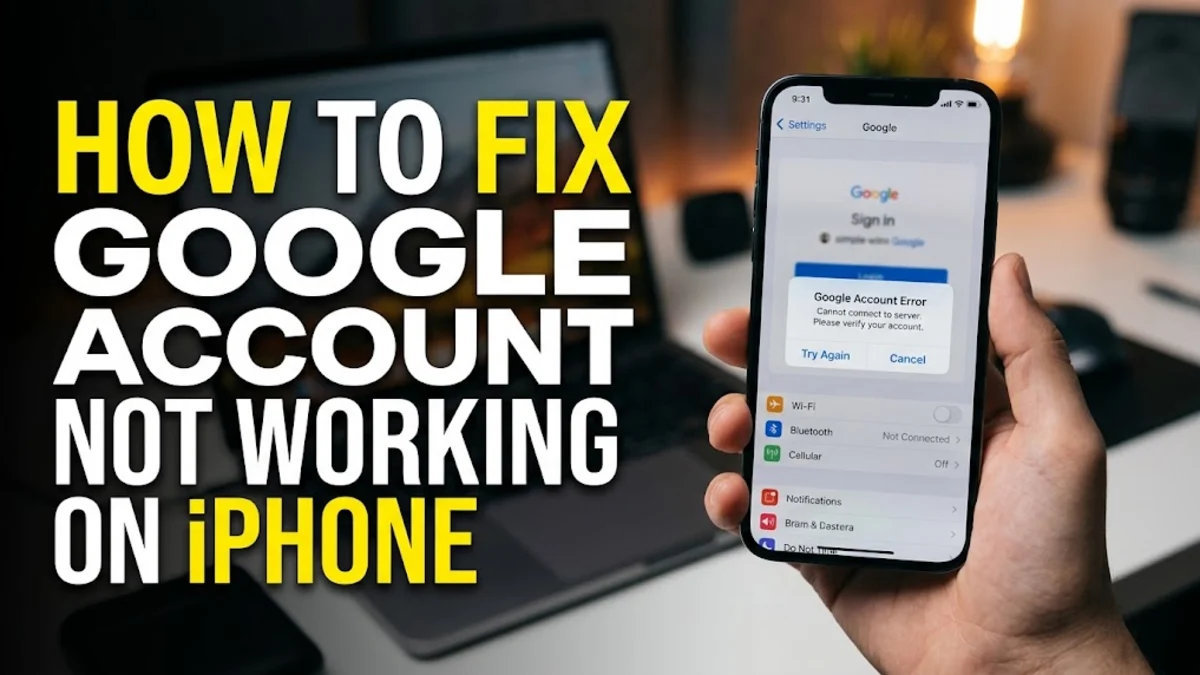
When your Google account stops working on your iPhone, you may suddenly lose access to your emails, contacts, calendar events, and drive files. This frustrating issue typically stems from outdated iOS credentials, network glitches, or security changes on your Google profile.
Fixing this problem usually takes just a few minutes once you identify whether the glitch is related to iOS system integration, app caches, or authentication settings. Follow these step-by-step troubleshooting methods to get your account fully operational again.
Check Your Internet Connection and Network Settings
Temporary internet drops or strict cellular data restrictions are often the hidden culprits behind a Google account failing to sync on an Apple device. If your iPhone cannot reach Google servers, your login credentials will fail to verify, leading to endless sign-in loops or error messages.
Start by opening Safari and loading a secure website to confirm your internet connection is active. If you are using mobile data, go to Settings > Cellular and ensure that the mail, calendar, or Google apps you rely on are permitted to use cellular data. Toggling Airplane Mode on for ten seconds and then turning it off can also force your iPhone to re-establish a clean connection with your local cellular tower or Wi-Fi router.
Remove and Re-add Your Google Account in iOS Settings
Corrupted authentication tokens stored within iOS settings can prevent your Google account from authenticating properly. Refreshing this connection by completely removing and re-adding the account is one of the most effective ways to clear out lingering sync errors.
Navigate to Settings > Mail > Accounts, select your Google account, and tap Delete Account to remove it from your device. Once removed, go back to Accounts, tap Add Account, choose Google, and sign in with your email and password. This forces iOS to generate a brand new security token, immediately restoring normal mail, contact, and calendar synchronization.
Update iOS and Google Apps to the Latest Versions
Running an outdated version of iOS or older builds of Google applications can create compatibility conflicts that break account sign-ins. Apple and Google frequently release security patches that modify how authentication protocols communicate across platforms.
Check for system updates by going to Settings > General > Software Update and installing any available updates. Next, open the App Store, tap your profile icon, scroll down to available updates, and update all Google-related applications such as Gmail, Google Drive, and the Google app to ensure maximum stability and security compliance.
Reset Network Settings to Resolve Authentication Glitches
Deep-seated network cache corruptions on your iPhone can interfere with secure SSL certificates required by Google authentication servers. If standard troubleshooting does not work, resetting your network settings will clear out problematic configurations.
Open Settings > General > Transfer or Reset iPhone > Reset, and select Reset Network Settings. Keep in mind that this process will erase saved Wi-Fi passwords and Bluetooth pairings, so you will need to reconnect to your wireless network afterward. Once your iPhone restarts, try signing into your Google account again through the settings menu or the official Google application.
Verify Two-Factor Authentication and Security Alerts
If you recently changed your Google password or enabled strict two-factor authentication, your iPhone might be blocked due to unrecognized sign-in attempts. Google occasionally blocks sign-ins from external mail clients if it detects an unfamiliar IP address or device signature.
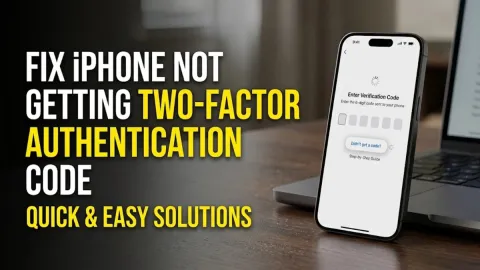
Open a web browser on another device or your iPhone, log into your Google Account security dashboard, and check for any recent security alerts or blocked sign-in attempts. Confirm that the activity was yours by clicking Yes, it was me, and verify that your two-factor authentication prompts are arriving correctly on your trusted recovery phone number or authenticator app.
Clear Safari and Browser Cache Conflicts
When logging into your Google account via Safari or third-party web wrappers on your iPhone, accumulated cache data and cookies can cause redirect loops or blank login screens. Clearing old browser data resolves persistent authentication page freezes.
Go to Settings > Safari, scroll down, and tap Clear History and Website Data. This action removes stored cookies and cache files that might be interfering with Google sign-in cookies. After clearing Safari data, open a private browsing tab, navigate to the Google sign-in page, and enter your credentials fresh.
The bottom line
Fixing a Google account that is not working on your iPhone usually requires resetting the connection, updating your software, or clearing cached network data. By methodically working through these troubleshooting steps, you can eliminate sign-in errors and keep your Google services running smoothly.
Frequently asked questions
Why does my Google account keep asking for my password on my iPhone?
This usually happens when your saved credentials become outdated, your password was changed elsewhere, or iOS fails to renew your authentication token. Removing the account and adding it back in iOS settings typically resolves this loop.
Will I lose my emails if I remove my Google account from my iPhone?
No. Your emails are stored safely on Google cloud servers. Removing the account only deletes the local cache from your iPhone, and all your emails will reappear once you sign back in.
How do I update Google apps on my iPhone?
Open the App Store, tap your profile icon at the top right, scroll down to view pending updates, and tap Update next to your Google apps.
What should I do if two-factor authentication codes are not arriving on my iPhone?
Check your cellular signal, ensure your phone number is correct in your Google account recovery settings, or use an offline backup code or authenticator app like Google Authenticator.