How to Fix Google Account Not Working Today

When your Google account stops working suddenly, it can disrupt access to Gmail, Google Drive, Docs, and your core device settings. If you are facing sudden login errors, endless verification loops, or sync failures today, several common culprits are usually to blame, ranging from temporary Google server outages to corrupted local browser data.
Check Official Google Workspace Status Dashboard
Before you change your passwords or reinstall your operating system, you need to determine whether the problem is on your end or Google's side. Occasionally, widespread server outages take down authentication services, Gmail, and Drive globally. When this happens, no amount of troubleshooting on your device will fix the issue until Google resolves the backend problem. To check current server health, open a web browser in private or incognito mode and navigate to the official Google Workspace Status Dashboard. The dashboard uses a color-coded indicator system where green checkmarks mean normal service, yellow diamonds indicate performance degradation or partial outages, and red icons signal a total service outage. If you see active disruptions listed for Google Account services or Google Sign-In, your best course of action is simply to wait for Google engineers to restore functionality. If the status page shows all green and everything is operating normally, you can safely move on to troubleshooting your own network, browser, or device settings.
Clear Browser Cache and Corrupted Cookies
Verify Your Internet Connection and Network Settings
A flaky or restricted internet connection can frequently disrupt Google account verification, especially if your network blocks certain ports or DNS requests required for secure OAuth authentication. Start by testing your connection stability by opening another website or running a quick speed test. If your connection drops packets or suffers from high latency, restart your home router and modem by unplugging them for thirty seconds before plugging them back in. If you are using a virtual private network or a corporate proxy, try temporarily disabling it. VPNs often route traffic through congested servers or trigger automated security challenges from Google, which flags unfamiliar IP addresses and blocks login attempts to protect your account integrity. Once your VPN is turned off, reconnect to your standard Wi-Fi or ethernet network and attempt to sign into your Google account again to see if the network restriction was the primary barrier.
Sign Out and Re-Authenticate Your Account
Check for App Updates and System Sync Issues
Secure Your Account and Reset Your Password
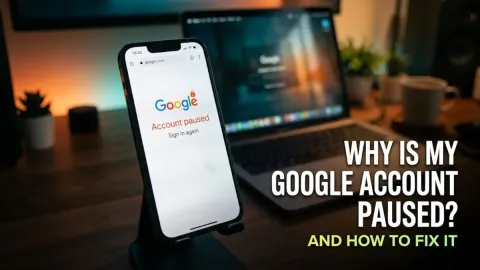
If you have tried every troubleshooting step above and your account still will not function, or if you suspect your account may have been temporarily restricted due to suspicious activity, you may need to reset your password. Google will occasionally pause or lock accounts as a security precaution if unusual login behavior is detected from a new location or device. Navigate to the official Google Account recovery page, enter your email address, and follow the guided prompts to verify your identity using your recovery phone number or backup email. Choose a strong, unique password that you do not use on any other website. Once your password is successfully updated, review your active security devices in your account settings, revoke access for any unrecognized hardware or unauthorized third-party apps, and make sure your backup recovery options are up to date.
The bottom line
Fixing a Google account that is not working today usually comes down to identifying whether the issue stems from a server outage, corrupted browser data, or an expired session token. By following these methodical troubleshooting steps, you can quickly restore full access to your profile and keep your personal data secure.
Frequently asked questions
Why does my Google account keep asking me to sign in repeatedly?
This loop is usually caused by blocked cookies, strict privacy extensions in your browser, or corrupted local authentication tokens. Clearing your browser cache and disabling aggressive ad-blockers for Google domains generally resolves the issue.
How do I know if Google servers are currently down?
You can check the official Google Workspace Status Dashboard online. It provides real-time health indicators for all core Google services, including Gmail, Drive, and account login systems.
Can a VPN cause my Google account login to fail?
Yes. Using a public or congested VPN server can cause Google's automated security systems to flag your login attempt as suspicious, leading to connection blocks or mandatory CAPTCHA verifications.
What should I do if I forgot my Google account password during troubleshooting?
Use the official Google Account recovery page to verify your identity via your backup email or recovery phone number, and follow the prompts to safely reset your password.
Why won't my Android phone sync with my Google account?
Account sync failures on mobile devices are often caused by poor internet connectivity, disabled background data permissions, or pending system updates that require a reboot.