Fix iPhone Not Getting Two Factor Authentication Code

If your iPhone is not getting two factor authentication code texts or prompts, the issue is usually caused by aggressive spam filtering, disabled carrier short codes, or an inactive network connection. In most cases, refreshing your cellular connection or checking the filtered messages inbox will resolve the delay immediately.
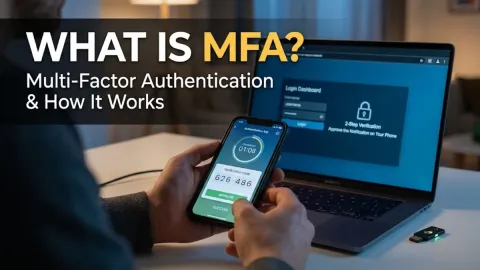
Two-factor authentication (2FA) relies on two distinct delivery systems: standard SMS short codes from banks and websites, and encrypted on-device Apple push notifications. Pinpointing whether your iPhone is failing to receive carrier text messages or device-level security prompts determines the exact steps needed to fix it.
Step 1: Check the Unknown Senders Folder and Do Not Disturb
When your iPhone stops alerting you to incoming verification codes, the message may already be sitting on your device. iOS includes automated message-filtering tools designed to reduce spam by sorting incoming texts from unrecognized numbers into a separate folder without triggering an audible alert or lock screen notification.
To locate these missing codes, follow these steps:
- Open the Messages app.
- Tap Filters in the top-left corner (or swipe right to view message folders).
- Select Unknown Senders to check for automated codes.
- Open Junk or Spam if your wireless carrier provides an integrated junk-filtering folder.
If the verification texts appear in the Unknown Senders list, you can prevent them from being hidden silently. Navigate to Settings > Apps > Messages, scroll down to Message Filtering, and review Filter Unknown Senders. Additionally, ensure that your active Focus mode (such as Do Not Disturb or Work) is not silencing the Messages app or blocking unknown notifications while you attempt to log in.
Step 2: Inspect Blocked Contacts and Blacklisted Short Codes
Automated verification codes are sent through automated five-digit or six-digit telephone numbers known as commercial short codes. If you previously replied with STOP to an unsolicited marketing message or accidentally blocked an automated notification number, your iPhone will discard every security code sent from that shared service pool.
To verify that essential short codes are not blocked on your device:
- Open Settings.
- Navigate to Apps > Messages.
- Scroll down to the SMS/MMS section and tap Blocked Contacts.
- Scan the list for any short numbers (typically 5 or 6 digits) or automated service numbers.
- Swipe left on any blocked short code number and tap Unblock.
Because major enterprises like banks, email providers, and social platforms often share third-party short-code dispatchers (such as Twilio or Sinch), blocking a single promotional text can unintentionally block authentication codes from multiple unrelated services.
Step 3: Toggle Cellular Data and Enable SMS Fallback
Standard two-factor codes do not travel over Apple iMessage; they travel across traditional cellular carrier lines as standard SMS or modern RCS messages. If your iPhone is connected to Wi-Fi but lacks an active cellular link, or if your messaging configuration disables standard SMS fallbacks, incoming verification texts will fail to arrive.
First, test your cellular handoff by turning on Airplane Mode from the Control Center, waiting fifteen seconds, and turning it off. This forces your iPhone to re-register with the nearest cellular tower. Next, review your messaging configuration:
- Open Settings > Apps > Messages.
- Ensure the toggle for Send as SMS is switched to On.
- Ensure MMS Messaging and RCS Messaging are enabled if supported by your carrier.
- Check that your primary phone number is checked under Send & Receive.
If you are traveling internationally, ensure that roaming is enabled under Settings > Cellular (or Mobile Service) > Cellular Data Options > Data Roaming. Carriers frequently block short code reception while roaming unless roaming privileges are active.
Step 4: Synchronize Date and Time Settings
Authentication protocols rely heavily on strict time-based validation windows. If your iPhone internal system clock diverges by even thirty seconds from world time servers, incoming verification tokens, authenticator app codes (TOTP), and push notifications may be flagged as expired before they hit your screen.
To eliminate synchronization drift, configure iOS to set system time automatically:
- Open Settings.
- Tap General > Date & Time.
- Toggle the switch for Set Automatically to On.
If the toggle is already enabled, switch it off, wait ten seconds, and toggle it back on to force an immediate Network Time Protocol (NTP) query. Furthermore, temporarily disconnect any active virtual private network (VPN) apps under Settings > VPN & Device Management. Aggressive VPN routing protocols and DNS blockers frequently misroute or filter security verification signals dispatched by web servers.
Step 5: Manually Generate an Apple ID Verification Code
If the code you are waiting for is an Apple ID or iCloud login approval rather than a text message, your iPhone may fail to display the pop-up prompt if it is temporarily offline or experiencing Apple Push Notification service (APNs) latency. You do not need to wait for the automatic banner; you can generate an official six-digit verification code directly from your device settings.
You can generate a code manually using these steps, even when your iPhone is offline:
- Open Settings on your trusted iPhone.
- Tap your Name / Apple Account banner at the very top.
- Tap Sign-In & Security.
- Select Two-Factor Authentication.
- Scroll down and tap Get Verification Code.
A temporary six-digit security code will appear immediately on your display. Enter this code into the login prompt on your Mac, PC, or secondary device. The code remains valid for a limited window and refreshes automatically if requested again.
Step 6: Reset Network Settings and Contact Carrier Support
If routine toggles fail to restore incoming verification messages, a corrupted cellular baseband cache or carrier-level provisioning block is often the underlying culprit. Resetting your network settings flushes saved cellular configurations and forces your SIM or eSIM to download fresh provisioning parameters.
To reset your network stack:
- Go to Settings > General > Transfer or Reset iPhone.
- Tap Reset at the bottom of the screen.
- Select Reset Network Settings and enter your device passcode.
Your iPhone will reboot. Note that this process removes saved Wi-Fi networks and Bluetooth pairings, so you must reconnect to Wi-Fi afterward.
| Potential Root Cause | Primary Indicator | Recommended Solution |
|---|---|---|
| Short Code Blocking | Standard texts arrive, but 5-digit bank codes fail | Contact carrier to remove commercial short-code blocks |
| Unknown Sender Filter | No notifications, but texts appear inside app | Check Messages > Filters > Unknown Senders |
| Network Cache Corruption | Intermittent SMS delivery and failed calls | Reset Network Settings in iOS General settings |
| Carrier Billing / Plan Limit | Codes cease working after plan changes or renewal | Verify account standing with mobile provider |
If the problem persists after the network reset, call your mobile network operator. Ask their tier-two support team specifically whether there is a short-code block, an account fraud alert, or a content-filtering profile applied to your mobile line.
The bottom line
When an iPhone fails to receive two-factor authentication codes, the disruption is almost always tied to message filtering, blocked short-code numbers, or carrier-level delivery blocks. By checking the Unknown Senders folder, validating your network connection, and generating manual Apple ID security tokens when needed, you can regain access to your accounts safely. If automated texts still do not arrive, contacting your carrier to lift short-code restrictions will solve the block.
Frequently asked questions
Why do normal text messages arrive on my iPhone, but verification codes do not?
Personal text messages use standard ten-digit phone numbers, whereas verification codes are transmitted over commercial short codes (typically five or six digits). Carriers maintain separate delivery pathways for short codes, and spam blocks or carrier restrictions can silence short codes while leaving regular peer-to-peer texting unaffected.
Can I receive two-factor authentication codes over Wi-Fi without cell service?
You can receive standard SMS verification codes over Wi-Fi only if your cellular carrier supports Wi-Fi Calling and the feature is activated in Settings under Cellular. Apple ID verification codes and third-party authenticator app codes work normally over standard Wi-Fi connections.
What should I do if my bank authentication text never arrives?
First, check the Unknown Senders tab inside the Messages app. If it is empty, reply HELP or START to the bank's known short code if you have received messages from them previously. If the issue continues, request an automated voice phone call instead of an SMS to complete login.
Does enabling low data mode stop 2FA codes from reaching my iPhone?
Low Data Mode restricts background app refresh and automatic cloud backups, but it does not block cellular SMS or RCS messages. However, it can occasionally delay push notifications and Apple ID authentication alerts when your network bandwidth is constrained.