How to Fix Google Sheets Date Format Issues
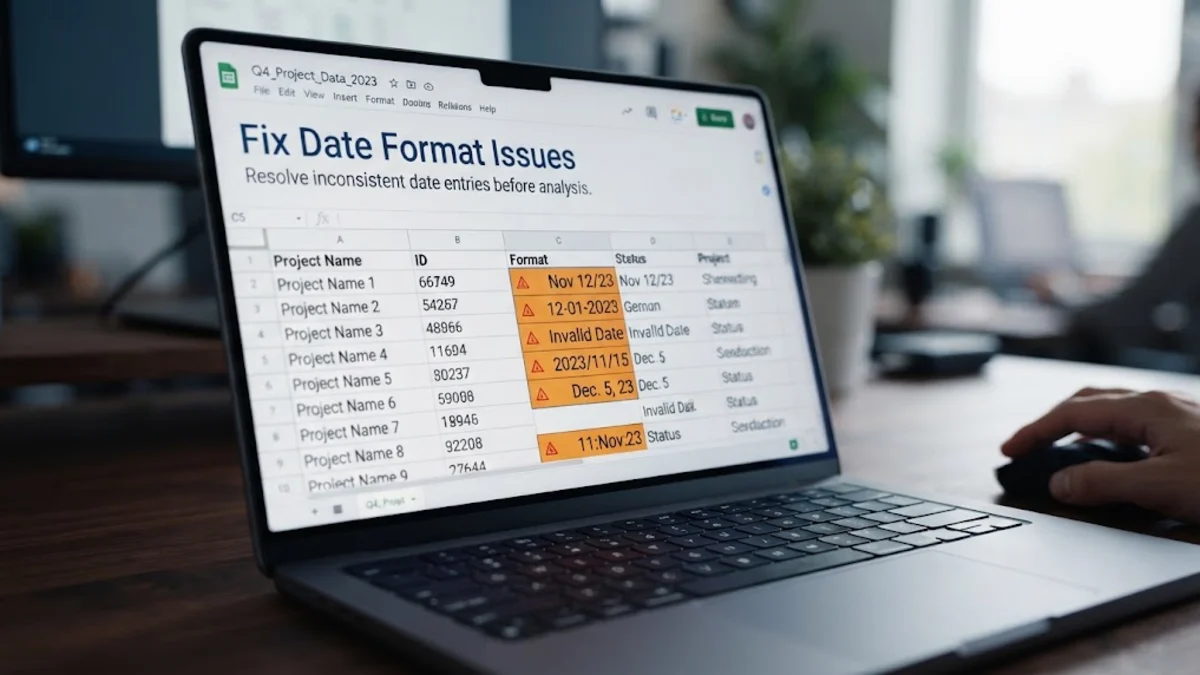
If your dates in Google Sheets keep shifting format or appearing as plain text, it is usually caused by a mismatch between your spreadsheet locale and your regional preferences. Fixing this issue takes just a few clicks in the settings menu or through custom formatting tools.
Why Google Sheets Changes Date Formats
When numbers or text representing days and months suddenly shift appearance or refuse to calculate correctly in a spreadsheet, it is almost always due to a locale mismatch or a text-parsing conflict. Google Sheets relies heavily on the underlying regional settings of the specific document to determine whether an entry like 05/04/2026 should be interpreted as May 4th or April 5th. If a spreadsheet is created in the United States using the MM/DD/YYYY convention and then opened or edited by someone in the United Kingdom, Australia, or Canada where DD/MM/YYYY is standard, chaos can quickly ensue. Another frequent cause is copying and pasting data from external web pages, PDFs, or legacy software systems. When this happens, Google Sheets often treats the imported data as a plain text string rather than a numerical serial number. In spreadsheet architecture, dates are actually stored as sequential serial numbers where day one begins on December 31, 1899. When a date is classified as text rather than a number, it loses its mathematical properties, meaning you cannot sort it chronologically or use it in formulas. You can easily spot this issue by looking at the cell alignment: recognized dates automatically align to the right side of the cell, while text-based date strings cling stubbornly to the left. Recognizing these root causes allows you to apply the correct technical fix right away without guessing.
Understanding how the rendering engine processes these entries prevents recurring formatting breakdowns during collaborative projects. When multiple users across different time zones and regional settings access the same cloud-based document, Google Sheets attempts to reconcile conflicting preferences. If your local machine expects one format but the sheet properties dictate another, automatic overrides can corrupt historical data logs, invoice trackers, and scheduling sheets. Identifying whether your cells are behaving as dynamic values or static text strings empowers you to implement permanent structural corrections rather than temporary visual patches.
Updating Your Spreadsheet Locale Settings
The most efficient and comprehensive way to fix widespread date formatting errors across an entire spreadsheet is to adjust your regional locale properties. To do this, look at the top menu bar, click on File, and then select Settings from the dropdown list. In the settings window that appears on your screen, ensure you are on the General tab, and locate the Locale dropdown menu. By default, this might be set to the United States or a previous creator's region. Click the menu and select your exact geographic location, such as the United Kingdom, Australia, or Canada, depending on your preferred date layout. After choosing your region, click the Save and apply button at the bottom of the window. Google Sheets will instantly recalculate and re-parse all existing date entries in the document to match your chosen regional standard. If certain stubborn cells fail to update immediately, highlight the affected column, return to the format menu, and reapply a standard date format to force the grid to refresh its cache. This method ensures that future data entries typed into the sheet automatically adopt the correct layout without requiring manual adjustments for every single cell.
Keep in mind that changing the document locale alters not only date formats but also currency symbols, number separators, and time calculations across the entire workbook. If your workbook includes financial data or formulas dependent on specific comma and decimal configurations, verify those elements after updating your regional settings. Communicating these locale changes to your team members ensures that everyone editing the file works from the same formatting baseline, significantly reducing future layout corruption and data entry mistakes.
Applying Custom Date Formatting Options
Changing your regional locale fixes macro-level layout problems, but what if you want a specific visual presentation, such as displaying the full name of the month or a two-digit year? For granular control, Google Sheets offers robust custom date formatting tools. First, highlight the specific cells, rows, or columns containing the dates you want to change. Next, navigate to the top menu, click on Format, hover over Number, and select Custom date and time at the very bottom of the submenu. This opens a dedicated menu where you can build your own formatting syntax using intuitive modular blocks or direct code input. You can drag and drop elements like day, month, year, and time, or use standard tokens such as DD for the day, MMM for the abbreviated month name, and YYYY for the full four-digit year. Once you have built your desired visual structure, click the Apply button. A common mistake technicians encounter here is trying to apply custom formats across entire columns that contain a mix of text and numerical dates. Always ensure your range is clean and contains uniform data types before applying custom formats to prevent display errors or blank cells.
Custom formats are purely cosmetic, meaning they change how the underlying serial number is presented to the human eye without altering the actual value stored within the cell. This distinction is crucial when building complex reports, pivot tables, or conditional formatting rules that rely on exact date matches. If a custom format fails to display your input correctly, it usually indicates that the source data is trapped as a text string and must be cleaned before formatting rules can take effect.
Converting Text Dates into Real Dates with Formulas
If your date formatting issue stems from raw imported text that resists standard locale changes or custom formatting rules, you will need to convert those text strings into active numerical serial dates using formulas. A great technician approach for this scenario is to use a temporary helper column alongside your original data. Insert a blank column next to your corrupted date column, and type the formula =DATEVALUE(A2) into the first data row, making sure to swap out A2 for the actual cell reference containing your text date. The DATEVALUE function reads text strings that resemble dates and translates them into the proper serial number format recognized by Google Sheets. After pressing enter, click on the cell and drag the blue fill handle down the column to apply the formula to all rows. Once your helper column successfully displays numerical serial codes, highlight the entire column, copy it using Ctrl + C on Windows or Cmd + C on Mac, right-click the original text date column, select Paste special, and choose Paste values only. This locks the converted dates into place, allowing you to safely delete your temporary helper column without breaking your data structure.
In situations where dates include complex time stamps or non-standard separators like periods or spaces instead of slashes, standard functions might return an error. You can combine DATEVALUE with text manipulation functions like SUBSTITUTE or REGEXREPLACE to clean up irregular characters before conversion. Taking these systematic troubleshooting steps guarantees that even the most messy, poorly exported data from legacy systems can be whipped into a clean, functional calendar format.
Fixing CSV Import Date Errors
Comma-separated values files are notorious for breaking date formats because plain text files do not carry formatting metadata, font styles, or cell properties. When you upload a CSV file into Google Sheets, the application attempts to guess data types on the fly, which frequently results in Americanized date conversions or stripped leading zeros on European-style entries. To prevent this data corruption before it happens, initiate your import by clicking File and then Import. When the file upload modal window opens, look closely at the advanced options available during the import process. Specifically, you should pay attention to the checkbox labeled Convert text to numbers, dates, and formulas. If your import is consistently mangling your date layouts, try unchecking this box so the raw data comes in purely as plain text, allowing you to control the conversion process manually afterward using formulas or format menus. Alternatively, ensure that your Google account and browser locale settings match the exact structure of the incoming CSV file before you start the upload. Preparing your environment beforehand eliminates guesswork and prevents corrupted records from polluting your database during large data migrations.
Another effective workflow involves opening the CSV file in a plain text editor first to examine how the raw strings are structured, rather than letting spreadsheet software guess automatically. By understanding the delimiters and date token layouts in the raw file, you can configure your import settings with absolute precision. Taking these preventative measures stops date corruption at the point of entry, saving you countless hours of downstream data auditing and manual cleanup.
The bottom line
Fixing date format issues in Google Sheets relies on aligning your locale settings, applying correct custom views, or converting stubborn text strings into active numerical values. By utilizing these targeted troubleshooting methods, your spreadsheets will remain accurate, consistent, and ready for analysis.
Frequently asked questions
Why do my dates change format when I share my sheet?
Google Sheets displays dates according to the individual viewer's local browser settings or the document's global locale setting. Check your file settings to lock in a specific regional format for all collaborators.
How do I know if my date is stored as text?
Dates stored as text align to the left side of the cell by default and often feature a small green triangle in the upper-left corner warning of a number stored as text.
Can I fix multiple columns of mixed date formats at once?
Yes, you can highlight the entire dataset and apply a unified custom date format or use the locale settings menu to convert all date-like values simultaneously.
What should I do if the DATEVALUE formula returns an error?
If DATEVALUE returns a #VALUE! error, the text string uses a layout that Google Sheets cannot automatically parse. You may need to use split or substitute functions to rearrange the day, month, and year components first.