How to Fix Google Pixel Overheating
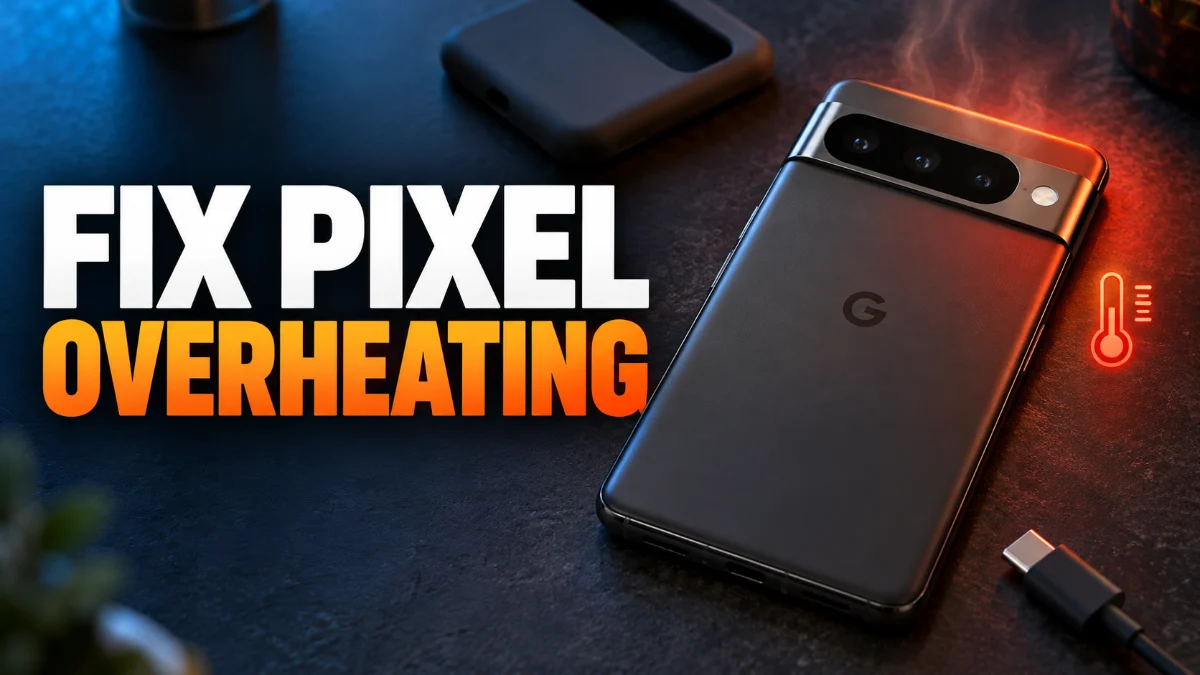
If your Google Pixel feels uncomfortably hot to the touch or displays a thermal warning, it is usually struggling to dissipate heat faster than it is generating it. This typically happens due to heavy processor usage, direct sunlight, background app loops, or charging while running demanding tasks.
Identify and Restrict Rogue Background Apps
Lower Screen Brightness and Refresh Rate
Remove Your Phone Case During Heavy Tasks
Modern smartphones rely on passive cooling designs where internal heat is conducted outward through the metal frame and glass back of the device. Thick, rugged, or heavily insulated phone cases trap this thermal energy inside the chassis, preventing it from dissipating into the surrounding air and creating a miniature oven effect. If your Pixel starts heating up while you are playing high-end games, streaming video for extended periods, or using navigation apps while plugged into a car charger, remove the protective case immediately. Allowing air to circulate freely around the glass and aluminum body dramatically improves thermal dissipation rates. Avoid placing your phone on fabric surfaces like couches, beds, or car seats while it is warm, as these materials insulate the device and block airflow. Instead, rest your phone on a cool, hard surface such as a wooden desk or tile countertop until the internal temperature returns to normal levels.
Optimize Connectivity and Location Services
Change Your Charging Habits and Accessories
Lithium-ion batteries naturally generate heat during the chemical energy transfer of charging, but combining fast charging with high processor loads can push temperatures into dangerous territory. If you play games, record video, or make video calls while your Pixel is plugged into a high-wattage power adapter, the cumulative heat can degrade your battery health and trigger thermal throttling. Always disconnect your phone from the charger when performing intensive tasks, and try to keep the device out of direct sunlight while plugged in, particularly on car dashboard mounts. Ensure you are using a certified Power Delivery charger and a high-quality USB-C cable that matches Google specifications. Cheap or damaged aftermarket chargers can deliver unstable electrical currents, causing inefficient power conversion and localized overheating inside the charging port area. If your phone gets excessively hot specifically during charging, try using a slower standard charger overnight.
Reset Network Settings or Factory Data
The bottom line
Overheating can severely impact your Google Pixel battery health and long-term performance if left unaddressed. By managing background applications, removing thick cases during heavy use, and optimizing your charging habits, you can keep your phone running cool, efficient, and reliable every day.
Frequently asked questions
Is it normal for a Google Pixel to get warm during initial setup?
Yes, downloading large app updates, transferring data from an old device, and indexing files place a heavy load on the processor, which frequently causes temporary warming during setup.
Can a damaged battery cause my Pixel to overheat?
Yes, aging or physically damaged lithium-ion batteries have higher internal resistance, causing them to generate excess heat during normal discharge and charging cycles.
Should I put my overheating Pixel in the refrigerator to cool it down?
Never put your phone in a refrigerator or freezer. Rapid temperature drops create internal condensation that can permanently ruin your electronics and ruin the display.
Does bright sunlight cause Google Pixel overheating?
Direct sunlight absorbs heavy thermal energy and forces your screen brightness to maximum overdrive, which quickly causes the internal processor and battery to overheat.
When should I contact Google support for an overheating phone?
If your Pixel shuts down automatically due to thermal warnings even when doing basic tasks in a cool room after a factory reset, you likely have a hardware defect requiring warranty service.