How to Fix AirPods Not Working Properly
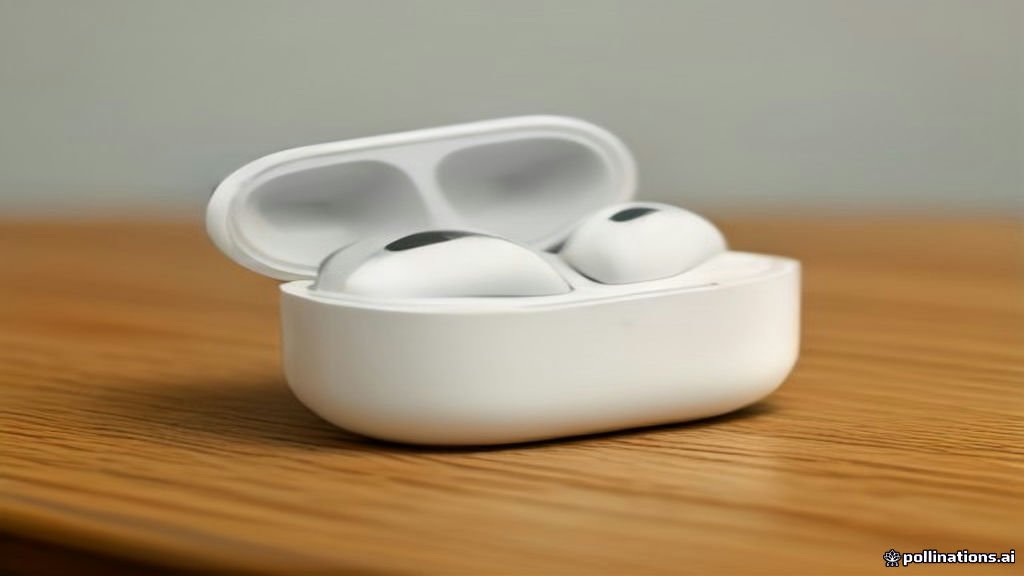
Dealing with AirPods that refuse to connect, drop audio, or fail to charge can be incredibly frustrating when you are trying to listen to music or take a call. Fortunately, most common AirPods issues stem from minor software glitches, depleted batteries, or a buildup of debris that you can easily resolve at home without professional help.
Check Battery and Charging Case
When your AirPods refuse to connect or play audio, the most common culprit is a depleted battery. Place both AirPods back into their charging case and check the status light. If the light flashes amber, it means the case is charging the AirPods, but if it does not light up at all, your case itself may be out of power. Connect the case to a USB-C or Lightning cable, or place it on a compatible wireless charger, and wait at least fifteen minutes. A dead battery can cause pairing glitches that make your phone think the AirPods are disconnected even when they are nearby. Make sure the charging contacts inside the bottom of the case are completely free of dust or lint, as even a small particle can block the charging current and leave one or both of your earbuds completely drained.
Verify Bluetooth and Audio Output Settings
Clean the AirPods and Charging Case Grilles
Audio distortion, muffled sound, or one AirPod being significantly quieter than the other usually points to a buildup of earwax and pocket lint in the speaker grilles and microphone mesh. Take a soft, dry, lint-free cloth and gently wipe down the exterior of both earbuds. For the fine mesh grilles, use a clean, dry, soft-bristled toothbrush to gently brush away stubborn debris. Never insert sharp metal objects, paperclips, or toothpicks into the grilles or charging ports, as this can puncture the delicate acoustic mesh or damage the internal electrical contacts permanently. If you notice that one AirPod fails to charge consistently, use a wooden toothpick very carefully to clear out any compacted pocket lint from the bottom of the charging stem cavity.
Reset Your AirPods to Factory Settings
Update Your iPhone and AirPods Firmware
The bottom line
By working through these troubleshooting steps, from verifying your Bluetooth settings and cleaning the contact points to performing a complete factory reset, you can quickly get your AirPods working normally again. If none of these steps resolve your issue, hardware failure may be the cause, and you should visit an Apple Store for assistance.
Frequently asked questions
Why is only one of my AirPods working?
This is usually caused by a poor connection in the charging case preventing one AirPod from charging, or a temporary software sync error. Try cleaning the charging case contacts and resetting your AirPods.
How do I know if my AirPods need a firmware update?
AirPods update automatically when connected to your iPhone and charging. You can check your current version under your Bluetooth settings when connected.
Can I fix AirPods that got wet?
If your AirPods got wet, dry them immediately with a lint-free cloth and leave them out of the case in a well-ventilated area for several hours before attempting to charge them.
Why won't my AirPods reset when I hold the button?
Ensure both AirPods are seated properly inside the charging case with sufficient battery charge. If the status light does not flash amber, clean the interior contacts of the case.