Why Is My Google Pixel Overheating and How to Fix It

If your Google Pixel is uncomfortably hot to the touch or displaying thermal warnings, it is usually struggling with intensive background processes, a demanding app, or poor ventilation. When a Google Pixel overheats, the processor automatically throttles performance, dims the screen, and may even shut down completely to prevent permanent hardware damage.
Fixing this issue involves identifying the underlying cause—whether it is a rogue application, heavy gaming in direct sunlight, or a corrupted software update—and applying targeted troubleshooting steps to restore normal operating temperatures.
Check for Rogue Background Apps
The most common cause of a hot phone is an application running wild in the background, consuming excessive CPU cycles or keeping the modem awake continuously. Social media apps, poorly coded games, or video streaming tools frequently trigger thermal spikes when they experience sync errors or infinite loops. To check if an app is draining resources and generating heat, navigate to Settings > Battery > Battery usage to review which applications have used the most power recently.
If you spot an app consuming an abnormal percentage of battery while you are not actively using it, tap the app name and select Force stop or restrict its background activity. If the problem persists, consider uninstalling the app entirely or checking the Google Play Store for an updated version that resolves known efficiency bugs. Keeping your application suite lean and up to date is essential for preventing unexpected thermal events on modern smartphones.
Remove the Case and Cool the Phone Down Safely
Modern smartphone cases, particularly thick rugged models, leather folios, or heavily insulated designs, act like blankets that trap heat generated by the processor and battery. If your Pixel feels hot, the very first physical step you should take is removing the case immediately to allow ambient air to circulate around the glass and aluminum chassis. Once the case is off, place the phone in a shaded, well-ventilated area—never inside a vehicle glove box or on a sunlit dashboard.
A common mistake people make when their phone gets hot is placing it inside a refrigerator or freezer to speed up the cooling process. Avoid this completely, as rapid temperature drops cause internal condensation to form, which can permanently ruin the logic board and void your warranty. Instead, simply turn the phone off for five to ten minutes, remove any connected charging cables, and let it return to room temperature naturally before resuming normal use.
Adjust Display Settings and Screen Brightness
The OLED display on your Google Pixel is a major consumer of power and a primary contributor to surface heat, especially when running at maximum brightness outdoors. When you use your phone under direct sunlight, the ambient light sensor pushes the screen brightness past standard limits into high-brightness mode, which rapidly spikes the temperature of the display driver IC and battery. To mitigate this, pull down your quick settings panel and manually lower the brightness slider, or enable Adaptive brightness via Settings > Display > Adaptive brightness.
Additionally, check your screen timeout settings and reduce the duration before the display goes to sleep when inactive. Long gaming sessions or video playback with maximum brightness and high refresh rates will consistently heat up your device. Lowering the refresh rate temporarily from 120Hz to 60Hz in your display settings can also provide immediate thermal relief if you notice your phone heating up during everyday tasks.
Update Your Software and System Apps
Software bugs, unoptimized modem firmware, and memory leaks frequently cause processors to work harder than necessary, leading to sustained high temperatures. Google regularly pushes monthly security patches and feature drops that specifically target thermal management and battery efficiency improvements. To ensure your operating system is fully up to date, head to Settings > System > System update and check for any pending downloads.
Beyond system updates, you must also update your pre-installed applications and Google Play services. Open the Google Play Store, tap your profile icon in the top right corner, select Manage apps & device, and tap Update all. Keeping both your system software and apps synchronized ensures that known power-drain bugs are patched and your phone operates at peak thermal efficiency.
Evaluate Charging Habits and Accessories
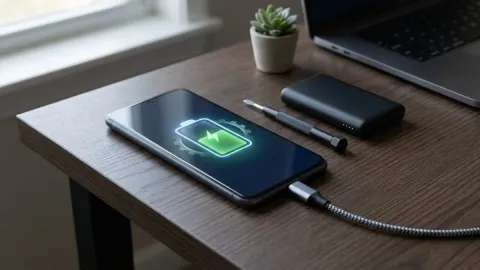
Fast charging generates a natural amount of heat due to the high electrical current flowing into the lithium-ion battery cells. However, if your phone becomes dangerously hot while plugged in, the issue may stem from using an incompatible third-party wall adapter, a damaged charging cable, or a malfunctioning wireless charging pad. Always use a Power Delivery (PD) certified USB-C charger and a high-quality cable that matches your specific Pixel model's power specifications.
Avoid using your Google Pixel for heavy tasks like gaming, video editing, or streaming high-definition content while it is plugged into a charger. Doing so forces the battery to discharge and charge simultaneously under high loads, compounding thermal stress and degrading long-term battery health. If you notice the charging brick itself is excessively hot, disconnect it immediately and replace it with a certified accessory.
Reset App Preferences or Perform a Factory Reset
If you have tried adjusting settings and removing apps, but your Pixel continues to overheat during basic idle states, deep-seated system corruption or a rogue service may be to blame. Start by resetting your app preferences via Settings > System > Reset options > Reset app preferences, which restores default notification settings, disabled apps, and background restrictions without deleting your personal files.
If minor resets fail to resolve the problem, back up all your important photos, messages, and documents to Google Drive, then perform a full factory reset. A clean installation wipes out corrupted cache files, rogue background daemons, and conflicting settings left over from major Android upgrades. Once the phone is set up fresh, monitor its temperature for a day before reinstalling third-party apps to ensure the hardware is functioning correctly.
The bottom line
Dealing with a Google Pixel overheating can be frustrating, but systematic troubleshooting almost always pinpoints the root cause. By monitoring background app usage, managing your screen brightness, updating your software, and avoiding heavy use while charging, you can keep your device cool, protect your battery health, and ensure reliable daily performance.
Frequently asked questions
Is it normal for a Google Pixel to get warm while charging?
Yes, it is completely normal for your Pixel to feel warm during fast charging because electrical resistance generates heat. However, it should never become uncomfortably hot to hold or display an overheating warning.
Can a bad phone case cause my Pixel to overheat?
Yes. Thick, rugged, or heavily insulated cases trap heat generated by the processor and battery, preventing natural thermal dissipation and causing the phone's internal temperature to rise.
Will an overheating phone damage the battery?
Sustained high temperatures degrade lithium-ion battery capacity much faster over time and can cause the battery to swell in extreme cases, which is why your Pixel triggers thermal shutdowns to protect itself.
What should I do if my Pixel overheats while I am outside?
Move out of direct sunlight immediately, remove any protective case, turn off demanding apps or GPS navigation, and let the phone rest in a cool, shaded area until its temperature normalizes.
Does 5G connectivity make a Google Pixel run hotter?
Yes. When your phone struggles to maintain a weak 5G cellular signal, the internal modem works at maximum power, which frequently generates significant heat and drains the battery quickly.