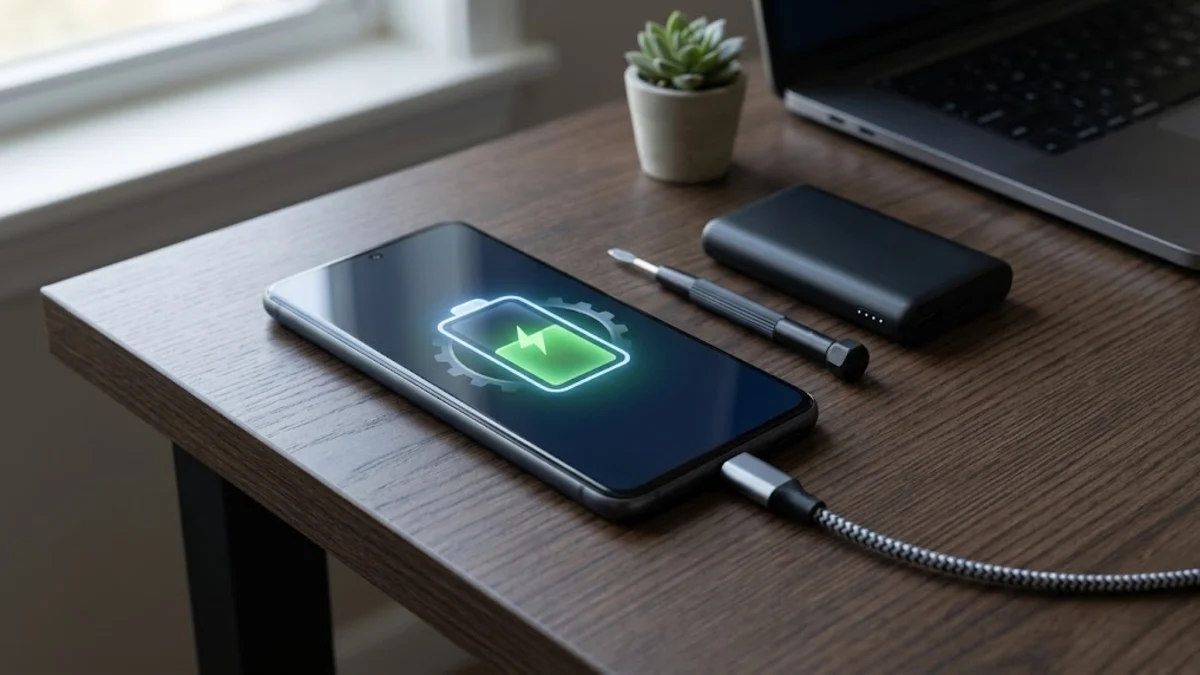
Dealing with sudden power drain on your Google Pixel can disrupt your entire day, leaving you searching for a charger before the afternoon is even over. Fortunately, most Google Pixel battery life problems stem from misbehaving background apps, aggressive connectivity settings, or outdated software that can be resolved without replacing the hardware. Whether you are using the latest Pixel hardware or an older generation running modern Android, optimizing your power consumption requires targeted troubleshooting. In this guide, you will learn practical, step-by-step methods to identify battery hogs, adjust system configurations, and restore your phone's all-day endurance.
1Check Battery Usage and Identify Rogue Apps
The first step in diagnosing power drain is figuring out which software components are consuming the most energy. Android maintains a detailed 24-hour log of power consumption split between system processes and individual applications. By inspecting this breakdown, you can quickly spot whether a single misbehaving app is keeping your phone awake and draining the cell. To view this data, open Settings > Battery > Battery usage to see a categorized list of applications and their respective background and foreground power draws. If an app you rarely use shows high background activity, it is a prime candidate for restriction or uninstallation. Take note of any application consuming more than ten percent of your daily battery without justification, as these rogue processes are usually the root cause of unexpected thermal output and rapid discharge.
2Manage Mobile Data, 5G, and Connectivity
Cellular connectivity is one of the most power-hungry features on any smartphone, especially when your device struggles to maintain a stable connection in low-signal areas. When a Pixel constantly searches for a strong 5G tower, the modem works overtime, generating heat and burning through your reserve power rapidly. To mitigate this, consider switching your preferred network type from 5G to LTE if you live or work in an area with spotty coverage. Navigate to Settings > Network & internet > SIMs > Preferred network type and select LTE. Additionally, you should disable background Wi-Fi and Bluetooth scanning by going to Settings > Location > Location services and turning off scanning options. These background pings are rarely necessary for daily navigation and contribute significantly to silent battery drain over the course of a day.
3Tune Your Screen Brightness and Refresh Rate
The display panel is almost always the single largest power consumer on a Google Pixel device. While high peak brightness and smooth refresh rates make text and animations look incredible, they demand immense amounts of electrical current from the battery cell. Start by ensuring Adaptive Brightness is enabled under Settings > Display > Adaptive brightness so your screen does not blast maximum brightness indoors. Furthermore, if your Pixel model supports a high refresh rate, you can force it to standard mode to save power. Go to Settings > Display and toggle off Smooth Display if you want to lock the refresh rate to sixty hertz. This single adjustment drastically reduces GPU and display driver power consumption during scrolling and idle viewing, preserving vital percentage points for later in the evening.
4Restrict Background Process Activity
Many applications continue to run background tasks, sync data, and check for notifications even when you are not actively interacting with them. This constant background chatter prevents your Pixel's processor from entering deep sleep states, keeping power draw elevated throughout the day. You can forcefully restrict individual apps from running tasks in the background without your direct oversight. Open Settings > Apps > See all apps, select the power-hungry application from the list, and tap on Battery. From there, change the setting from Optimized to Restricted. Keep in mind that restricting an app might delay notifications or prevent it from updating its content until you open it manually, so reserve this setting for social media apps and utilities that you do not rely on for real-time alerts.
5Install the Latest Android System and App Updates
Software bugs in the operating system or third-party applications can occasionally trigger endless processing loops known as wakelocks, which prevent the phone from sleeping. Google frequently releases monthly security patches and feature drops that specifically target battery efficiency bugs and thermal optimization issues. You should check for pending system improvements by navigating to Settings > System > System update and tapping on check for updates. Simultaneously, open the Google Play Store, tap your profile icon, go to Manage apps & device, and ensure all your installed applications are updated to their latest versions. Developers regularly patch memory leaks and energy inefficiencies, making routine updates a cornerstone of maintaining optimal battery health on your Pixel device.
6Enable Adaptive Battery and Battery Saver Features
Your Pixel phone features built-in machine learning tools designed to automatically manage power distribution based on your personal usage habits. The Adaptive Battery feature learns which apps you use frequently and which ones you rarely touch, starving the inactive ones of background CPU cycles. Verify this feature is active by going to Settings > Battery > Adaptive Battery and ensuring the toggle is turned on. When you find yourself away from a charger with critically low percentage remaining, do not hesitate to deploy the standard or Extreme Battery Saver modes found in the quick settings shade. These modes aggressively limit background activity, pause non-essential apps, and darken the user interface to squeeze every last drop of usable power out of your remaining battery percentage.
Frequently asked questions
Why is my Google Pixel battery draining so fast overnight?
Overnight battery drain is usually caused by apps syncing data in the background, poor cellular signal forcing the modem to work hard, or a system process stuck in a wakelock loop. Check your battery usage stats to find the culprit.
Does turning off 5G significantly improve Pixel battery life?
Yes, if you live in an area with a weak 5G signal, your phone constantly switches between towers, which drains the battery rapidly. Switching your preferred network type to LTE often yields a noticeable improvement in daily battery endurance.
When should I consider replacing my Pixel battery?
If your phone is more than two to three years old, shuts down unexpectedly even when the indicator shows twenty percent remaining, or gets excessively hot during basic tasks, the physical battery health may have degraded to the point where physical replacement is necessary.
Does Adaptive Battery actually work?
Yes, Adaptive Battery uses on-device machine learning to understand your routine over a week or two, successfully reducing power allocation to apps you rarely open while prioritizing the tools you use daily.