Best Two-Factor Authentication App for iPhone in 2026
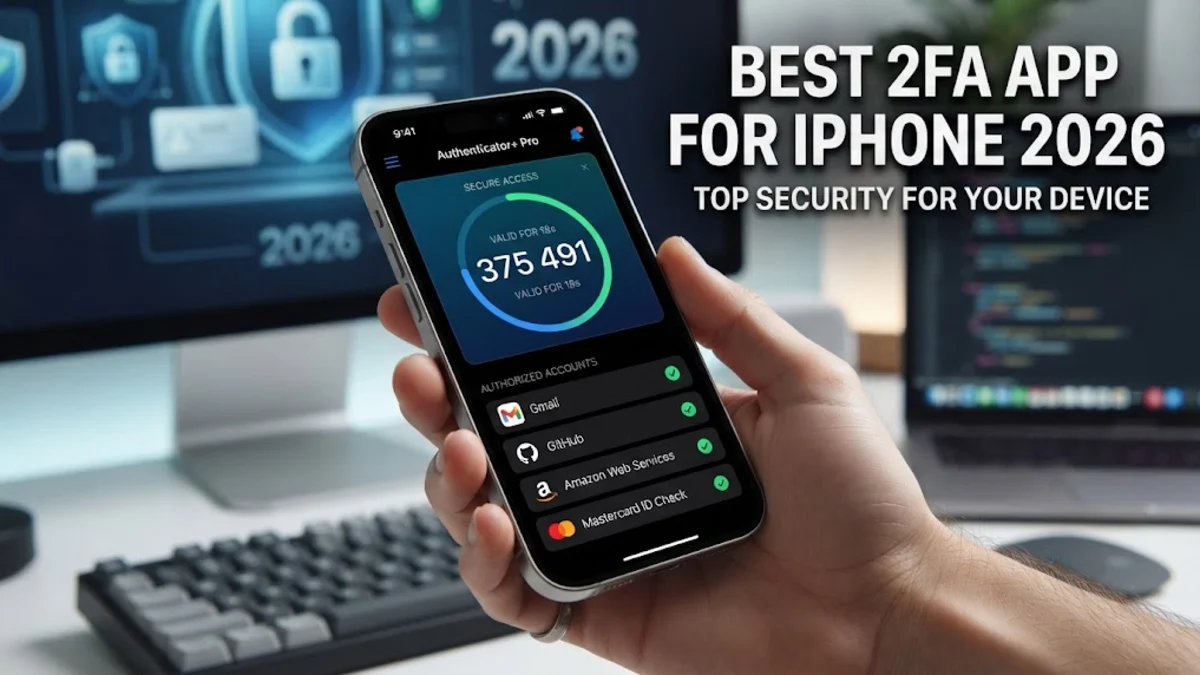
Securing your digital life requires more than just a strong password, making a reliable two-factor authentication app for iPhone essential for everyday protection. With cyber threats evolving rapidly, adding a second layer of verification prevents unauthorized access even if your credentials are compromised.
Choosing the right authenticator app depends on your need for multi-device sync, cloud backups, or seamless ecosystem integration. This guide reviews the top options available on iOS to help you select the ideal security tool for your personal and professional accounts.
Why You Need a Dedicated 2FA App on iPhone
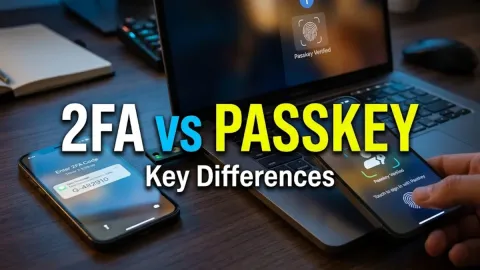
Relying solely on SMS text messages for two-factor authentication leaves your accounts vulnerable to SIM swapping and interception attacks. A dedicated authenticator app generates time-based one-time passwords directly on your device, offering a significantly higher level of cryptographic security.
Furthermore, hardware-isolated secure enclaves on modern iPhones ensure that your authentication tokens remain encrypted and protected from malicious software. Transitioning away from SMS codes to an application-based token generator is the single most effective step you can take today to harden your online security posture across email, banking, and social media platforms.
Google Authenticator: Best for Simplicity and Reliability
Google Authenticator remains one of the most widely recognized tools for generating two-factor codes on iOS devices due to its minimalist design and rock-solid reliability. The interface presents your active codes clearly in a clean list, making it exceptionally fast to locate the service you need when logging in from a new computer or browser.
Recent updates have introduced cloud sync capabilities tied directly to your Google account, solving the historical risk of losing all your tokens if your iPhone gets lost or damaged. While it lacks advanced features like biometric locking or password management integration, its lightweight footprint makes it ideal for users who prefer a straightforward, no-frills security experience.
Twilio Authy: Best for Multi-Device Sync and Backups
Twilio Authy stands out as a powerful choice for users who manage accounts across multiple operating systems, allowing seamless synchronization between your iPhone, iPad, Mac, and non-Apple devices. Authy uses encrypted cloud backups protected by a master password, ensuring you can restore your entire token collection effortlessly if you upgrade your phone.
The app also supports multi-device management, enabling you to approve or deny authentication requests from a secondary trusted device. This flexibility, combined with mandatory PIN and Face ID protection, makes Authy a robust powerhouse for power users who demand both convenience and advanced recovery options.
1Password: Best All-in-One Password and 2FA Manager
If you want to eliminate the hassle of juggling separate applications for your credentials and verification codes, 1Password provides an exceptional unified solution. By storing your time-based one-time passwords directly inside your encrypted vault alongside your login details, the app can automatically autofill both your password and your 2FA code in Safari and supported iOS apps.
This tight integration drastically speeds up your daily login workflow while maintaining enterprise-grade encryption standards. Although it requires a subscription fee, the convenience of having your passwords and authentication tokens managed within a single secure ecosystem is well worth the investment for security-conscious individuals.
Apple Passwords and Built-In Security Features
Apple includes a native verification code generator built directly into iOS through the dedicated Passwords feature found within your system settings. Without downloading any third-party software, you can store and generate two-factor authentication codes that sync securely across your iCloud keychain to all your Apple devices.
This built-in tool detects setup QR codes automatically when browsing in Safari and prompts you to save the verification generator instantly. For users fully immersed in the Apple ecosystem who want zero friction and end-to-end encryption without managing an external app, the native password manager is a surprisingly capable and secure option.
How to Choose the Right 2FA App for Your Workflow
Selecting the ideal authenticator requires evaluating your daily habits, device ecosystem, and comfort level with cloud services. If you only use Apple devices and want maximum simplicity, sticking with the built-in iOS password manager or Google Authenticator will satisfy your requirements without adding unnecessary complexity.
Conversely, if you frequently switch between Windows, Android, and iOS devices, a platform-agnostic service like Authy or a comprehensive vault like 1Password will prevent you from getting locked out of your critical accounts. Always ensure that whichever tool you choose has robust backup procedures enabled before adding your important financial and professional logins.
The bottom line
Securing your iPhone with a dedicated two-factor authentication app is a vital defense against modern cyber threats and account takeovers. By choosing a trusted solution that matches your multi-device needs and backup preferences, you can browse and work online with complete peace of mind.
Frequently asked questions
Can I transfer my 2FA codes to a new iPhone?
Yes, most modern authenticator apps like Google Authenticator and Authy allow you to export accounts via QR codes or restore them securely through encrypted cloud backups when setting up a new device.
Are 2FA apps safer than SMS text messages?
Authenticator apps are significantly safer than SMS because they do not rely on cellular networks, making them immune to SIM swapping, interception, and mobile carrier vulnerabilities.
What happens if I lose my iPhone with my 2FA app installed?
If you configured cloud backups or multi-device sync, you can recover your tokens on a new device using your master password or cloud account. If no backup exists, you will need to use emergency backup recovery codes provided by each individual service.
Does Apple have a built-in authenticator app?
Yes, iOS includes a built-in verification code generator within the Passwords section of your settings, which automatically syncs your 2FA tokens via iCloud Keychain.