How to Fix Android Phone Not Showing Up on PC
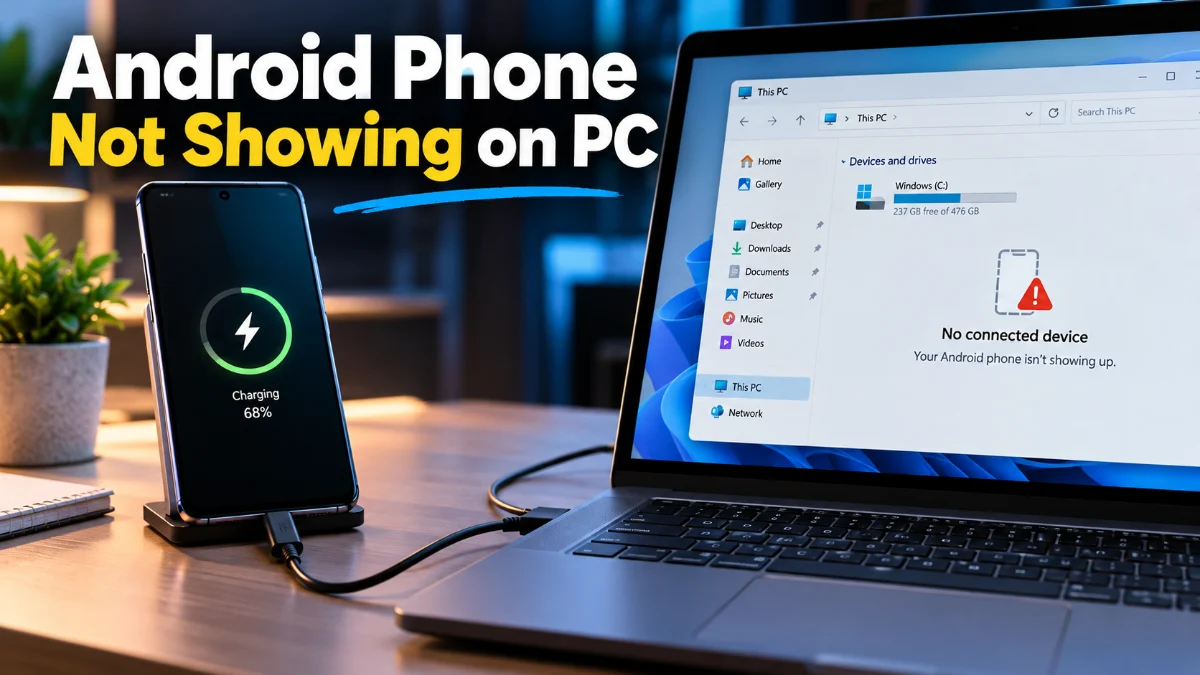
When your Android phone does not show up on your PC, it is usually caused by an incorrect USB connection mode, a faulty cable, or outdated device drivers on Windows. You can quickly resolve this issue by changing your phone settings from charge-only to file transfer mode and verifying your hardware connections.
Check and Change Your USB Connection Mode
Test Alternative USB Cables and Ports
Many everyday USB cables are designed solely for charging and lack the internal data wires required to transmit files between your phone and PC. If you are using a cheap replacement cable or a cable that came with a power bank, it may lack data transfer capabilities entirely. Try swapping your current cable with a known data-sync cable, preferably the original one that came with your phone. Additionally, the physical USB port you plug into on your computer matters significantly. If you are using a desktop PC, always plug your cable into the rear ports attached directly to the motherboard rather than the front case ports, which can suffer from loose internal headers or insufficient power delivery. Avoid using unpowered USB hubs, as they often fail to supply enough current or data bandwidth for stable smartphone connections. Try testing every available USB port on your machine to rule out hardware port failure.
Update or Reinstall Windows USB Drivers
Enable USB Debugging in Developer Options
Inspect and Clean Your Phone USB Port
Pocket lint, dust, and debris frequently accumulate inside the USB-C port of your Android phone, preventing the cable from seating deeply enough to establish reliable data pins. If the connector cannot push all the way in, power pins might make contact while data pins remain disconnected, resulting in your phone charging happily without showing up on your PC. Shine a flashlight into the charging port and inspect it carefully for packed dust or lint. If you spot debris, take a wooden toothpick or a soft plastic tool and gently scrape it out, taking extreme care not to bend or damage the delicate central connector pin. Never use metal pins like needles or paperclips, as they can scratch the contacts or cause an electrical short circuit. After cleaning out the port, plug your cable back in and listen for the physical click that indicates a secure, snug connection.
Switch to Wireless Transfer or Phone Link
If physical USB connections continue to misbehave due to hardware wear or driver conflicts, you can bypass cables entirely by using wireless file transfer methods. For quick file sharing between an Android phone and a Windows PC, Microsoft Phone Link allows you to view photos, manage notifications, and transfer files seamlessly over your local Wi-Fi network. Open the Phone Link app on your Windows PC and follow the pairing instructions by scanning the QR code with your phone camera. Alternatively, you can use built-in sharing features like Quick Share on modern Android devices to beam files directly to your PC browser or desktop app without dealing with stubborn USB ports. Wireless solutions eliminate physical connection hassles entirely and provide a modern, reliable alternative for day-to-day media management and document syncing.
The bottom line
Fixing an Android phone that fails to show up on your PC is usually a matter of adjusting connection settings, switching out faulty cables, or refreshing Windows drivers. By following these methodical steps from software preferences to hardware checks, you can restore reliable file transfers in no time.
Frequently asked questions
Why does my Android phone only charge when plugged into my PC?
Your phone defaults to charge-only mode for security. Open your notification shade after plugging it in, tap the USB notification, and switch the mode to File Transfer or MTP.
What should I do if my PC says the USB device is unrecognized?
This usually indicates a driver or cable issue. Go to Device Manager on Windows, uninstall your Android device under Portable Devices, and reconnect the phone to reinstall the drivers.
Do I need a special cable to transfer files from Android to PC?
Yes. Many cheap replacement cables only contain power wires and lack the internal data wires required to transfer files. Always use a genuine data-sync cable.
Can Mac computers also experience Android connection issues?
Yes, macOS does not support MTP natively. Mac users need to download and use an official file transfer application to browse Android storage files.