How to Create a Windows 11 Local Account
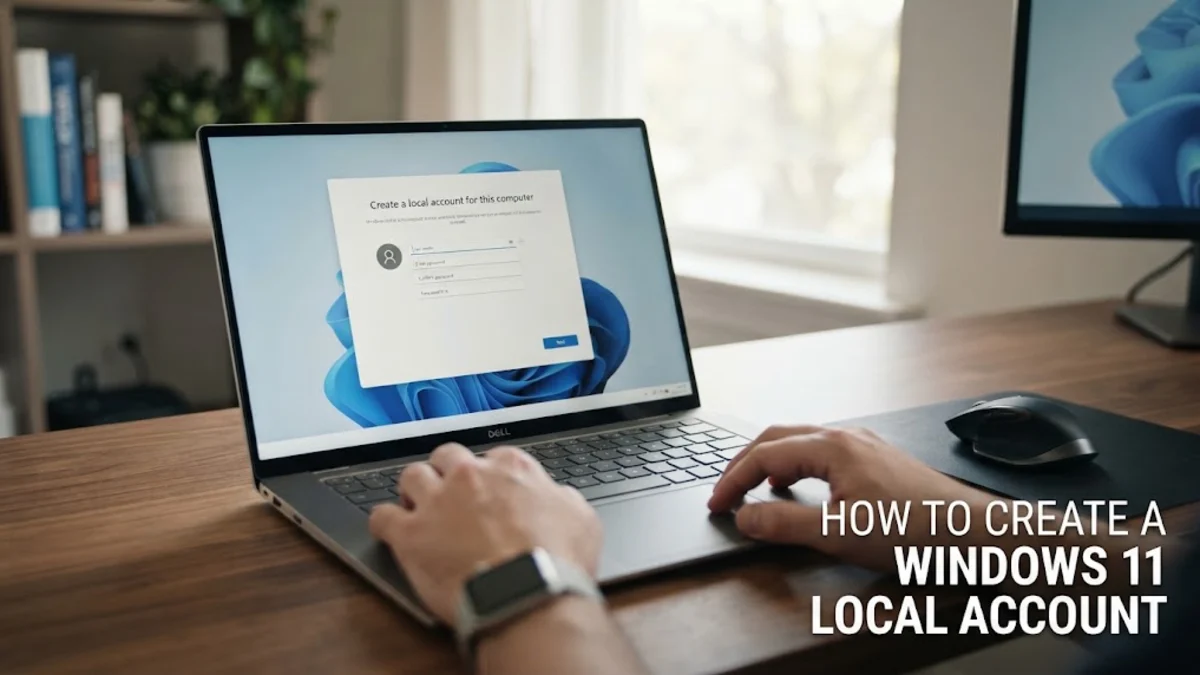
Setting up Windows 11 with a local account instead of a Microsoft login gives you greater privacy and lets you use your PC offline without forced cloud integration. While Microsoft strongly pushes for an online account during initial installation and daily use, bypassing this requirement is entirely possible with the right commands or system settings.
Whether you are setting up a brand new PC or converting an existing user profile, using a local account keeps your personal data off remote servers and gives you direct control over your login credentials. Follow the detailed procedures below to configure your Windows 11 system exactly the way you want it.
Understanding Windows 11 Account Requirements
When you unbox a new PC or perform a clean installation of Windows 11, the operating system aggressively encourages you to sign in with a Microsoft account. This integration connects your desktop settings, OneDrive storage, and app purchases directly to the cloud. However, many users prefer a traditional offline setup to avoid mandatory telemetry tracking, forced password resets, and reliance on internet connectivity just to log into their own hardware.
Choosing a local account means your profile lives exclusively on your machine. You do not need an active internet connection during setup, and your user folder name is derived directly from your chosen username rather than the first five characters of an email address. Understanding this distinction helps you decide whether to create a local account from scratch or convert an existing Microsoft-linked profile on your computer.
Using the Bypass Command During Fresh Setup
If you are installing Windows 11 on a new machine or after wiping your hard drive, you will eventually reach the screen asking you to connect to a network. Because Microsoft requires internet access to verify a Microsoft account, you must interrupt this process to create a local profile. First, unplug your ethernet cable or skip Wi-Fi connection steps if possible. If the setup forces an internet connection, you can use a built-in command prompt shortcut.
When you reach the network connection screen, press Shift + F10 to open the Command Prompt window. Type OOBE\BYPASSNRO and press Enter. Your computer will restart automatically, and when you return to the network screen, you will see a new clickable option that says I don't have internet. Click that option, select Continue with limited setup, and you will be able to type in your preferred local username and password without any cloud interference.
Creating an Additional Local Account via Settings
If your Windows 11 system is already up and running with a Microsoft account, you do not need to reinstall the operating system to get a local login. You can easily add a secondary local account through the main control panels. Start by clicking the Start button and opening Settings, or press Windows + I on your keyboard. In the left-hand menu, select Accounts and then click on Other users.
Under the other users section, click the Add account button. When the Microsoft sign-in window appears asking for an email address, click the link that says I don't have this person's sign-in information. On the next screen, choose Add a user without a Microsoft account. Enter your desired username, create a secure password, fill out the required security questions, and click Next. Your new local account is now ready for use whenever you sign out.
Converting an Existing Administrator Account to Local
Many users find themselves logged into their primary administrator profile using a Microsoft account and want to switch that exact profile to a local one. To do this, open Settings by pressing Windows + I, navigate to Accounts, and select Your info. Look under the account settings area and click the link that says Sign in with a local account instead.
A confirmation prompt will pop up warning you about losing cloud features. Click Next, enter your current Microsoft account password or PIN to verify your identity, and click OK. Next, enter your new local username, password, and password hint. Click Next and then click Sign out and finish. When your computer logs back in, your main administrator profile will operate entirely as a local account.
Managing Passwords and Security Questions
Running a local account in Windows 11 means you are entirely responsible for remembering your password. Unlike online accounts where you can click a reset link sent to your phone or email, a forgotten local password requires advanced recovery tools or a system reinstall if you did not plan ahead. Because of this risk, you must configure security questions during the local account creation process so you can answer them if you ever get locked out.
If you need to change your local password after setup, press Ctrl + Alt + Delete and select Change a password. Alternatively, go to Settings > Accounts > Sign-in options and modify your password or set up a local PIN. Make sure to write your password down in a secure physical location if it is difficult to memorize.
Troubleshooting Common Setup and Account Errors
Sometimes users encounter hurdles when attempting to bypass online account requirements. If the OOBE\BYPASSNRO command does not trigger a restart, ensure you typed the backslash correctly and that you are executing the command from the proper setup screen stage. If your PC refuses to proceed without an internet connection, turn off your router temporarily or disable your Wi-Fi card during the initial setup phase to force the offline installation path.
Another common issue involves permission errors when trying to convert an account. Ensure that the profile you are modifying has full administrator rights. If you receive an error stating that the username is already taken, choose a unique name that does not conflict with existing hidden system profiles or default user folders on your hard drive.
The bottom line
Creating a local account in Windows 11 gives you total ownership of your personal computer, removing forced cloud syncing and online tracking prompts. Whether you use the command prompt bypass during a fresh install or convert your profile through the settings menu, the process is straightforward and secures your data offline.
Frequently asked questions
Can I switch back to a Microsoft account later if I change my mind?
Yes. You can link your local account to a Microsoft account at any time by going to Settings > Accounts > Your info and selecting Sign in with a Microsoft account instead.
Will I lose my files if I switch from a Microsoft account to a local account?
No. Converting your account only changes how you log into the operating system. Your personal files, installed apps, and desktop settings remain completely untouched.
Is a local account safer than a Microsoft account?
A local account keeps your personal profile data stored exclusively on your local machine rather than syncing it to cloud servers, which reduces exposure to online credential leaks.
Do I need internet access to create a local account?
No. One of the main benefits of a local account is that you can set up and operate your Windows 11 PC entirely offline without an active internet connection.