Best ChatGPT App for Mobile and Desktop in 2026
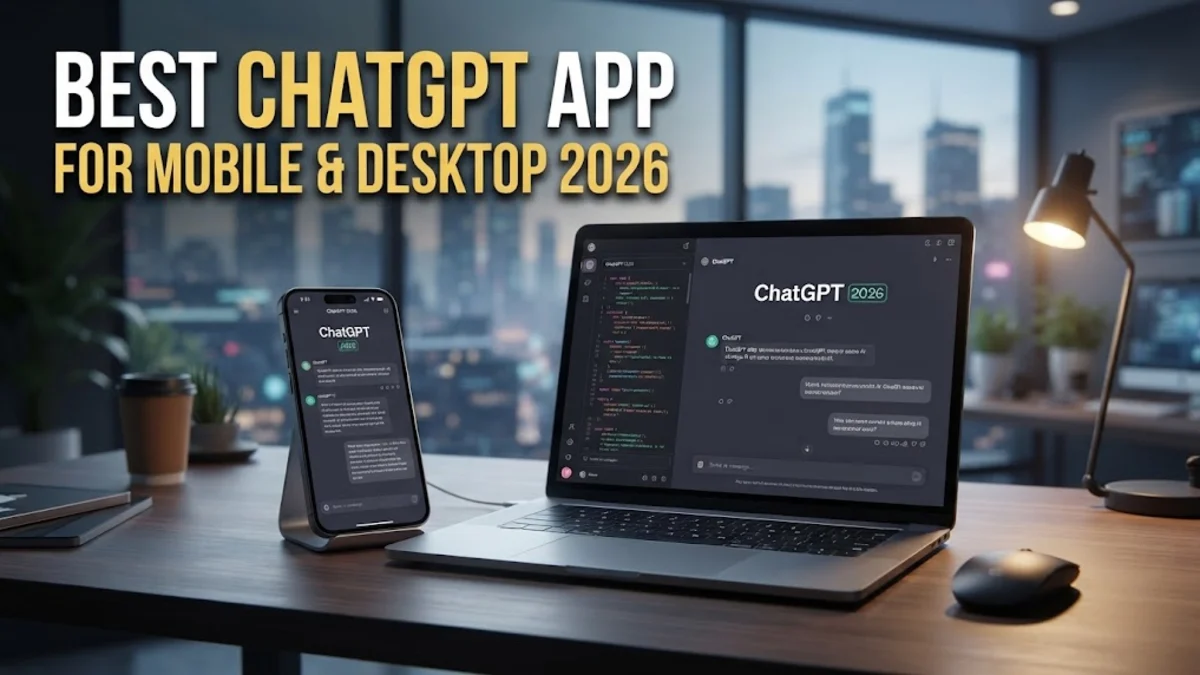
Finding the right ChatGPT app ensures you can access artificial intelligence quickly and efficiently across all your devices. Whether you need a reliable assistant for writing, brainstorming, or technical coding on the go, choosing the right client makes a significant difference in your daily productivity.
The Official OpenAI ChatGPT Mobile App
The official OpenAI ChatGPT mobile application for iOS and Android remains the undisputed gold standard for mobile artificial intelligence interaction. Designed with user efficiency in mind, it offers flawless synchronization across all your registered devices, allowing you to seamlessly pick up complex multi-step conversations exactly where you left off on your workstation computer. The mobile client features a highly responsive speech-to-text engine that powers its advanced voice mode, making it effortless to dictate complex prompts while commuting, walking, or multitasking around your home or office. Furthermore, the robust mobile interface includes native support for camera-based photo uploads and document scanning. This allows you to snap a picture of physical notes, whiteboard diagrams, or complex textbook pages and receive instant AI analysis, translation, or summarization. Users can also access custom GPTs created by the developer community directly from their phones, dramatically expanding the versatility of the tool far beyond standard text generation. For added peace of mind, built-in security features such as biometric login via Face ID or Android fingerprint scanning ensure your private chat threads and personal data remain strictly protected from unauthorized physical access if your phone is lost or shared.
Official Desktop Applications for macOS and Windows
For desktop and laptop users, OpenAI provides dedicated native applications for both macOS and Windows that completely transform your workflow integration. Rather than forcing you to keep a browser tab open, the desktop app features a convenient global keyboard shortcut that summons a clean, minimalist chat overlay anywhere on your active screen. This means you can query the artificial intelligence or ask for quick writing assistance without ever switching active application windows or disrupting your active workflow. This floating window design drastically reduces friction when you are drafting professional emails, editing code snippets, or writing comprehensive reports in external software. The native desktop version also supports advanced voice capabilities and screen content capture, enabling the AI to understand what you are viewing on your monitor depending on your subscription tier. Running a native application instead of a web browser tab reduces memory consumption, prevents accidental tab closures that could ruin long troubleshooting sessions, and delivers reliable operating system notifications when long background reasoning tasks or deep-thinking prompts finish processing.
Key Features to Evaluate in Any AI Client
When evaluating the best ChatGPT application for your specific professional or academic workflow, several core feature categories demand careful attention. First, examine the quality of the speech recognition and voice output integration, as natural conversational speed and low latency are essential for hands-free productivity. Second, check how the application handles document attachments, PDF parsing, and multi-format file management, because robust upload capabilities save countless hours during complex research and data extraction tasks. Third, scrutinize the privacy controls offered within the app settings, including toggles to disable chat history training if you frequently handle sensitive proprietary business data or confidential client information. Offline caching, quick query recall, and reliable history search functionality are also invaluable features if you frequently work in environments with unstable internet connectivity. Finally, assess whether the application supports custom instructions, user memory settings, and workspace switching, which allow the underlying artificial intelligence to remember your preferred writing tone, programming languages, and formatting rules across every new session without requiring repetitive prompting.
Comparing Official Apps and Third-Party Alternatives
While official OpenAI client applications provide the most direct, secure, and reliable access to the latest frontier models, a wide variety of third-party wrappers and multi-model aggregator applications exist across various software app stores. Third-party clients often attempt to add value by combining ChatGPT with competing models like Claude or Gemini into a single unified dashboard, or by offering custom user interface themes. However, these third-party options frequently introduce hidden security risks, delayed feature rollouts, and subscription tracking complications since they rely on third-party API keys rather than direct account billing through OpenAI. Official apps guarantee day-one access to newly released features, rigorous security patches, and direct developer support. Furthermore, users who strictly require enterprise-grade security and strict data governance will find that sticking to official client software offers the most stable and feature-complete experience without sacrificing confidentiality or violating platform terms of service.
Optimizing Your ChatGPT App Setup for Maximum Productivity
To extract the absolute maximum value from your chosen ChatGPT application, proper configuration of your application settings and everyday habits is crucial. Begin by thoroughly filling out the custom instructions section in your account settings, outlining your profession, typical daily tasks, and preferred output styles, which spares you from having to type out contextual background in every new chat window. Organize your growing chat history by utilizing custom project folders or archiving outdated conversation threads to keep your sidebar clean, uncluttered, and easy to navigate. Enable quick widget shortcuts directly on your mobile device home screen for instant one-tap access to voice conversation mode or camera scanning whenever inspiration strikes. If you manage multiple distinct projects or academic subjects, maintain separate chat threads for each specific topic rather than mixing unrelated queries into a single conversation. This disciplined approach helps the underlying language model maintain superior context coherence, prevents memory confusion, and delivers significantly more accurate and useful responses throughout your busy working day.
The bottom line
Selecting the best ChatGPT app depends entirely on your daily device usage, workspace environment, and professional requirements. By prioritizing official client applications across your mobile and desktop devices, you ensure maximum security, native operating system integration, and instant access to cutting-edge artificial intelligence capabilities.
Frequently asked questions
Is the official ChatGPT mobile app free to download and use?
Yes, the official ChatGPT app for iOS and Android is completely free to download and use, with optional subscription upgrades available for advanced model access and priority speeds.
Can I use voice chat on the desktop ChatGPT app?
Yes, supported desktop platforms feature advanced voice modes that allow fluid, natural spoken conversations with the artificial intelligence directly from your computer microphone.
Do third-party ChatGPT apps require an OpenAI account?
Most third-party applications require you to generate and input your own paid OpenAI API key or log in using external authentication linked to your primary account credentials.
Are my chat conversations synced between mobile and desktop apps?
Yes, as long as you log into the exact same OpenAI account, your complete chat history, custom instructions, and saved threads sync automatically across all connected devices.
How do I secure my ChatGPT app against unauthorized physical access?
You can enable built-in biometric security features such as Face ID or Android fingerprint authentication directly within the mobile application settings menu to lock the app.