How to Fix Windows 10 Keyboard and Mouse Not Working
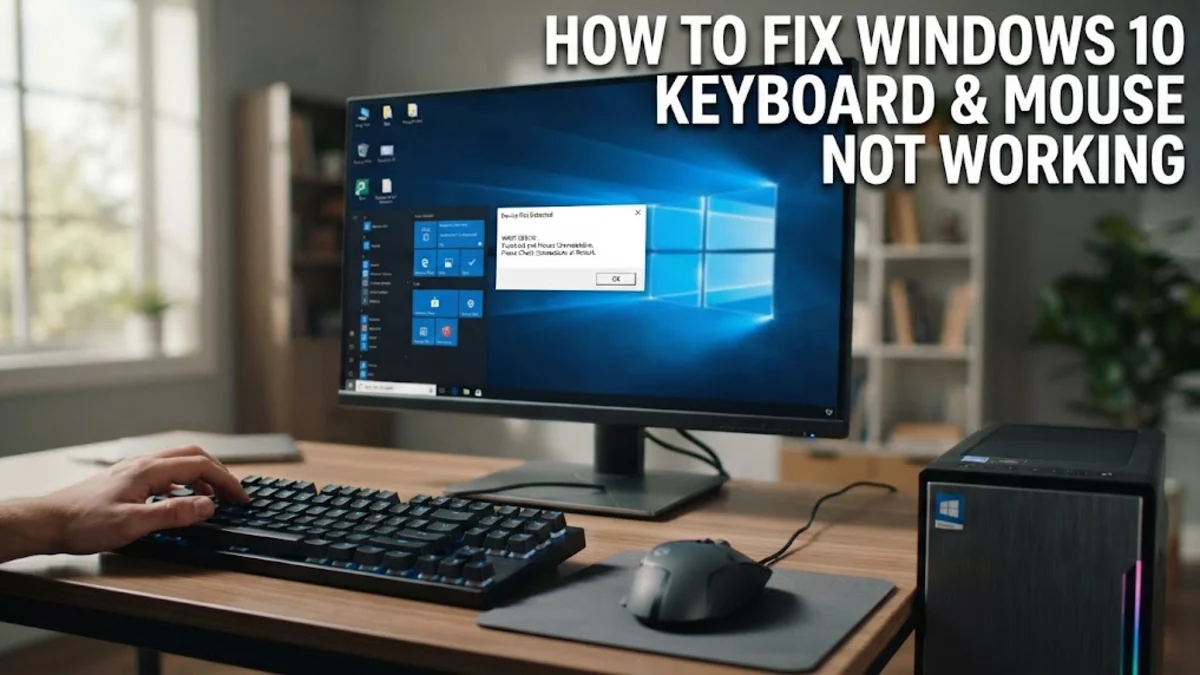
When your Windows 10 keyboard and mouse stop working completely, troubleshooting becomes an immediate challenge since you cannot easily navigate your desktop. This frustrating issue typically stems from unresponsive USB ports, corrupted device drivers, conflicting software, or misconfigured power management settings.
Before you panic or assume your hardware is permanently damaged, several reliable methods can restore functionality. This guide walks you through troubleshooting steps ordered from the quickest fixes to more advanced software solutions.
Check Physical Connections and USB Ports
The very first step when your keyboard and mouse stop responding is to verify all physical connections. Loose cables, failing USB hubs, or dusty ports frequently cause input devices to disconnect abruptly. Unplug your keyboard and mouse and plug them into different USB ports on your computer. If you are using a desktop PC, try plugging them into the back ports directly attached to the motherboard rather than the front case ports, which can sometimes fail due to loose internal wiring.
For wireless keyboards and mice, check whether the batteries are depleted or if the USB receiver is securely seated. Remove the wireless USB dongle and reinsert it into another port, or replace the batteries with fresh ones. If your devices feature a physical power switch underneath, ensure it is toggled to the on position. Testing these input devices on a secondary computer is also a great way to rule out permanent hardware failure before moving on to software troubleshooting.
Restart Your PC Using Emergency Methods
A simple system reboot often resolves temporary driver crashes or background process freezes that lock up USB input controllers. Because your mouse and keyboard are unresponsive, you cannot click the Start menu to restart normally. Instead, you need to use emergency shutdown methods. Press and hold the physical power button on your computer case for about five to ten seconds until the system powers down completely. Wait ten seconds, then press the power button again to boot it back up.
When Windows reboots, the system will reinitialize all hardware controllers and reload the necessary drivers. If your peripherals work during the boot screen or in the BIOS settings but fail once Windows 10 reaches the login screen, you are dealing with a software or driver conflict rather than a physical hardware failure. In this case, you will need to boot into Safe Mode or use an alternative input device to fix the corrupted drivers.
Boot into Safe Mode and Uninstall Problematic Updates
If a recent Windows update or rogue software installation caused your keyboard and mouse to stop working, Safe Mode is your best diagnostic environment. To enter Safe Mode when you cannot log in, interrupt the boot sequence three times by holding the power button until the PC shuts down while starting up. On the fourth boot, Windows 10 will enter the Automatic Repair environment. Navigate through Troubleshoot > Advanced options > Startup Settings and click Restart. When the list appears, press 4 or F4 to enable Safe Mode.
Once you are inside Safe Mode, your basic keyboard and mouse drivers should function properly. You can then remove recent system updates or third-party applications that triggered the issue. Open Settings > Update & Security > View update history and click Uninstall updates. Removing the most recent cumulative update often restores normal input functionality immediately upon rebooting your computer normally.
Reinstall or Update Keyboard and Mouse Drivers
Corrupted or outdated device drivers are among the most common culprits behind unresponsive keyboards and mice in Windows 10. To fix this, you need to access the Device Manager. If your mouse works but your keyboard does not, right-click the Start button, select Device Manager, expand the Keyboards category, right-click your keyboard device, and choose Uninstall device. Restart your computer, and Windows will automatically reinstall a fresh driver upon booting.
If both your keyboard and mouse are completely dead, you must navigate Device Manager using only keyboard shortcuts. Press the Windows key, type device manager, and press Enter. Use the Arrow keys to navigate down to Keyboards or Mice and other pointing devices, press Right Arrow to expand the list, press Alt + Enter or the menu key to open properties, and use the Tab key to navigate to the Driver tab to uninstall or update the software.
Disable Fast Startup and USB Power Saving
Windows 10 features a Fast Startup utility designed to speed up boot times by pre-loading kernel data, but this feature frequently causes USB initialization bugs where keyboards and mice fail to wake up after sleep mode or cold boots. To disable Fast Startup, open the Control Panel by typing control panel in the search bar and pressing Enter. Navigate to Hardware and Sound > Power Options > Choose what the power buttons do. Click Change settings that are currently unavailable, uncheck the box next to Turn on fast startup (recommended), and click Save changes.
Additionally, Windows might be turning off power to your USB root hubs to save energy. Open Device Manager, expand Universal Serial Bus controllers, right-click each USB Root Hub listed, and select Properties. Go to the Power Management tab and uncheck the box that says Allow the computer to turn off this device to save power. This ensures your USB ports remain continuously powered and responsive during active use.
Run the Hardware and Troubleshooter Utilities
Windows 10 includes built-in troubleshooting tools designed to automatically scan and repair hardware communication errors. Although the traditional Hardware and Devices troubleshooter was deprecated in newer updates, you can still launch it via the Command Prompt or use the modern Get Help app. Press the Windows + R keys to open the Run dialog box, type msdt.exe -id DeviceDiagnostic, and press Enter. This opens the legacy hardware diagnostic tool, which checks for common configuration errors with connected peripherals.
Follow the on-screen prompts and let the diagnostic tool scan your system. If it detects any driver errors, missing registry entries, or incorrect power states, it will prompt you to apply fixes automatically. Restart your computer after the tool finishes its scan to ensure any applied corrections take full effect across the operating system environment.
The bottom line
Fixing an unresponsive keyboard and mouse in Windows 10 can be stressful, but methodically checking physical ports, restarting your system, and resetting corrupt USB drivers will resolve the issue in most cases. By keeping your system drivers updated and adjusting power management settings, you can prevent these frustrating input freezes from recurring in the future.
Frequently asked questions
Why did my keyboard and mouse stop working suddenly?
This usually happens due to a temporary USB controller crash, outdated or corrupted drivers, a loose physical connection, or a faulty Windows system update.
How do I fix my keyboard and mouse if I cannot log into Windows?
You can boot your computer into Safe Mode by interrupting the boot process three times to access the Automatic Repair menu, allowing you to repair drivers or remove problematic updates.
Can a BIOS setting cause my USB keyboard and mouse to fail?
Yes, if Legacy USB Support is disabled in your motherboard's BIOS settings, your USB input devices will not function until the Windows operating system drivers load.
How do I reinstall my mouse driver without a working mouse?
You can navigate Windows entirely using the keyboard by pressing the Windows key, searching for Device Manager, using arrow keys to select your mouse, and pressing Alt + Enter to access driver options.
Does Windows 10 Fast Startup cause USB port failure?
Yes, Fast Startup prevents USB controllers from resetting properly during shutdown, which frequently causes keyboards and mice to stop working upon rebooting.