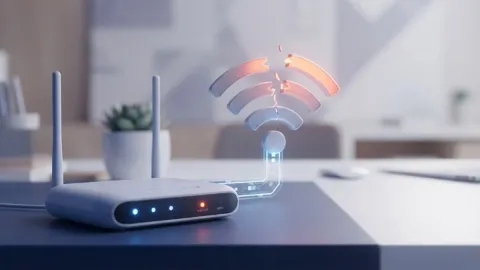
Why Is My Router Flashing Orange and How to Fix It

A flashing orange light on your router typically indicates a loss of internet connection or an active firmware update. Fixing this issue usually involves checking your physical cables, power cycling your network hardware, or contacting your internet service provider.
Understanding What the Orange Light Means
An orange or amber light on your networking hardware rarely means a permanent hardware failure; instead, it serves as a critical warning sign from your device. Most modern routers use specific color codes to communicate system health to the user. A solid green or white light means everything is operating normally, while a flashing or solid orange light points directly toward an interrupted communication line between your home network and your internet service provider.
Sometimes, this color shift happens because the device is downloading a critical security patch or a background firmware upgrade. In these rare instances, the light will return to normal after a few minutes once the installation completes successfully. However, if the orange light persists for more than ten minutes without changing, it signals an actual connectivity failure that requires your immediate intervention. Understanding this distinction prevents unnecessary panic and guides you toward the correct diagnostic steps.
Checking All Physical Cable Connections
Loose, damaged, or disconnected cables are the most common culprits behind a router flashing orange. Before you attempt any advanced software troubleshooting, you need to perform a thorough physical inspection of every wire connected to your modem and router. Start by examining the main internet cable coming from the wall—whether that is an Ethernet cable, a coaxial cable for cable internet, or a telephone line for DSL. Ensure that this cable is firmly plugged into the designated Internet or WAN port on the back of your router, rather than a standard LAN port.
Next, check the power adapter to make sure it is securely plugged into both the wall outlet and the back of the device. A loose power connection can cause intermittent voltage drops, forcing the router to restart continuously and display an error light. If you notice any visible fraying, loose connectors, or bent pins on your cables, replace the wire immediately with a certified replacement to restore a stable signal path.
Power Cycling Your Modem and Router
Network hardware can occasionally experience temporary glitches, memory leaks, or frozen routing tables that prevent it from communicating with your Internet Service Provider. Performing a complete power cycle clears these temporary states and forces your devices to re-establish a fresh connection from scratch. To do this properly, unplug the power cords from both your modem and your router simultaneously. Leave both devices completely powered down for at least thirty seconds to allow any residual electrical charge to dissipate fully from internal capacitors.
Once the waiting period is over, plug the modem back into the electrical outlet first and wait approximately two minutes until its status lights stabilize completely. After the modem is fully online and showing a steady connection, plug your router back into its power source. Watch the LED indicators as the router boots up; the orange light should transition to a solid green or white once it successfully handshakes with the modem and detects an active internet signal.
Investigating Local Internet Service Provider Outages
If you have already verified your physical cables and performed a complete power cycle without any success, the root cause of the flashing orange light likely originates outside your home. Internet Service Providers frequently perform scheduled maintenance, experience unexpected hardware failures at neighborhood distribution nodes, or suffer from broader regional outages. To determine if this is the case, use your mobile phone's cellular data connection to check your provider's official service status page or mobile support app.
Major providers usually maintain live outage maps and status boards where you can enter your postal code or account details to see if maintenance is ongoing in your area. You can also call your provider's technical support hotline and listen to the automated recording, which often announces regional service disruptions immediately. If an outage is confirmed, you will simply need to wait for their technicians to resolve the issue on their end, as troubleshooting your home equipment further will not restore service.
Accessing the Router Admin Panel for Diagnostics
When external outages are ruled out and physical connections are secure, you can log into your router's local management dashboard to examine internal error logs and connection settings. Connect a computer to your network via an Ethernet cable or open a web browser on a phone connected to the local Wi-Fi. Enter your router's default gateway IP address—commonly formatted as 192.168.0.1 or 192.168.1.1—into the URL navigation bar. Log in using the administrator credentials printed on the physical sticker underneath your router chassis.
Once inside the dashboard, navigate to Settings > Network Status or look for a section labeled WAN Settings. Here, you can check if your router is failing to obtain an IP address via DHCP or if it is stuck on an authentication error. If your provider requires a PPPoE username and password, verify that those credentials have not been accidentally cleared or corrupted during a recent automatic background update.
Performing a Factory Reset as a Last Resort
If all other troubleshooting steps fail to resolve the flashing orange light, performing a factory reset on your router will restore all software settings back to their original default configurations. Keep in mind that this action will erase your custom Wi-Fi network name, your secure passwords, and any specialized port forwarding rules or custom security configurations you have previously set up. To execute a factory reset safely, find the small recessed button labeled Reset located on the back or bottom panel of your router hardware.
Take a straightened paperclip or a SIM card ejector tool, press and hold the button inside the pinhole for approximately ten to fifteen seconds. You will notice the status lights on the front panel flicker and turn off as the device initiates the hardware memory wipe. Release the button and allow the router two to three minutes to boot back up. Once it boots, you will need to reconnect to the default Wi-Fi name listed on the device sticker and set up your network preferences again.
The bottom line
A flashing orange router light is usually resolved by securing loose cables, power cycling your equipment, or waiting out an ISP outage. By working through these diagnostic steps methodically, you can quickly identify the source of the failure and get your home network back online.
Frequently asked questions
How long does a router take to reboot?
Most consumer routers take between two to three minutes to fully restart, reinitialize their internal software, and re-establish a stable connection with your modem.
Can a bad Ethernet cable cause an orange light?
Yes, a damaged or worn Ethernet cable can disrupt data transmission between your modem and router, often triggering a warning light.
What does a flashing red light mean compared to orange?
While orange usually indicates a lack of internet or a firmware update, a flashing red light typically signifies a complete hardware malfunction or critical startup failure.
Do I need to reconfigure my Wi-Fi name after a reboot?
No, a standard power cycle or reboot preserves all your custom settings. You only lose your custom network name and password if you perform a complete factory reset.
Should I contact my internet provider if the light stays orange?
If you have checked all physical cables, power cycled both devices, and the light remains orange, contacting your provider is the best next step to check for line issues.