How to Fix PC Not Working on TV HDMI
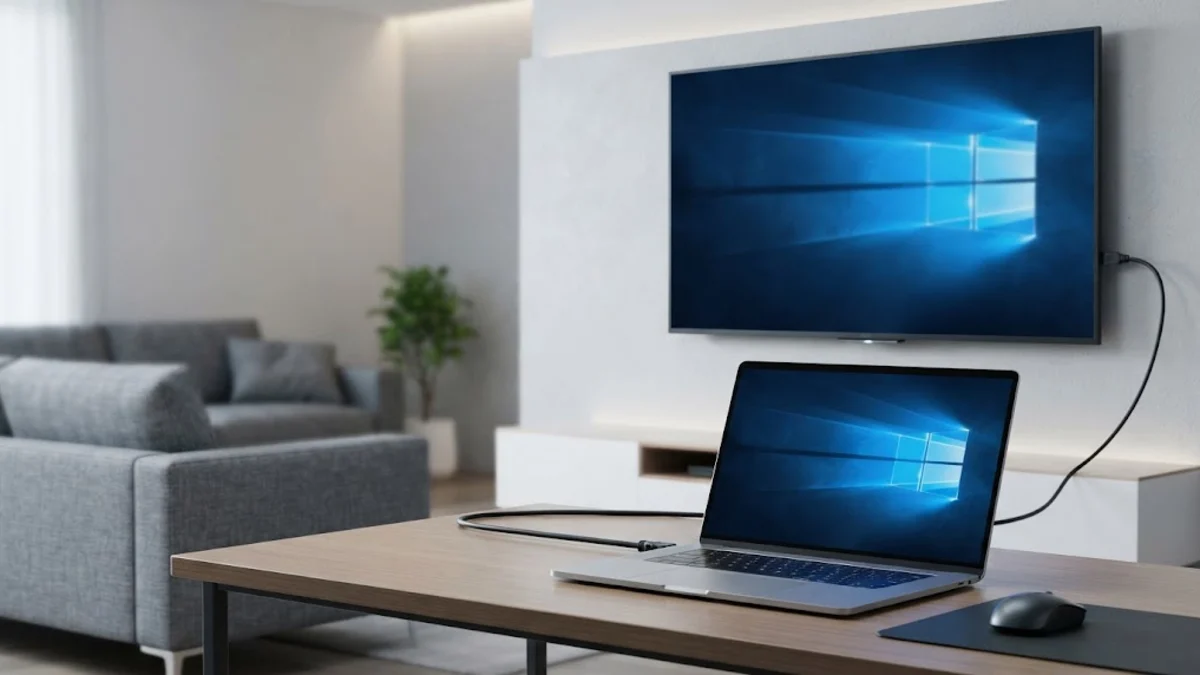
When your PC fails to display on your TV via an HDMI cable, the issue usually stems from loose hardware connections, incorrect display projection modes, or outdated graphics drivers. This troubleshooting guide walks you through the exact steps to quickly diagnose and fix the problem, getting your computer screen mirrored or extended to your television without hassle.
Before diving into advanced software fixes, it helps to understand why this communication breakdown happens between your graphics card and the television display port. HDMI handshakes require both devices to agree on resolution, refresh rate, and HDCP protocols, and even a slight interruption can cause the TV to display a black screen or a no signal message.
Check Physical Connections and Hardware
The very first step when your pc not working on tv hdmi is to verify that all physical connections are secure. HDMI cables can easily slip slightly out of place, or ports can accumulate dust and debris over time. Unplug the HDMI cable from both your computer's graphics card or motherboard port and the back of the television. Wait about ten seconds, and then firmly plug them back in until you feel a secure click.
Next, inspect the cable itself for visible bends, fraying, or internal damage. If possible, test the same cable with another device, such as a streaming box or console, to confirm the cable is functioning properly. Also, make sure your television is powered on and set to the correct HDMI input source using your TV remote, such as HDMI 1 or HDMI 2, matching the exact port your computer is plugged into.
Adjust Windows Display Projection Settings
If your physical connections are solid but the TV remains blank, Windows might not be configured to send a video signal to an external display. You can quickly override this by changing your projection settings. Press Windows + P on your keyboard to open the Project flyout menu on the right side of your screen. You will see several options including PC screen only, Duplicate, Extend, and Second screen only.
If you want your TV to act as an independent monitor, select Extend. If you want the television to mirror your computer monitor exactly, choose Duplicate. Avoid leaving it on PC screen only, which actively blocks video output to external monitors and TVs. Once you select the desired projection mode, Windows should immediately initiate the HDMI handshake and send the picture to your television.
Detect and Force Display Recognition in Windows
Sometimes Windows fails to automatically recognize that a television is plugged into the HDMI port. You can force Windows to scan for connected displays manually through the system settings. Right-click an empty space on your desktop and select Display settings. Scroll down to the Multiple displays section and click the Detect button next to 'Detect another display'.
If Windows still reports that no other display was detected, click on Advanced display and check if your television appears in the dropdown menu. If it appears as a disabled or inactive monitor, click on it and change its status to extend or duplicate desktop. This forces the operating system to allocate graphics resources to the HDMI output port.
Update, Roll Back, or Reinstall Graphics Drivers
Outdated, corrupted, or faulty graphics drivers are a frequent culprit behind HDMI display failures. To fix driver-related issues, right-click the Start button and select Device Manager. Expand the category labeled Display adapters to see your graphics card, whether it is an NVIDIA, AMD, or Intel GPU. Right-click your graphics adapter and select Update driver, then choose 'Search automatically for drivers'.
If updating does not resolve the issue, your current driver build might contain a bug affecting HDMI output. In this case, right-click the adapter, select Uninstall device, check the box to attempt removal of the driver for this device, and restart your computer. Windows will automatically reinstall a stable generic driver upon reboot, or you can download the latest proprietary driver package directly from the manufacturer website.
Change Graphics Control Panel Display Settings
Dedicated graphics software control panels, such as the NVIDIA Control Panel or AMD Software: Adrenalin Edition, often manage external display outputs independently of Windows settings. If your pc not working on tv hdmi persists, open your dedicated graphics control panel by searching for it in the Start menu. Navigate to the display configuration section and look for an option to set up multiple displays or manually activate connected television screens.
Within these advanced panels, you can also adjust the refresh rate and resolution output. Televisions often have strict resolution limits compared to desktop monitors. If your PC is attempting to push a 4K resolution at 144Hz to an older TV that only supports 4K at 60Hz, the display may reject the signal entirely. Lowering the refresh rate to 60Hz or 30Hz in the control panel often instantly restores the picture.
The bottom line
Fixing an HDMI connection between your PC and TV usually comes down to checking cables, forcing display detection, and updating graphics drivers. By systematically testing these hardware and software solutions, you can restore your video signal and enjoy your content on the big screen.
Frequently asked questions
Why does my TV say no signal when plugged into my PC?
A no signal message typically indicates that the TV is tuned to the wrong HDMI input channel, the cable is loose or faulty, or the computer has not sent a display signal through the projection settings.
How do I force Windows to detect my TV over HDMI?
Go to Settings > System > Display > Multiple displays, and click the Detect button to force Windows to scan for connected screens.
Can a bad HDMI cable prevent my PC from showing on the TV?
Yes. Damaged wires, cheap cables that do not support required bandwidth, or cables that are too long can cause signal failure.
What keyboard shortcut projects my PC screen to a TV?
Press the Windows key plus P on your keyboard to open the display projection menu and choose Extend or Duplicate.
Should I plug my HDMI cable into the motherboard or graphics card?
If you have a dedicated graphics card installed, you must plug the HDMI cable directly into the card's port, not the motherboard ports.