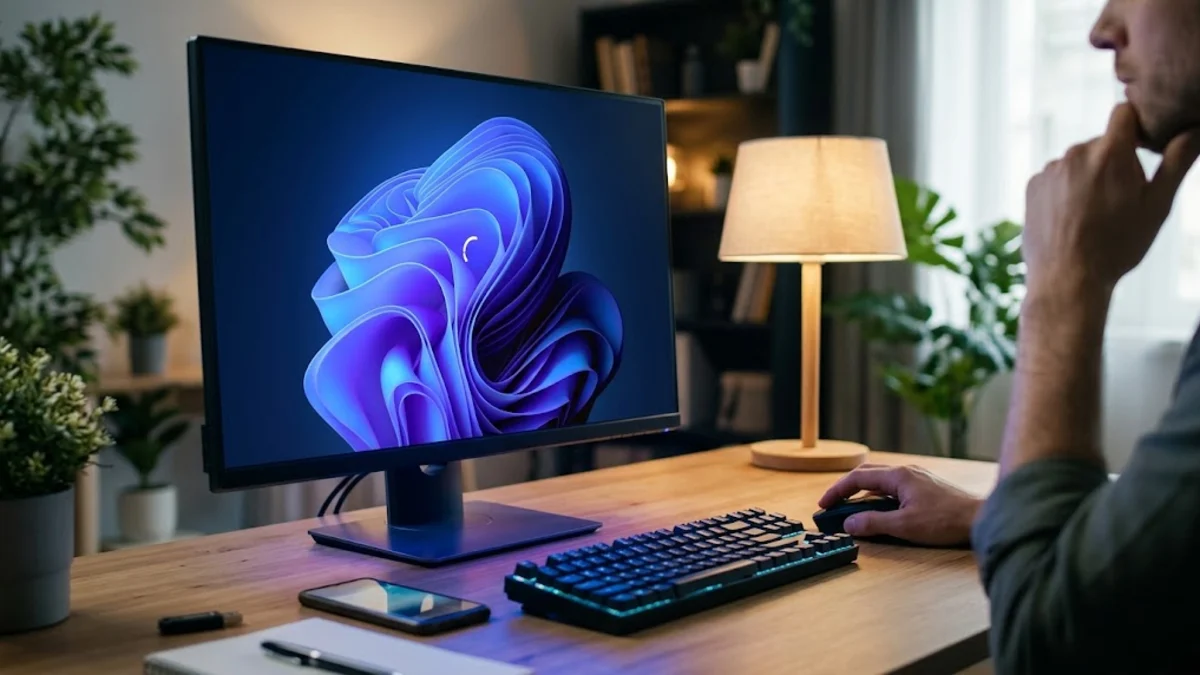
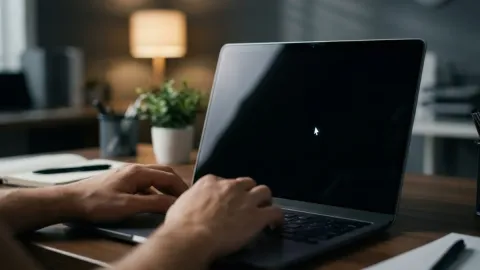
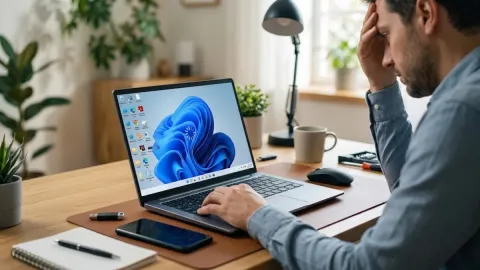
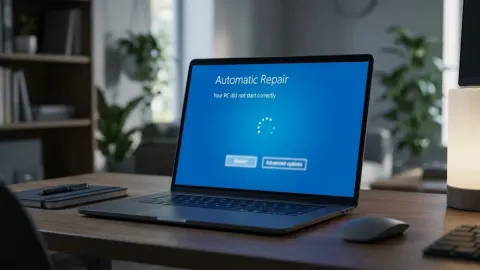
Getting stuck on the welcome screen when trying to log into Windows 11 can be incredibly frustrating, leaving you locked out of your own computer. This issue usually happens due to a corrupted user profile, a faulty system update, conflicting background drivers, or a temporary glitch in the graphics subsystem.
Fortunately, you can bypass this screen and restore normal access using several effective troubleshooting methods ranging from simple hardware disconnects to advanced startup repairs.
1Disconnect All External USB Devices
Often, Windows 11 gets stuck on the welcome screen because it is struggling to communicate with a faulty, disconnected, or misbehaving external peripheral during the startup sequence. USB hubs, external hard drives, gaming controllers, docking stations, and secondary monitors can sometimes send conflicting signal loops that freeze the user interface before the desktop fully loads. To rule this out, shut down your computer completely by holding down the physical power button for about ten seconds. Once the system is fully powered off, unplug every single external USB device, printer, and accessory from your machine, leaving only your primary monitor, wired keyboard, and mouse connected. Turn your computer back on and see if it successfully loads past the welcome screen. If the system boots up normally, you can plug your accessories back in one by one to identify which specific device or driver caused the conflict. If your computer continues to freeze at the same screen, move on to the next troubleshooting method to check deeper system files and startup configurations.
2Boot Into Safe Mode to Remove Faulty Updates
If basic hardware removal does not resolve the freeze, a recent Windows update or third-party driver might be corrupting your login sequence. Safe Mode starts Windows 11 with a minimal set of drivers and non-essential services, allowing you to bypass problematic software loops and uninstall problematic updates. To enter the Windows Recovery Environment, force-restart your PC twice while it is booting by holding the power button, and on the third startup, let it load into the recovery menu. Once you see the automatic repair screen, navigate to Troubleshoot > Advanced options > Startup Settings and click Restart. When your computer reboots, press 4 or F4 to enable Safe Mode. Once you reach the desktop in Safe Mode, you can open Settings > Windows Update > Update history > Uninstall updates to remove any recent patches that may have triggered the welcome screen lockup. Restart your computer normally after removing the faulty package to verify if the issue is completely resolved.
3Run Startup Repair via Windows Recovery Environment
Windows 11 includes a built-in diagnostic tool specifically designed to scan and fix system files that prevent the operating system from loading past the welcome screen. Startup Repair automatically checks for missing or damaged configuration files, registry hives, and bootloader settings without requiring manual command-line inputs. To access this tool, trigger the Windows Recovery Environment by interrupting your computer's boot process three times consecutively, or boot from a Windows 11 installation USB drive if you cannot reach the recovery menu automatically. From the recovery selection screen, go to Troubleshoot > Advanced options > Startup Repair. Select your user account and enter your administrator password if prompted. The diagnostic utility will begin scanning your system files and attempting automatic repairs, a process that can take anywhere from a few minutes to half an hour depending on your drive speed. Once the repair utility finishes its scan, restart your computer and check if the welcome screen responds correctly to your login credentials.
4Disable Fast Startup via Command Prompt
The Fast Startup feature in Windows 11 saves a hybrid hibernation image of your system kernel to speed up boot times, but this file frequently becomes corrupted and traps users on the welcome screen. Because you cannot access the standard graphical settings menu while stuck on the login screen, you must disable this feature using the Command Prompt through the recovery environment. Access the advanced recovery menu by interrupting your PC boot sequence three times, then navigate to Troubleshoot > Advanced options > Command Prompt. In the command window, you can use specialized commands to access your main operating system drive and modify registry parameters. Type powercfg /hibernate off and press Enter to completely disable hibernation and Fast Startup. This action clears out any lingering corrupted hibernation states that were forcing your machine into a login freeze. Close the command prompt window, click continue to boot back into Windows normally, and test whether your user profile loads past the welcome screen.
5Run SFC and DISM Scans to Repair System Files
Corrupted system image files are another major culprit behind Windows 11 freezing indefinitely on the welcome screen. The System File Checker and Deployment Image Servicing and Management tools are powerful command-line utilities that scan your internal storage drive, verify system file integrity, and replace damaged components with healthy cached copies. To run these tools while locked out of the normal desktop, boot into Safe Mode with Command Prompt by navigating through Troubleshoot > Advanced options > Startup Settings > Restart, and pressing 6 or F6. Once the command prompt window opens with administrator privileges, type DISM.exe /Online /Cleanup-image /Restorehealth and press Enter to repair the underlying system image. After the DISM scan finishes successfully, type sfc /scannow and hit Enter to let the System File Checker scan and replace any corrupted operating system files. These scans can take a considerable amount of time to complete, so let them finish entirely before restarting your computer to test your login screen functionality.
6Perform a System Restore or Reset Your PC
If none of the previous software and repair methods successfully bypass the welcome screen freeze, your final option is to revert your system state to a previous working point or perform a clean reset of Windows 11. System Restore rolls back your system settings, installed applications, and registry configurations to an earlier restore point without affecting your personal files. Access the recovery environment by interrupting your computer boot sequence, then navigate to Troubleshoot > Advanced options > System Restore, select a restore point created before the issue started, and follow the on-screen wizard. If you do not have any active restore points available, you can choose the Reset this PC option from the troubleshoot menu. This feature gives you the choice to keep your personal files while reinstalling clean core operating system files, effectively wiping out whatever deeper software corruption was locking you out of the welcome screen.
The bottom line
Getting stuck on the Windows 11 welcome screen can be a stressful experience, but methodical troubleshooting will almost always restore your system access. By systematically isolating external hardware, utilizing recovery tools, running file integrity scans, and resetting system states, you can overcome boot freezes and get back to your daily workflow.
Frequently asked questions
Why does Windows 11 freeze on the welcome screen?
It usually happens due to corrupted system files, faulty graphics drivers, a bad Windows update, or conflicting external USB devices interfering with the startup sequence.
Can I lose my files if I use Startup Repair?
No, Startup Repair only checks and replaces damaged operating system files and does not touch your personal documents, photos, or installed applications.
How do I enter Safe Mode if I cannot log into Windows?
You can enter Safe Mode by interrupting the boot process three times to trigger the Windows Recovery Environment, then navigating to Troubleshoot > Advanced options > Startup Settings > Restart.
What should I do if my mouse and keyboard do not work in the recovery environment?
Try plugging your keyboard and mouse into different USB ports, preferably USB 2.0 ports directly on the back of your motherboard, or use a wired USB keyboard instead of a wireless model.
Does resetting Windows 11 delete my personal files?
When you choose the Reset this PC option, Windows gives you a choice between keeping your personal files or removing everything, allowing you to select the option that best fits your needs.