Router Not Working After Reset? How to Fix It
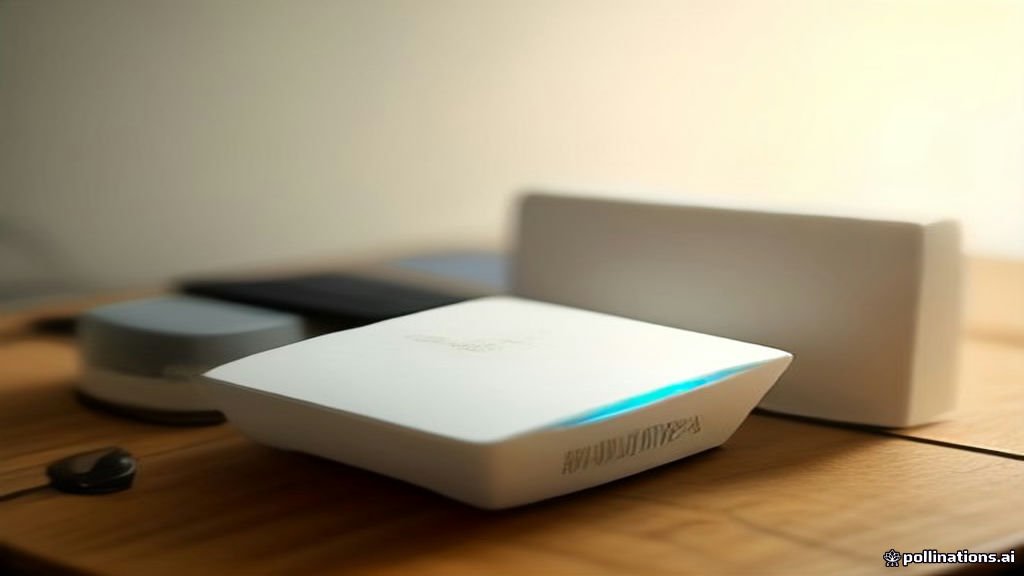
When your router is not working after a reset, it usually means the device has reverted to its factory state and lost all custom internet service provider settings, Wi-Fi credentials, and network configurations. Without these essential parameters, the router cannot communicate with your modem or broadcast your home network.
Fixing this issue requires accessing the router administration panel, re-establishing your connection protocols, and restoring your local wireless network settings. Follow this step-by-step troubleshooting guide to diagnose the root cause and get your internet connection back up and running smoothly.
Verify Physical Connections and LED Indicator Lights
The very first thing you should check when your router is not working after a reset is the physical hardware setup. During a factory reset or accidental cable jostling, connections can become loose. Inspect every cable connected to the back of the router, ensuring that the Ethernet cable coming from your broadband modem is securely plugged into the port labeled WAN or Internet, rather than one of the standard local LAN ports.
Next, observe the LED indicator lights on the front or top panel of your router. A functioning router should display a steady power light, an active WAN or internet light indicating communication with the modem, and active LAN lights if any wired devices are attached. If the internet light remains dark, blinking red, or amber, your router is physically isolated from the internet service provider, pointing toward a modem or cabling issue rather than a configuration error.
Access the Router Administration Panel
Because a factory reset wipes all previous configurations, you must re-enter your network settings manually through the router admin dashboard. Connect a computer to the router either by plugging an Ethernet cable into a LAN port or by connecting to the default open Wi-Fi network printed on the router sticker. Open your web browser and enter the default gateway IP address, which is typically found on the bottom label of your device, such as 192.168.1.1 or 192.168.0.1.
Once the login page loads, enter the default username and password also listed on the physical hardware label. Avoid using your old custom credentials, as the reset has erased them entirely. If the login page fails to load, ensure your computer is set to obtain an IP address automatically via DHCP, and try clearing your browser cache or using a private browsing window to bypass local network caching issues.
Reconfigure WAN and Internet Connection Settings
Once inside the admin dashboard, navigate to the internet setup section, which may be labeled under Network, WAN, or Internet Settings. A factory reset clears your connection type, meaning your router no longer knows how to talk to your internet service provider. Most modern broadband setups use dynamic IP (DHCP), which connects automatically, but some fiber or DSL connections require specific protocols like PPPoE or static IP addresses provided by your ISP.
Select the correct connection type required by your provider. If your ISP uses PPPoE, you must re-enter the username and password provided in your service contract. After selecting the appropriate protocol, save the settings and apply changes. Give the router up to two minutes to negotiate a handshake with your modem and acquire a valid public IP address from your provider.
Restore Your Wi-Fi Network Name and Security
After restoring internet connectivity to the router itself, you will notice that your wireless devices can no longer connect automatically. This occurs because the factory reset reverted the Wi-Fi name (SSID) and password back to the default factory strings printed on the hardware label. Navigate to the Wireless or Wi-Fi Settings menu in your admin panel to update these details.
Create a recognizable network name and a strong security password using WPA2 or WPA3 encryption for optimal security. Avoid using legacy WEP or mixed open modes, as modern operating systems reject unsecure networks. Once you save these wireless settings, the router will restart its radio bands, and you will need to reconnect your smartphones, laptops, and smart home appliances using your newly assigned Wi-Fi credentials.
Perform a Complete Power Cycle in Proper Sequence
If your router still refuses to pass internet traffic after reconfiguring your WAN and wireless settings, a power synchronization glitch between your modem and router is likely to blame. Routers and modems often fail to establish proper handshakes if they power on simultaneously after a hard reset. To fix this, shut down both devices completely by unplugging their power adapters from the wall outlets.
Leave both the modem and the router powered off for at least 60 seconds to clear their volatile memory buffers. Plug the modem back in first and wait approximately three to five minutes until all of its operational status lights become solid and stable. Next, plug your router back into power and allow it two minutes to boot up and establish a clean DHCP lease with the active modem. This sequence forces both devices to recognize each other properly.
Check for Corrupted Firmware and Reinstall
In rare instances, performing a factory reset on an older router can expose underlying firmware corruption that prevents the operating system from loading network drivers correctly. If you can access the admin dashboard but settings fail to save or the internet drops constantly, check the system status menu for your current firmware version. Compare this version against the official support page for your specific router model on another device.
If a newer firmware file is available, download it to your computer, navigate to the System Tools or Firmware Update section in your router menu, and upload the file manually. Never interrupt power during a firmware update, as doing so can permanently brick the device. Once updated, run a fresh factory reset to clear any residual cache files from the old firmware version.
The bottom line
Fixing a router that is not working after a reset primarily involves re-establishing your physical connections, logging into the admin panel, and correctly configuring your ISP and Wi-Fi credentials. By following a methodical troubleshooting sequence, you can restore full functionality to your home network in no time.
Frequently asked questions
Why did my router lose all its settings after a reset?
A factory reset physically or logically clears the non-volatile memory storage on your router, wiping out all customized SSID names, passwords, and ISP connection profiles to return the device to its original factory state.
What should I do if I cannot access the router login page?
Ensure your computer is connected to the router via an Ethernet cable or the default factory Wi-Fi network. Verify you are typing the correct gateway IP address found on the bottom label, and clear your browser cache if the page fails to load.
Do I need my ISP account details to fix a reset router?
If your internet service provider uses standard Dynamic IP, you typically do not need extra credentials. However, if your provider uses PPPoE or Static IP authentication, you must enter the account username and password supplied in your service contract.
How long should I wait for internet after configuring a reset router?
After saving your WAN settings and power cycling your modem and router, it usually takes between one to three minutes for the hardware to negotiate a stable connection with your internet service provider.
Can a factory reset fix persistent Wi-Fi dropouts?
Yes, a factory reset clears corrupted temporary system files and background packet congestion that often cause persistent wireless dropouts, provided the hardware itself is not failing.