If your personal router is not working with your Spectrum modem, the issue usually stems from a communication breakdown known as a MAC address lock or an IP address conflict. Spectrum modems are designed to 'bind' to the first device they see upon booting up, and if you swap routers without a specific reset sequence, the modem will refuse to assign an internet address to the new hardware.
1Perform a Proper Sequential Power Cycle
The most common reason for a router not working with a Spectrum modem is that the modem is still looking for the MAC address of a previous device. To fix this, you must clear the modem's internal memory. Start by unplugging the power cables from both your Spectrum modem and your standalone router. If your modem has a battery backup (common in older eMTA models for voice service), you must remove the battery as well, or the memory will not clear. Wait at least 60 seconds to allow the capacitors to fully discharge.
After the wait, plug the Spectrum modem back into the power outlet first. Watch the lights on the front of the device; you are looking for the Online or Power light to become solid blue or white, depending on your model. This process can take up to five minutes as the modem synchronizes with Spectrum's headend. Only once the modem is fully online should you plug in the power for your router. This specific order ensures that when the router requests an IP address via DHCP, the modem is ready and willing to provide one to the first device it detects on its Ethernet port.
2Resolve IP Address Conflicts
A frequent technical oversight occurs when both the Spectrum modem (especially if it is a gateway combo) and your personal router try to use the same local IP address. Most consumer networking gear defaults to 192.168.1.1 or 192.168.0.1. If both devices are on the same subnet, they cannot route traffic correctly, leading to a 'No Internet' status on your devices. To fix this, you need to change the LAN IP of your personal router.
Disconnect your router from the modem and connect a laptop directly to one of the router's LAN ports. Access the admin panel by typing the default gateway address into your browser. Navigate to Advanced > Network > LAN Settings. Change the IP address to something unique, such as 192.168.50.1. Save the settings and allow the router to reboot. Once the reboot is complete, reconnect the router to the Spectrum modem. This separation of subnets prevents the internal routing tables from crashing and allows traffic to flow smoothly from your local network to the wider internet.
3Configure Bridge Mode on Spectrum Gateways
If Spectrum provided you with a 'Gateway' (a single box that acts as both a modem and a Wi-Fi router), and you are trying to connect your own high-performance router to it, you may be suffering from a Double NAT (Network Address Translation) issue. This occurs when two routers are both trying to manage the same traffic. The ideal solution is to put the Spectrum Gateway into Bridge Mode, which disables its internal routing functions and turns it into a 'dumb' modem that passes the public IP directly to your personal router.
While many modern Spectrum modems like the ET2251 are standalone units, some users still have Sagemcom or Askey gateways. You can often toggle Bridge Mode by logging into the gateway's web interface (usually 192.168.1.1) and looking under Connectivity or Advanced Settings. However, Spectrum has increasingly locked these settings in 2026, requiring users to manage devices via the My Spectrum app. If you cannot find the toggle, you may need to call Spectrum support and ask them to 'bridge' the device remotely. Once bridged, ensure your router is plugged into the Port 1 or the 2.5G port on the back of the gateway for maximum throughput.
4Use MAC Address Cloning
In some stubborn cases, the Spectrum modem refuses to recognize any device other than the laptop or old router it was first activated with. Instead of fighting the modem's hardware lock, you can trick it using a feature called MAC Address Cloning. Every network device has a unique identifier called a MAC address. By telling your router to 'pretend' it has the MAC address of a device that successfully connected to the modem previously, you can bypass the authentication handshake issues.
To do this, connect your PC to the router and open the router's management page. Navigate to Internet or WAN Settings. Look for a section labeled MAC Address Clone. You will usually see a button that says Clone Current Computer MAC. Click this if you are currently using the computer that was previously connected directly to the modem. Alternatively, you can manually type in the MAC address of your old router. Save the changes and restart the router. This often resolves 'connected but no internet' issues instantly because the Spectrum modem believes it is still talking to the original, authorized device.
5Verify Ethernet Cable Integrity and Port Speeds
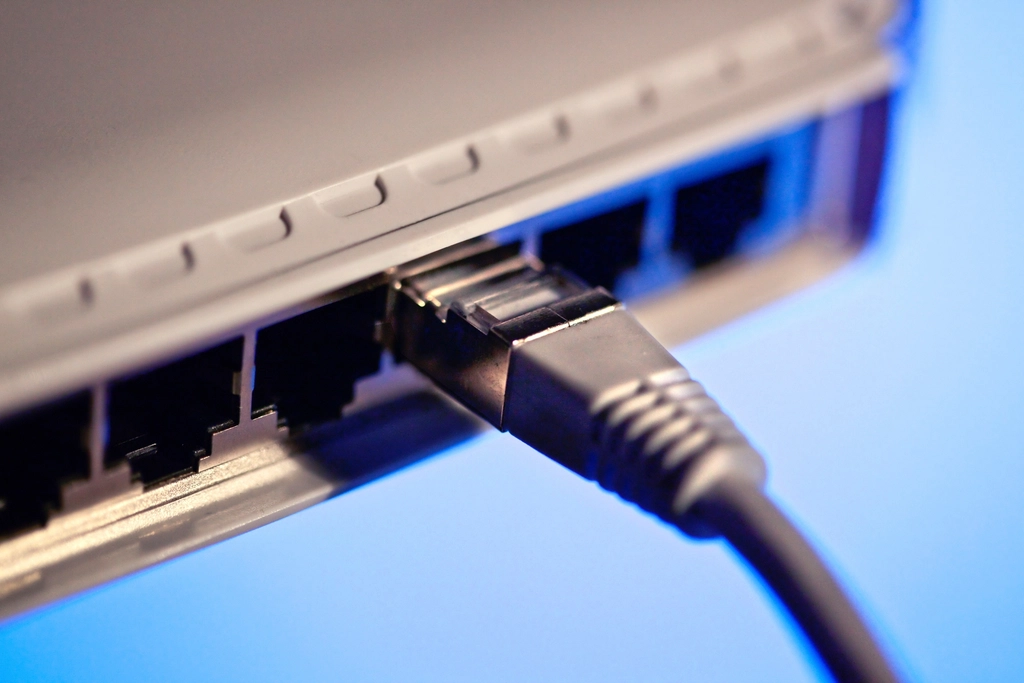
Physical layer failures are often overlooked when troubleshooting a router not working with a Spectrum modem. By 2026, Spectrum's high-speed tiers often exceed 1Gbps, requiring Cat6e or Cat7 cables to maintain a stable link. If you are using an old Cat5 cable, it may not provide enough voltage or signal clarity for the modem and router to perform their initial handshake. Check the Ethernet cable connecting the modem's WAN/Ethernet port to the router's WAN port for any sharp bends, frays, or loose connectors.
Inspect the ports themselves. Modern Spectrum modems often feature a multi-gigabit port (color-coded blue or labeled 2.5G). Ensure your router's WAN cable is seated firmly until it clicks. If the lights on the ports are not blinking, the physical connection is dead. Try a different cable or a different LAN port on the router if it supports WAN-aggregation or port remapping. Additionally, check if your router has a WAN Speed setting in its interface; setting this to Auto-Negotiate is usually best, but sometimes manually forcing it to 1000Mbps Full Duplex can stabilize a flaky connection between older and newer hardware.
6Update Router Firmware and Factory Reset
If your router still won't pull an IP address from the Spectrum modem, it might be running outdated firmware that is incompatible with the latest DOCSIS 3.1 or DOCSIS 4.0 signaling standards used by Spectrum in 2026. Download the latest firmware file from your router manufacturer's official site using a different connection (like your phone's hotspot) and upload it via the System Tools > Firmware Upgrade menu in the router's admin panel.
If a firmware update doesn't help, a factory reset is the final software-based step. Use a paperclip to hold the Reset button on the back of your router for 30 seconds. This clears all custom configurations, including corrupted routing tables that might be blocking the modem connection. After the reset, perform the sequential power cycle mentioned in the first section again. Starting from a 'clean slate' ensures that no legacy settings or conflicting DNS configurations are interfering with the modem's ability to assign a public IP address to your network.
Frequently asked questions
Why does my Spectrum modem have a red light?
A red light on a Spectrum modem typically indicates a 'Critical Error' or an inability to connect to the Spectrum network. This usually means there is a service outage in your area or the coaxial cable is not screwed in tightly. It is not an issue with your router, but rather the signal coming into the house.
Can I use any router with a Spectrum modem?
Yes, Spectrum modems use standard Ethernet handshakes, meaning any modern router with a WAN port is compatible. However, for speeds over 1Gbps, you should ensure your router has a 2.5Gbps WAN port to match the modem's output.
How do I know if my Spectrum modem is in Bridge Mode?
The easiest way to check is to look at the IP address assigned to your router's WAN port. If the WAN IP starts with 192.168.x.x or 10.x.x.x, your modem is still acting as a router. If it shows a public IP (anything else), it is successfully bridged.
Do I need to call Spectrum when I buy a new router?
No, you do not need to notify Spectrum when changing your router. You only need to call them if you are replacing the modem itself, as modems must be provisioned on their network via their MAC address.