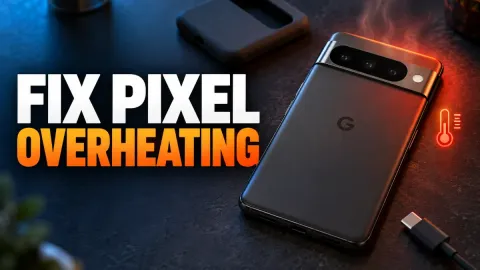
How to Stop Your Samsung Galaxy from Getting Hot
If your Samsung Galaxy is getting hot, it is usually because the processor, battery, or screen is working harder than normal and generating excess heat that cannot dissipate quickly enough. This commonly happens during heavy gaming, rapid charging, or when background applications run out of control.
To stop your phone from overheating, you need to identify the underlying cause, reduce processor strain, and adjust device settings. By following a few straightforward troubleshooting steps, you can quickly cool down your device, preserve battery health, and restore normal performance.
Identify and Close Resource-Heavy Background Apps
One of the most frequent reasons your Samsung Galaxy gets hot is that an application is stuck in an endless loop or consuming excessive CPU power in the background. When apps process data continuously without your knowledge, the processor heats up rapidly. To check what is causing the issue, open your settings and review your recent app activity to find the culprit.
Navigate to Settings > Battery and device care > Battery and tap on View details to see which apps have used the most energy recently. If you spot an app you rarely use consuming a disproportionate amount of power, tap on it and select Restrict or Force stop. Closing resource-heavy background processes immediately relieves the processor and lets the phone begin cooling down.
Adjust Screen Brightness and Display Settings
The display panel is a major contributor to heat generation on modern smartphones, especially when brightness is cranked up to the maximum under direct sunlight. OLED and AMOLED screens generate significant thermal energy when emitting high brightness levels for extended periods. Lowering your screen brightness is one of the fastest ways to drop your phone's temperature.
Go to Settings > Display and toggle on Adaptive brightness so your phone automatically dims indoors and outdoors when intense light is not needed. Additionally, reduce the screen timeout duration by tapping Screen timeout and setting it to 30 seconds or 1 minute. Keeping your display cooler prevents heat from trapping itself inside the chassis of the device.
Manage Network Connections and Location Services
Constantly searching for cellular signals, maintaining active Bluetooth connections, or running high-precision GPS navigation forces your phone's internal wireless modems to work overtime. If you live or work in an area with weak cell reception, your Samsung Galaxy continuously boosts its transmitter power, which generates a noticeable amount of heat around the back panel.
You can reduce this thermal strain by pulling down the Quick Settings panel and temporarily disabling features you are not actively using, such as Bluetooth, NFC, and mobile hotspot. If you are experiencing persistent network issues, switch on Airplane mode for a few minutes to reset all radio connections. When using navigation apps, remove any thick phone cases that trap heat around the antenna and modem areas.
Optimize Battery and Performance Profiles
Samsung includes advanced software tools designed to manage power consumption and thermal output dynamically. If your device is set to maximum performance mode all day, it will frequently push the processor beyond standard thermal thresholds. Changing your performance profile helps balance speed with lower heat generation.
Open Settings > Battery and device care > Performance profile and select Standard instead of Light or Maximum if you want a balance, or use Light mode during intensive tasks. Light mode prioritizes battery life and cooling efficiency over raw processing speed by subtly throttling CPU clock speeds without noticeably impacting everyday messaging, browsing, and media playback.
Check for Pending Software Updates and App Bugs
Software bugs and outdated system files can cause inefficient CPU utilization, leading to unexpected overheating even when the phone is sitting idle on a table. Samsung frequently releases security patches and software updates that specifically address thermal optimization and power management flaws discovered in earlier firmware versions.
To ensure your operating system is up to date, head to Settings > Software update > Download and install. Install any waiting updates while your phone is resting on a cool, hard surface. At the same time, open the Google Play Store or Galaxy Store, tap your profile icon, go to Manage apps and device, and update all installed applications to their latest bug-free versions.
Evaluate Charging Habits and Environmental Factors
Fast charging naturally produces heat because electric current rushing into lithium-ion battery cells creates chemical resistance and thermal byproduct. If you charge your phone while playing games, streaming video, or keeping it under a pillow, the combined heat sources can easily trigger safety warnings or thermal throttling.
To keep temperatures down while powering up, remove thick protective cases during fast charging sessions and avoid placing the device on soft, insulating surfaces like couches or beds. If your phone gets excessively hot every time you plug it in, go to Settings > Battery and device care > Battery > More battery settings and temporarily toggle off Fast charging or Super fast charging to see if standard charging resolves the temperature spike.
The bottom line
Dealing with a Samsung Galaxy that keeps getting hot can be frustrating, but the issue is almost always solvable by adjusting a few software settings, managing background apps, and improving your charging habits. If your phone continues to overheat severely after trying these steps, even when turned off or left in safe mode, the battery or internal hardware may have suffered physical damage requiring professional inspection.
Frequently asked questions
Is it normal for a Samsung Galaxy to get warm during setup?
Yes, transferring data from an old device, downloading dozens of apps, and indexing files simultaneously requires intensive processor work, which naturally causes the phone to feel warm during initial setup.
Can a bad phone case make my Samsung Galaxy overheat?
Thick leather, rugged multi-layer, or insulated phone cases can trap heat inside the device and prevent natural thermal dissipation, especially during heavy usage or fast charging.
Does gaming always cause a Samsung Galaxy to get hot?
High-end 3D mobile games push the GPU and CPU to their maximum limits, generating significant heat. Using Game Booster settings to limit frame rates can help reduce this effect.
Will an overheating phone battery damage my device?
Prolonged exposure to high temperatures degrades lithium-ion battery capacity over time and can trigger automatic shutdowns to protect internal components from permanent damage.
What should I do if my phone displays an overheating warning?
Immediately stop using the device, remove any case, turn off power-hungry features, and place it in a cool, shaded area out of direct sunlight until the temperature returns to normal.