How to Fix Router After Power Outage
A sudden power outage can disrupt your home network, leaving your Wi-Fi router unresponsive or unable to connect to the internet once power returns. Temporary electrical surges and corrupted cache memory are common culprits behind these post-outage connection failures.
By following a systematic troubleshooting approach, you can quickly diagnose whether the issue stems from your modem, router, or local service provider and get your network running again.
Power Cycle the Modem and Router Properly
The very first thing you should try when your internet fails after a blackout is a complete power cycle. Electrical disruptions can cause router firmware to freeze or fail to re-establish a handshake with your Internet Service Provider. Simply unplugging and plugging the devices back in immediately is often not enough to clear volatile memory.
To perform a proper power cycle, unplug the power cords from both your standalone modem and your Wi-Fi router. Wait for at least 60 seconds to allow all internal capacitors to drain completely. Plug the modem back in first and wait approximately two to three minutes until its online and connection indicator lights turn solid green or white. Once the modem has fully established a connection to the internet, plug your Wi-Fi router back into its power source and give it another two minutes to boot up and broadcast your wireless signals.
Inspect Physical Cable Connections and Power Strips
Power outages and subsequent surges can trip circuit breakers or damage delicate surge protectors. Take a close look at all physical connections linking your wall outlet, surge protector, modem, and router. Ensure that every power adapter is securely seated in its socket and that no Ethernet cables have worked loose from their ports.
If your router is plugged into a power strip or surge protector, check whether the strip's internal circuit breaker was tripped by the surge. Many power strips feature a reset switch that needs to be flipped back to the operational position. Try plugging the router directly into a known working wall outlet to rule out a failed surge protector as the source of your hardware problem.
Analyze the Indicator Lights on Your Hardware
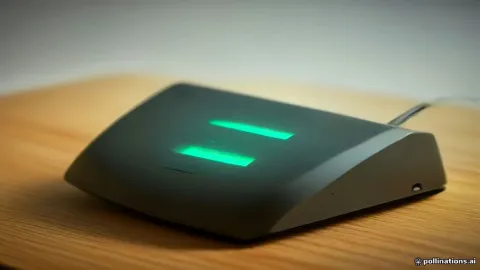
Your router and modem use a series of LED indicator lights to communicate their operational status. Learning how to read these lights can tell you precisely where the failure is occurring. Look at the power light, internet symbol or globe icon, and the wireless band indicators to see if they are off, blinking, or showing an amber color.
A blinking internet or WAN light typically means the router is attempting to negotiate a connection with your service provider but cannot establish communication. If the power light itself fails to illuminate at all, the power adapter may have been fried during the outage, requiring a replacement. Compare the light patterns against your hardware manual or manufacturer guidelines to identify the exact error code.
Release and Renew IP Addresses on Connected Devices
Sometimes your router is fully functional, but your computers and phones fail to reconnect because their local IP lease became corrupted during the power loss. Clearing the network cache on your client devices forces them to request a fresh IP address from the router's DHCP server.
On a Windows computer, open your command prompt and type the command to release and renew your IP configuration. On a Mac, you can navigate to System Settings > Network > Wi-Fi > Details and click on renew lease. Restarting your smartphone or tablet will similarly clear out any stuck network parameters and allow clean communication with your newly rebooted router.
Access the Router Admin Panel to Check WAN Settings
If power cycling and checking physical cables do not restore your internet access, you may need to log into your router's local administration panel. Connect a computer to your network via an Ethernet cable or Wi-Fi, open a web browser, and enter your router gateway IP address into the address bar.
Log in using your administrator credentials, which are often printed on a sticker underneath the router chassis. Once inside the dashboard, navigate to the status or WAN settings page to verify if your connection type—such as DHCP or PPPoE—is actively receiving an IP address from your ISP. If the connection settings appear blank or misconfigured, running the built-in setup wizard can re-establish the correct parameters.
Perform a Factory Reset as a Last Resort
When a severe power surge corrupts the firmware configuration files on your router, normal troubleshooting steps may fail. In these situations, performing a physical factory reset is necessary to revert the hardware back to its original default factory settings.
Locate the tiny reset pinhole button on the back or bottom of your router enclosure. Using a paperclip or a SIM ejector tool, press and hold the button inside the pinhole for about 10 to 15 seconds until the status lights begin flashing or turn off and on again. Release the button and wait a few minutes for the router to reboot completely. Keep in mind that a factory reset will erase your custom Wi-Fi name and password, so you will need to set up your wireless network again from scratch.
The bottom line
Fixing a router after a power outage usually requires nothing more than a patient, systematic power cycle of both your modem and router. By checking your physical connections, interpreting indicator lights, and verifying your network settings, you can overcome post-outage glitches and get your home back online securely.
Frequently asked questions
Why did my router stop working after a power outage?
Power outages can cause firmware freezes, corrupt temporary network cache, or create brief electrical surges that temporarily disrupt the communication handshake between your modem and internet service provider.
Should I unplug both the modem and the router?
Yes. Both devices need to be unplugged for at least 60 seconds to clear their volatile memory and allow the modem to re-establish a fresh connection before the router boots up.
How long should I wait after a power outage before troubleshooting?
Wait about 5 to 10 minutes to see if power stabilizes and your ISP automatically restores service in your neighborhood before attempting manual resets.
Can a power surge permanently damage my Wi-Fi router?
Yes. Voltage spikes accompanying power outages can occasionally fry internal router components or power adapters, requiring hardware replacement or use of a surge protector.
Will a factory reset delete my internet service provider settings?
A factory reset restores default settings, which may require you to re-enter custom PPPoE login credentials or reconfigure your broadband connection type depending on your ISP.