How to Fix Wi-Fi Connection Problems
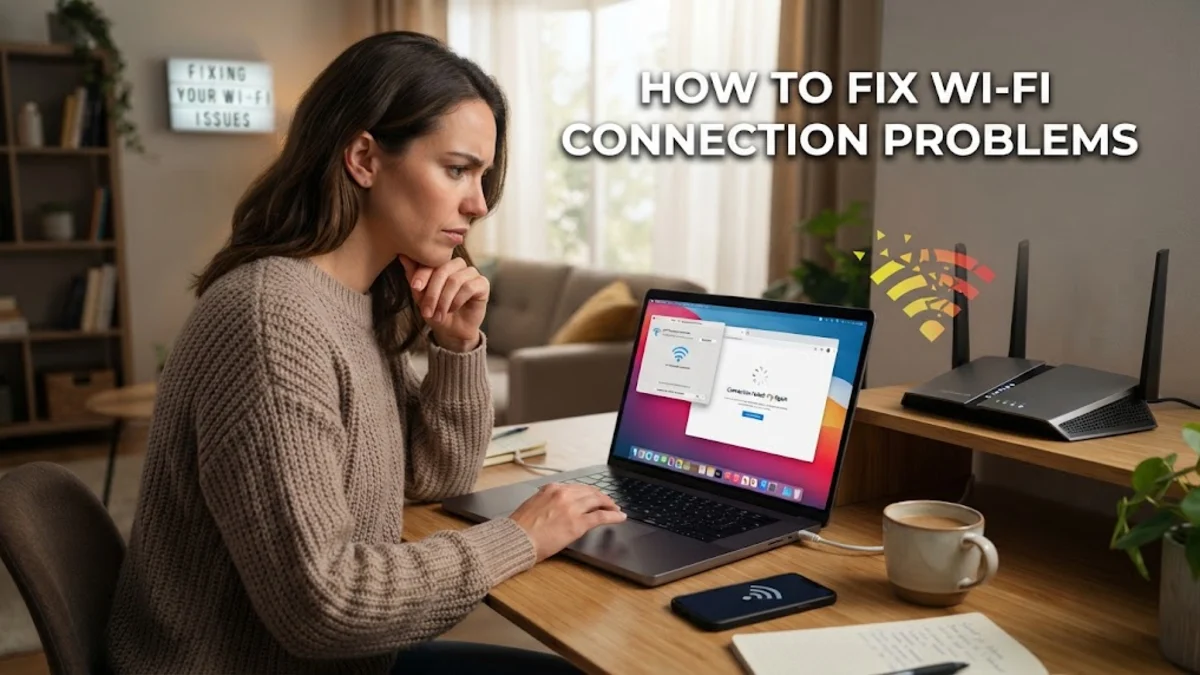
Dealing with a dropped or broken wireless signal can bring your productivity to an instant halt. Whether your device refuses to join the network or keeps cycling through connection errors, finding the root cause is the fastest way to restore your internet access.
Restart Your Router and Modem
When your wireless network stops responding, the quickest and most reliable fix is performing a complete power cycle of your networking hardware. Over time, routers and modems can experience temporary memory leaks, minor firmware glitches, or overheating that causes them to drop packets or stop broadcasting the SSID entirely. Unplugging the power cable forces the hardware to clear its active state and reload its operating system from scratch.
To perform a proper power cycle, unplug both your modem and your wireless router from the wall outlet. Wait for at least thirty seconds to ensure all internal capacitors discharge completely and residual power drains away. Plug the modem back in first and wait a minute until its indicator lights stabilize, indicating a solid connection to your Internet Service Provider. Next, plug in your router and give it another minute to boot up and broadcast its signal before attempting to reconnect your devices.
Run the Built-in Network Troubleshooter
Modern operating systems include built-in diagnostic tools designed to automatically detect and repair common networking issues without requiring advanced technical knowledge. These utilities check your IP configuration, verify that your wireless adapter is enabled, test gateway reachability, and reset corrupted TCP/IP stacks in the background. Running this automated tool can save you considerable time when dealing with mysterious connection drops.
On a Windows computer, open the diagnostic utility by navigating to Settings > Network & internet > Advanced network settings and selecting the network troubleshooter. Follow the on-screen prompts while the utility scans your configuration. If it identifies a configuration error or a stuck adapter, it will apply a fix automatically or prompt you to authorize the reset. Once the process completes, restart your computer and test the connection again to see if the problem is fully resolved.
Forget and Reconnect to the Wi-Fi Network
Corrupted network profiles and outdated security keys are frequent culprits behind authentication failures and persistent connection drops. When your computer or phone stores an old password hash or conflicting IP settings for a specific network, it may fail to complete the handshake required to establish a secure session. Forcing your device to completely forget the network clears out all cached credentials and forces it to treat the router as a brand-new connection.
To remove the profile in Windows, go to Settings > Network & internet > Wi-Fi > Manage known networks, locate your network name, and click Forget. On mobile devices, open your wireless settings, tap the information icon next to your network name, and select the option to forget or delete the network. After clearing the profile, select the network again from your available list, enter your secure Wi-Fi passphrase, and verify that the authentication succeeds.
Flush DNS and Reset IP Configuration
Sometimes your hardware connects to the router successfully, but your device cannot resolve website addresses due to corrupted Domain Name System caches or mismatched IP leases. Flashing your local DNS cache and renewing your dynamic IP address clears out bad routing data and requests fresh routing information directly from your network gateway or Internet Service Provider.
Open your command-line interface with administrative privileges. To clear the resolver cache, type ipconfig /flushdns and press enter. Next, release your current IP lease by typing ipconfig /release and then request a new address by typing ipconfig /renew. These commands rebuild your local network socket layer and clear out stale data packets that might be blocking your browser from reaching external servers.
Update or Roll Back Your Wireless Adapter Drivers
Outdated, corrupted, or incompatible network interface card drivers can cause sudden Wi-Fi disconnections, particularly after major operating system updates. Hardware manufacturers frequently release updated drivers that patch stability flaws, improve power management, and enhance compatibility with modern security protocols like WPA3. Checking your device driver status ensures your hardware communicates efficiently with the operating system.
Right-click the Start menu and select Device Manager. Expand the category labeled Network adapters, locate your wireless network card, right-click it, and choose Update driver. If you recently updated your driver and noticed connection failures immediately afterward, select Properties, navigate to the Driver tab, and click Roll Back Driver to return to the previous stable version.
Minimize Physical Interference and Distance
Environmental factors and physical barriers play a massive role in signal degradation and packet loss. Wi-Fi signals operate on specific radio frequencies that can be easily blocked by thick concrete walls, large metal appliances, mirrors, and dense furniture. Additionally, competing electronic devices such as Bluetooth accessories, baby monitors, and microwave ovens can cause severe channel congestion on the 2.4GHz frequency band.
To improve signal strength, try moving closer to your wireless router and maintaining a clear line of sight when possible. If your router supports dual-band or tri-band frequencies, try connecting your devices to the 5GHz band instead of the 2.4GHz band. The 5GHz frequency offers faster speeds and experiences far less interference from household electronics, provided you remain within a reasonable distance from the access point.
The bottom line
Fixing a broken wireless connection usually comes down to isolating whether the issue stems from your device, your router, or external interference. By systematically working through power cycles, network resets, and driver updates, you can quickly identify the root cause and get your devices back online.
Frequently asked questions
Why does my Wi-Fi keep disconnecting randomly?
Random disconnections are often caused by outdated wireless drivers, power-saving settings that turn off the adapter, or severe radio interference from nearby electronic devices.
How do I know if the problem is my router or my device?
Try connecting another device, like your phone, to the same Wi-Fi network. If other devices also cannot connect or load pages, the issue is likely your router or internet service provider.
Does a computer restart fix network issues?
Yes, restarting your computer clears active network sockets, stops hung background services, and reloads system networking components that might be causing connection failures.
What should I do if my Wi-Fi has no internet access?
If you are connected to the router but lack internet access, restart your modem first. This usually fixes upstream issues with your internet service provider.
Should I use the 2.4GHz or 5GHz band?
Use the 5GHz band for faster speeds and less interference when you are close to the router. Use the 2.4GHz band if you need better range through walls.