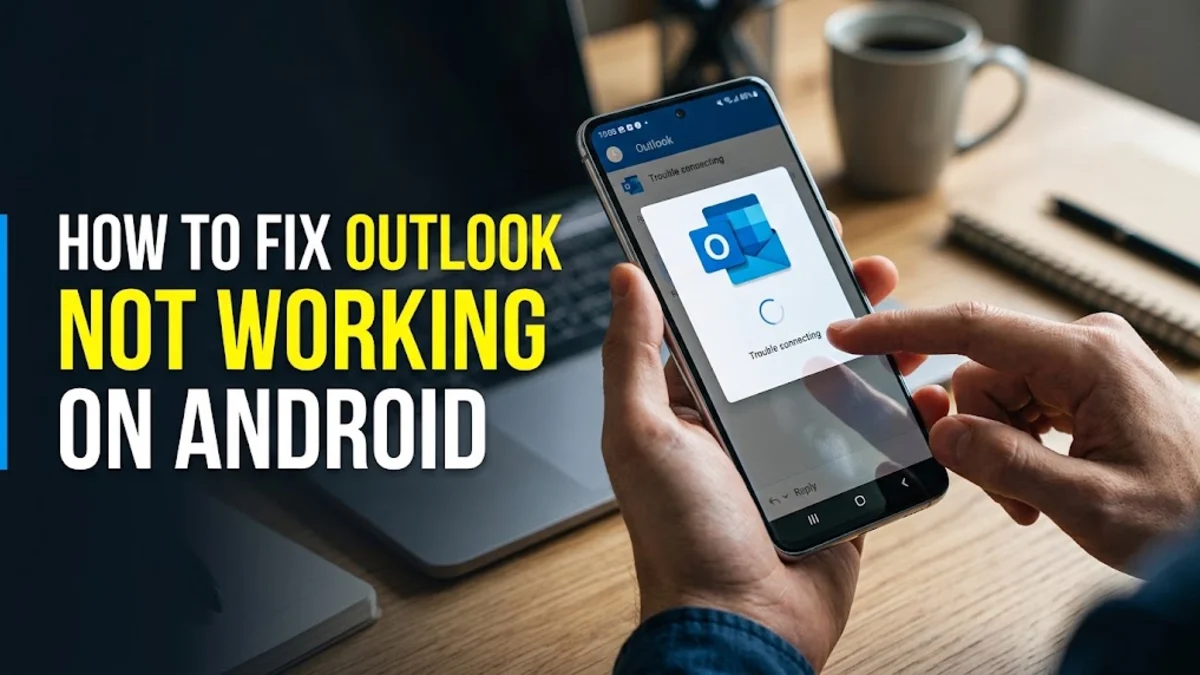
When your Microsoft Outlook app stops syncing or fails to open on your Android phone, it can disrupt your entire workday. Missing important emails and calendar notifications is frustrating, especially when you need to stay responsive on the go.
1Check Your Internet Connection and Network Settings
The most common reason Outlook fails to load messages or sync new mail on Android is an unstable or restricted internet connection. If your Wi-Fi signal drops or your mobile data connection experiences latency, the app cannot communicate with Microsoft servers. Start by opening a web browser on your phone and loading a website to verify your internet connectivity. If other sites load slowly, toggle your Wi-Fi off and back on, or switch temporarily to mobile data to see if the problem persists. You should also check if airplane mode is accidentally enabled in your quick settings panel. Another frequent culprit is aggressive battery saver mode or data saver settings built into Android. These power-saving features often restrict background data usage for heavy apps like Outlook to preserve battery life. To verify this, open your device Settings > Apps > Outlook > Mobile data & Wi-Fi and make sure that background data usage is fully permitted. If your network settings are correct and your connection is stable, but messages still fail to download, move on to clearing the app cache.
2Clear the Outlook App Cache and Corrupted Data
Over time, accumulated temporary data and corrupt cache files can cause the Outlook app to freeze, crash upon opening, or refuse to sync new emails. Clearing this temporary data forces the application to rebuild its local database without deleting your actual emails or account configuration. To clear the cache on Android, open your device Settings > Apps > Outlook > Storage & cache. Tap on Clear cache first, then restart your phone and check if Outlook works normally. If the issue continues, you can return to the same menu and select Clear storage or Clear data. Be aware that clearing storage will sign you out of the app and remove downloaded offline mail, but your emails remain safely stored on the cloud server. Once you open Outlook again, you will need to sign back in with your email credentials, which re-establishes a clean synchronization pipeline with Microsoft servers. This step resolves the vast majority of unexpected app freezes and persistent sync loops on modern Android devices.
3Remove and Re-Add Your Email Account
Authentication token corruption or expired security credentials can cause Outlook to get stuck on connecting or fail to receive incoming messages entirely. When your password has changed recently or Microsoft security updates require a fresh login handshake, simply restarting the app is not enough. You need to completely remove the email account from the Outlook mobile app and add it back fresh. Open Outlook, tap your profile icon in the top left corner, go to Settings, select the problematic email account under Mail accounts, and scroll down to tap Delete account or Remove account. Confirm the removal, close the application completely by swiping it away from your recent apps screen, and reopen Outlook. Tap on Add account and sign in using your full email address and secure password. If your organization uses multi-factor authentication, follow the on-screen prompts to approve the login request via your authenticator app or SMS code. Re-adding the account forces a clean sync of your inbox, sent items, and calendar schedules.
4Update the Microsoft Outlook App to the Latest Version
Running an outdated version of Microsoft Outlook on Android can lead to compatibility bugs, server connection errors, and unexpected crashes, especially after major Android system updates. App developers regularly push patches to address security vulnerabilities and backend API changes implemented by email servers. To ensure you are running the most stable version, open the Google Play Store app on your device, tap your profile icon in the top right corner, and select Manage apps & device. Look under Updates available to see if Microsoft Outlook has a pending update waiting to be installed. If an update is listed, tap Update next to Outlook and wait for the installation to finish before opening the app again. Alternatively, you can search for Outlook directly in the Play Store search bar and tap the update button from its main listing page. Enabling automatic app updates in your Play Store preferences ensures that you always receive critical bug fixes and performance improvements as soon as they are released by Microsoft.
5Check Device Permissions and Background Data Restrictions
Android relies on specific app permissions to allow applications like Outlook to send push notifications, store attachments locally, and run synchronization tasks in the background. If critical permissions such as notifications, storage, or contacts have been accidentally revoked, Outlook may fail to notify you of new mail or crash when you try to save a file. Navigate to your device Settings > Apps > Outlook > Permissions. Ensure that permissions for Notifications, Storage, and Contacts are explicitly allowed. In addition to standard permissions, modern Android versions feature battery optimization protocols that put inactive apps to sleep. If Outlook is restricted from running in the background, you will stop receiving instant push notifications until you manually open the app. Go to Settings > Apps > Outlook > Battery and select Unrestricted or Optimized depending on your preference, ensuring that background execution is not blocked by aggressive power management profiles.
6Reinstall Outlook Completely for a Fresh Start
If you have tried clearing the cache, updating the application, and re-adding your account without success, a complete reinstallation is the most effective next step. Corrupted installation files or system-level glitches can sometimes prevent normal app recovery through standard troubleshooting. To perform a clean reinstall, long-press the Outlook app icon on your home screen or app drawer, tap App info, and select Uninstall. Confirm the deletion and wait for the uninstallation process to complete. Next, open the Google Play Store, search for Microsoft Outlook, and download the official app published by Microsoft Corporation. Once the download finishes, launch Outlook, sign in with your account credentials, and grant the necessary permission requests when prompted. Reinstalling the app replaces all corrupted binary files and system caches with a pristine version, resolving deep-seated software conflicts that cause the application to malfunction on your Android smartphone.
Frequently asked questions
Why is my Outlook app not receiving new emails on Android?
This usually happens due to a poor internet connection, restricted background data usage, or an expired authentication token. Try clearing the app cache or removing and re-adding your account.
Will I lose my emails if I clear the Outlook app cache?
No, clearing the cache or storage only deletes temporary local files. Your actual emails, folders, and contacts are safely stored on Microsoft cloud servers and will reappear once you sign back in.
How do I update Microsoft Outlook on my Android phone?
Open the Google Play Store, search for Microsoft Outlook, and tap the Update button if a newer version is available. You can also check for updates via your Play Store profile settings.
Why does Outlook keep crashing when I open it on Android?
App crashes are typically caused by corrupted installation files or outdated software. Uninstalling the app, restarting your phone, and downloading the latest version from the Play Store resolves this issue.