How to Fix iPhone Screen Not Responding
When your iPhone screen stops responding to touch, it can leave you locked out of your apps, messages, and calls. This frustrating issue often stems from a temporary software glitch, a dirty screen protector, or a frozen application.
Fortunately, you can usually resolve an unresponsive display at home without taking your phone to a repair shop. Here is a step-by-step troubleshooting guide to get your iPhone touch screen working normally again.
Force Restart Your iPhone
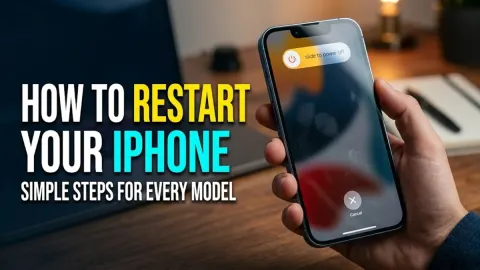
A force restart is the most effective first step when your iPhone screen completely freezes and refuses to register your touch inputs. Unlike a standard power down, a force restart cuts power to the hardware momentarily and reboots the system memory without erasing your personal data. The exact button combination depends on your specific iPhone model. For modern devices like the iPhone 14, 15, or 16 series, quickly press and release the Volume Up button, quickly press and release the Volume Down button, and then press and hold the Side button. Keep holding the Side button down until the screen goes completely black and the Apple logo appears on the display. If you are using an older model with a physical home button, press and hold both the Side or Top button and the Home button simultaneously for at least ten seconds until you see the Apple logo.
Once the phone boots back up, test the touch screen in various applications to see if responsiveness has returned. If the screen remains frozen or only responds intermittently, move on to checking physical hardware accessories like your case or screen protector to ensure they are not causing interference.
Remove Your Screen Protector and Case
Physical accessories are a very common and overlooked cause of touch screen unresponsiveness. Cheap or poorly installed tempered glass screen protectors can trap air bubbles, collect dust beneath the edges, or degrade in quality over time, completely blocking capacitive touch signals from reaching your finger to the digitizer beneath the glass. Similarly, bulky or poorly fitted phone cases can press too tightly against the bezels or wrap over the active display area, registering as a constant phantom touch and locking out your actual inputs.
Start by peeling off your screen protector carefully, especially if it has cracks, chips, or visible lifting near the corners. Next, take off your protective case and wipe down the entire outer chassis of the phone with a microfiber cloth. Test the touch screen bare to see if normal sensitivity is restored. If the phone begins responding properly once the accessories are removed, your old screen protector or case was the culprit, and you should replace it with a high-quality accessory designed specifically for your iPhone model.
Clean the Screen and Your Hands
Capacitive touch screens rely on electrical conductivity from your fingertips to register interactions. If your hands are excessively dry, wet, covered in grease, or wearing non-conductive gloves, the digitizer will fail to detect your touch inputs accurately. Environmental factors like heavy humidity, rain, or sweat can also pool water droplets on the glass, creating false touch signals that overwhelm the operating system and cause the device to freeze up entirely.
To resolve this, wash and thoroughly dry your hands before attempting to use your device. Next, power off your iPhone if possible and wipe the glass display gently using a soft, slightly damp, lint-free microfiber cloth. Avoid using harsh chemical cleaners, window sprays, or abrasive paper towels, as these can strip away the oleophobic coating that repels natural skin oils. Once the screen is completely clean and dry, turn the phone back on and check if the touch sensitivity has returned to normal. Keeping both your hands and the glass clean ensures optimal electrical contact for smooth navigation.
Disconnect Chargers and Accessories
Using low-quality third-party wall adapters, frayed charging cables, or uncertified power banks can introduce electrical noise and ground loops into your iPhone. This stray electrical current interferes directly with the sensitive capacitive sensors embedded in the display panel, causing the screen to ghost-touch, lag behind your fingers, or stop responding altogether while plugged into power. If your screen only freezes when you are charging the device, disconnect the Lightning or USB-C cable immediately.
Inspect the charging port for accumulated pocket lint or debris using a wooden toothpick, as foreign objects can short out pins and cause erratic hardware behavior. Try switching to an official Apple wall charger and a certified cable to see if the problem disappears. If the touch screen works perfectly when running on battery power alone, your charging accessories are failing and must be replaced immediately to protect your phone's internal battery and logic board from permanent electrical damage.
Update Your iOS Version
Software bugs within the operating system can occasionally disable touch input or cause severe system freezes that render the interface completely unusable. Apple regularly pushes out iOS updates that contain crucial bug fixes, security patches, and hardware calibration improvements for touch controllers. If your screen is partially responsive or you can navigate using Siri or an external Bluetooth mouse, check for available software updates immediately. Open the Settings app, tap on General, and select Software Update to see if a newer version of iOS is waiting to be downloaded and installed.
If your touch screen is entirely unresponsive and you cannot access the settings menu directly, connect your iPhone to a Mac or a Windows computer running the Apple Devices app or iTunes. Put your phone into recovery mode and use the computer interface to download and install the latest firmware package without losing your personal data. Keeping your iPhone updated ensures that known touch controller bugs are patched out promptly.
Restore Your iPhone via Recovery Mode
When all troubleshooting steps fail and the screen remains unresponsive due to deep-seated software corruption, performing a full system restore is often the final resort. This process wipes the corrupted operating system files clean and reinstalls a fresh, stable copy of iOS directly from Apple servers. Before proceeding, keep in mind that a full factory restore will erase all personal data stored locally on your device, so relying on your regular iCloud or computer backups is essential for recovering your photos, messages, and app data afterward.
To begin, connect your iPhone to a trusted computer using a data cable. Open Finder on a Mac or the Apple Devices app on a Windows PC, and follow the specific button sequence for your iPhone model to enter recovery mode. Once the computer detects your device in recovery state, click on the Restore option. The computer will download the latest software package, wipe the flash storage clean, and set your phone up like new. After the restoration completes, you can log back into your Apple ID and restore your personal backup smoothly.
The bottom line
Fixing an unresponsive iPhone screen is usually achievable by performing a force restart, clearing out interfering accessories, or updating your operating system. If none of these software and physical checks resolve the issue, the underlying problem may be a damaged digitizer or hardware failure requiring professional repair at an Apple Store.
Frequently asked questions
Why is my iPhone screen frozen and not responding to touch?
An iPhone screen can freeze due to a temporary software glitch, an overloaded processor running too many background apps, moisture on the glass, or a defective screen protector interfering with touch sensitivity.
Can I fix an unresponsive iPhone screen without losing data?
Yes, performing a force restart or clearing out storage space will not delete your personal data. However, if you have to perform a factory restore through recovery mode, you will need a backup to restore your files.
What should I do if only a part of my iPhone screen works?
If specific areas of the display ignore touch inputs, remove any thick screen protectors, clean the glass surface thoroughly, and perform a force restart to recalibrate the touch controller.
Does a cracked screen cause touch failure?
Yes, physical cracks can sever the microscopic electrical pathways of the underlying digitizer layer, causing dead zones where touch inputs are no longer registered at all.
How do I restart my iPhone if the screen won't respond?
You cannot use the onscreen slider to turn off the phone. Instead, you must use the physical button combination required for a force restart specific to your iPhone model.