How to Take a Screenshot on a Windows Laptop
Knowing how to take a screenshot on a laptop is an essential skill whether you need to save an important receipt, capture an error message for tech support, or share a funny meme with a friend. Windows laptops offer several built-in methods ranging from instant full-screen captures to precise area selections without requiring any extra downloads.
Depending on your Windows version and personal preference, you can use quick keyboard shortcuts, the versatile Snipping Tool, or third-party applications for advanced editing. Below is a complete guide to mastering every screenshot method available on your Windows laptop.
Using Keyboard Shortcuts for Full Screen Captures
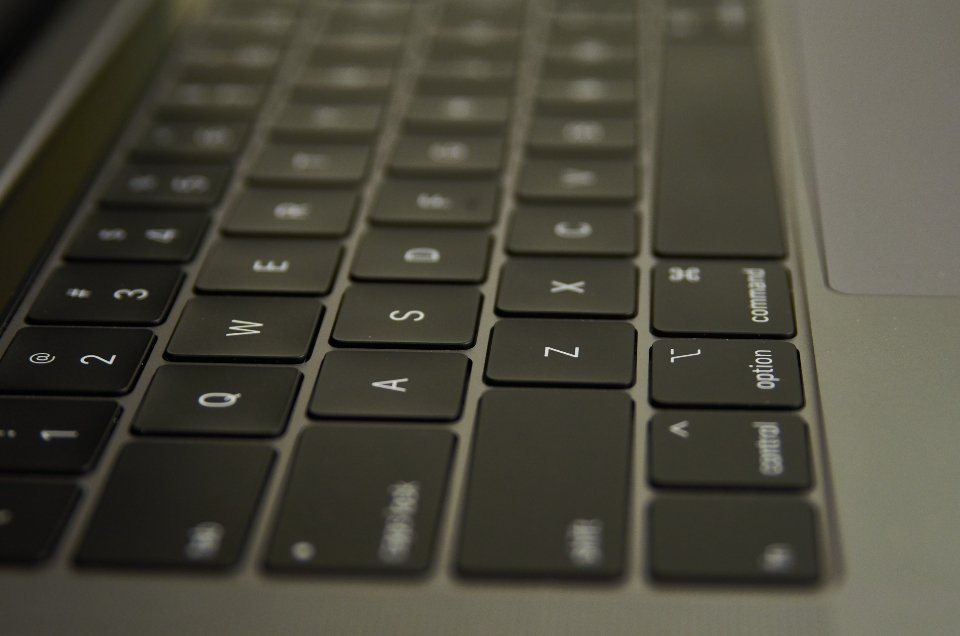
The quickest way to capture everything currently displayed on your laptop screen is by using built-in keyboard shortcuts. On most modern Windows laptops, you can press the PrtScn (Print Screen) key, which instantly copies the entire screen image to your clipboard. You can then paste this image directly into applications like Microsoft Paint, Word, or an email message by pressing Ctrl + V.
If you prefer an automated approach that saves the image file directly without needing an intermediate program, press Win + PrtScn. Your laptop screen will dim momentarily to indicate that a capture has been made, and the image file will be automatically saved inside your Pictures > Screenshots folder. Note that on some compact laptop keyboards, you may need to press Fn + PrtScn or Fn + Win + PrtScn if the print screen function is shared with another media key.
Capturing a Specific Window or Area with Snipping Tool
When you only want to capture a specific portion of your screen rather than the entire desktop, the native Snipping Tool is your best option. To open the capture interface instantly from anywhere in Windows, press Win + Shift + S. Your screen will dim, and a sleek control bar will appear at the top center of your display.
The control bar gives you four distinct capture modes to choose from: Rectangular Snip, Freeform Snip, Window Snip, and Fullscreen Snip. Click your preferred mode, click and drag your cursor over the area you wish to capture, and release. A notification preview will pop up in the bottom-right corner of your screen. Clicking this notification opens the full Snipping Tool editor, where you can crop the image, draw highlights, or save the file to your preferred directory.
Using Alt + PrtScn for Active Window Capture
If you have multiple windows open on your desktop but only want to capture the exact program window that is currently active, you can save yourself hours of tedious manual cropping. Simply bring the target application window to the front so it is active, and then press Alt + PrtScn on your keyboard.
This combination instantly captures only the active window and copies it directly to your system clipboard. You can then open an image editor or a document and press Ctrl + V to paste the clean, standalone window image. This method is particularly useful for writers, developers, and support technicians who need professional-looking screenshots without extraneous taskbars or desktop backgrounds.
Saving and Finding Your Screenshots Automatically
One of the most common frustrations laptop users face is losing track of where their screenshots went after pressing a shortcut key. If you use the Win + PrtScn shortcut, Windows automatically creates a designated folder in your user directory. Open File Explorer, navigate to This PC > Pictures > Screenshots to view, rename, or organize all your captured image files.
If you use the Snipping Tool via Win + Shift + S, remember that the image lives in your temporary clipboard until you click the notification popup and explicitly save it. If you have cloud backup services like Microsoft OneDrive enabled, your automatic screenshot folder may also sync directly to the cloud, meaning you can access your laptop captures instantly from your phone or another device.
Using Third-Party Screenshot Software for Advanced Features
While built-in Windows tools satisfy most everyday needs, power users often require advanced features such as scrolling web page captures, automatic file naming conventions, or instant image hosting uploads. Dedicated utility programs provide robust customization options that go far beyond standard operating system capabilities.
Tools like Greenshot or ShareX allow you to define custom hotkeys, automatically upload captures to cloud storage providers, and apply sophisticated visual effects like drop shadows, borders, or redaction blur to sensitive information. To get started with a lightweight and powerful open-source capture tool, you can download Greenshot from its official platform and configure your preferred shortcut behaviors in the application settings menu.
Troubleshooting Common Screenshot Issues on Laptops
Sometimes screenshot shortcuts fail to respond correctly due to hardware configuration quirks or software conflicts. If pressing the PrtScn key opens the Snipping Tool instead of copying the full screen silently, you can modify this behavior by opening Settings > Accessibility > Keyboard and toggling off the setting that uses the Print Screen button to open screen snipping.
If your shortcut keys do nothing at all, check whether your laptop keyboard has an Fn lock enabled, or ensure that your keyboard driver is up to date through Device Manager. Additionally, background recording software or game overlays like Xbox Game Bar can occasionally interfere with global keyboard hooks, so disabling conflicting overlays can restore normal screenshot functionality.
The bottom line
Mastering how to take a screenshot on your Windows laptop saves time and simplifies everyday digital tasks. Whether you rely on quick keyboard shortcuts like Win + PrtScn for instant saving or the versatile Snipping Tool for targeted captures, choosing the right method ensures your images are clean, accurate, and easy to find.Frequently asked questions
Where do screenshots go when I press Print Screen?
If you press just the PrtScn key, the image is copied to your clipboard and must be pasted into an app like Paint. If you press Win + PrtScn, the image is automatically saved as a PNG file in Pictures > Screenshots.
Why is my Print Screen key opening the Snipping Tool?
Windows has a setting that repurposes the PrtScn key to launch the Snipping Tool. You can disable this by going to Settings > Accessibility > Keyboard and turning off the Print Screen shortcut option.
How do I capture only a specific part of my laptop screen?
Press Win + Shift + S to open the Snipping Tool overlay, select the Rectangular Snip icon, and drag your cursor over the exact area you want to capture.
What should I do if my laptop keyboard does not have a PrtScn key?
Some compact laptop keyboards combine the Print Screen function with another key. Try pressing Fn + Windows key + Spacebar or use the Win + Shift + S shortcut to launch the Snipping Tool instead.
Can I capture a scrolling web page on a Windows laptop?
Built-in Windows tools do not support scrolling captures natively. To capture an entire long web page, you will need to use a web browser extension or third-party software like Greenshot or ShareX.