How to Fix Gemini Something Went Wrong Error
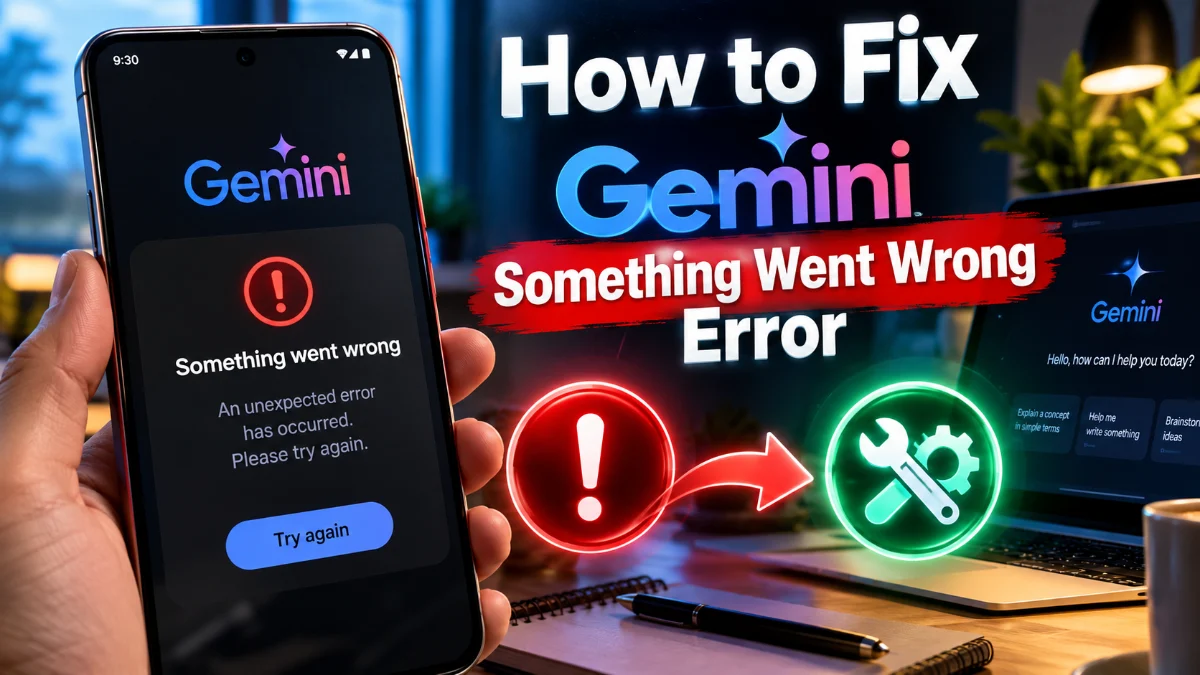
Google Gemini usually generates responses in seconds, but seeing the frustrating message "Something went wrong" halts your workflow immediately. This generic prompt failure often occurs when the underlying AI server experiences a momentary timeout, when an aggressive browser extension blocks the streaming API request, or when an expired authentication token invalidates your session. Because the error notice lacks specific details, finding the root cause requires systematic troubleshooting.
Whether you use Gemini on the web through a browser or via the mobile app on Android or iOS, this guide outlines the direct fixes. By working through these steps from the quickest browser tweaks to network and account resets, you can restore Gemini to normal working order without losing your previous chat history.
Identify Common Causes of the Gemini Error
Understanding why Gemini throws the "Something went wrong" alert helps narrow down which troubleshooting method will resolve it fastest. The most frequent culprit is a momentary drop in the real-time server-sent events (SSE) connection that Gemini uses to stream text back to your screen. When your connection stutters or when Google's inference servers face heavy regional demand, the active socket closes abruptly, prompting the frontend interface to display an error card instead of completing the sentence.
Client-side factors are equally common. Corrupted browser cookies, stale cached web scripts from recent platform updates, and conflict between multiple Google accounts signed into the same browser session can prevent the interface from authenticating prompts properly. Additionally, privacy-focused browser extensions, VPN routing rules, and strict corporate firewalls can silently block the specific background endpoints that Gemini requires to process queries.
Perform a Hard Refresh and Clear Gemini Cache
When Gemini fails midway through an answer or refuses to submit a prompt, a regular page refresh often fails because the browser reloads the same broken cache. A hard refresh forces your browser to bypass stored files and download fresh scripts directly from Google's servers. On Windows, press Ctrl + F5 (or hold Ctrl and click the refresh button). On macOS, press Cmd + Shift + R. If the issue stems from an expired single-page session token, this single step frequently resolves it immediately.
If the error returns, you should purge the site-specific cache and cookie data for Gemini without wiping your entire browser history:
- In Google Chrome or Microsoft Edge, navigate to
gemini.google.com. - Click the tune/padlock icon located immediately to the left of the URL bar.
- Select Cookies and site data > Manage on-device site data.
- Click the trash bin icon next to
google.comandgemini.google.comto wipe local storage. - Restart your browser, sign back into your Google account, and submit a test prompt.
Disable Conflicting Extensions and Test in Private Mode
Third-party browser add-ons are one of the most common reasons users need to fix Gemini something went wrong errors. Ad blockers, anti-tracking tools, script interceptors, and grammar-checking extensions constantly inspect dynamic webpage elements. If an extension flags the continuous streaming response from Gemini as suspicious tracking code or an intrusive script, it abruptly severs the stream, causing the "Something went wrong" placeholder to appear.
To confirm whether an extension is responsible, open an Incognito or Private window using Ctrl + Shift + N in Chrome or Ctrl + Shift + P in Firefox. Log into Gemini and run your prompt. If it works without errors, one of your active extensions is blocking the traffic. Return to your regular browser window, navigate to Settings > Extensions > Manage Extensions, and temporarily turn off third-party ad blockers or developer tools one by one until you isolate the faulty extension.
Check for Multiple Google Account Conflicts
Many users remain logged into multiple Google profiles simultaneously, such as a personal Gmail account alongside a work or university Google Workspace account. Google manages active authorization via numeric session indicators in the URL (such as /u/0/ or /u/1/). If a Workspace administrator disables experimental generative AI features or restricts Gemini access, your browser can default your prompt submission to the restricted profile, generating an immediate error.
To fix session conflicts, look at the top-right corner of the Gemini interface and click your profile avatar. Ensure you are operating under your primary, unrestricted account. If multiple accounts are active, click Sign out of all accounts, close your browser completely, relaunch it, and sign exclusively into the account you intend to use with Gemini. Alternatively, create dedicated browser profiles in Chrome by clicking your profile icon on the browser toolbar and selecting Add under Other Profiles to keep work and personal data completely separated.
Adjust VPN Nodes, Web Proxies, and DNS Settings
Google implements strict rate-limiting and anti-abuse safeguards across its AI endpoints. If you connect through a commercial VPN or a shared web proxy, dozens of other users may be routing requests through the exact same IP address. When Google's infrastructure flags that IP for unusually high concurrent traffic, it throttles or blocks new streaming sockets, resulting in the generic "Something went wrong" warning on your end.
Disconnect your VPN or switch your server node to a different domestic location to obtain a clean IP address. In addition, corrupted DNS records can prevent your device from resolving Gemini's dynamic content delivery servers. You can flush your local DNS cache in Windows by opening Command Prompt as Administrator and running ipconfig /flushdns. On macOS, open Terminal and run sudo dscacheutil -flushcache; sudo killall -HUP mDNSResponder to refresh your system's name resolution tables.
Shorten the Prompt and Check Attachment Limits
Sometimes the error is triggered by the input data rather than technical software faults. If you paste massive blocks of raw text, code containing nested formatting, or high-resolution document scans, the prompt tokenization or file parsing stage can fail silently on Google's backend. In particular, uploading password-protected PDFs, unsupported file extensions, or corrupted image files will frequently terminate the analysis sequence before the response can begin.
If you encounter the error on a specific query, try dividing your request into smaller components. Remove any file attachments, send the plain text prompt first, and then upload documents one at a time across consecutive messages. Furthermore, check whether your prompt accidentally triggered Google's automated safety guardrails. While safety blocks normally produce an explicit warning about restricted content, server-side content filter mismatches can occasionally produce an unhandled "Something went wrong" failure instead.
Fix the Gemini App on Android and iOS
When the error persists specifically on mobile devices, the issue typically lies within cached application data or an outdated version of the Google app framework that powers the Gemini assistant. On Android, Gemini operates closely with the system-level Google app, so an issue in either application can interrupt service.
Follow these steps to clear corrupted mobile data on Android:
- Open Settings > Apps > See all apps.
- Locate and tap Gemini (or Google if Gemini is running as the assistant layer).
- Tap Storage & cache > Clear Cache.
- If prompts still fail, tap Clear Storage and restart your smartphone.
On an iPhone or iPad, open the App Store, tap your profile icon at the top right, and pull down to check for updates for the Google or Gemini app. If an update is unavailable and the app continues to error, uninstall the application, restart your device, and perform a fresh installation from the App Store.
The bottom line
Resolving the "Something went wrong" error in Google Gemini is straightforward once you eliminate local browser cache corruption, extension interference, and VPN routing conflicts. Starting with a hard page reload or private browsing test will fix the vast majority of occurrences in seconds. If the error continues across multiple devices on the same Wi-Fi connection, check Google's official Workspace Status Dashboard to verify whether an unscheduled cloud outage is underway before attempting further complex configuration changes.
Frequently asked questions
Does Gemini show Something went wrong if Google's servers are down?
Yes. When Google experiences unexpected cloud outages, regional network degradation, or high server load during platform updates, the web interface cannot maintain an open connection to the model. In these cases, the service displays a generic error message until server capacity normalizes.
Will clearing my Gemini cache delete my saved chat history?
No. Your chat conversations and prompt logs are tied directly to your Google account and stored in the cloud. Clearing your browser cache or app storage only removes local temporary scripts and cookies, leaving your saved history completely intact.
Why does Gemini work in Incognito mode but not in my normal browser?
If Gemini functions normally in Incognito or Private mode, an active browser extension—most commonly an ad blocker, privacy script, or translation tool—is intercepting Gemini's streaming requests in your standard window.
Can an unstable internet connection trigger this error?
Yes. Gemini streams its text responses progressively in real time. If your Wi-Fi suffers from severe packet loss or switches between mobile data and wireless networks mid-generation, the open connection drops and generates the error.