Why Is My Password Manager Empty? How to Fix It
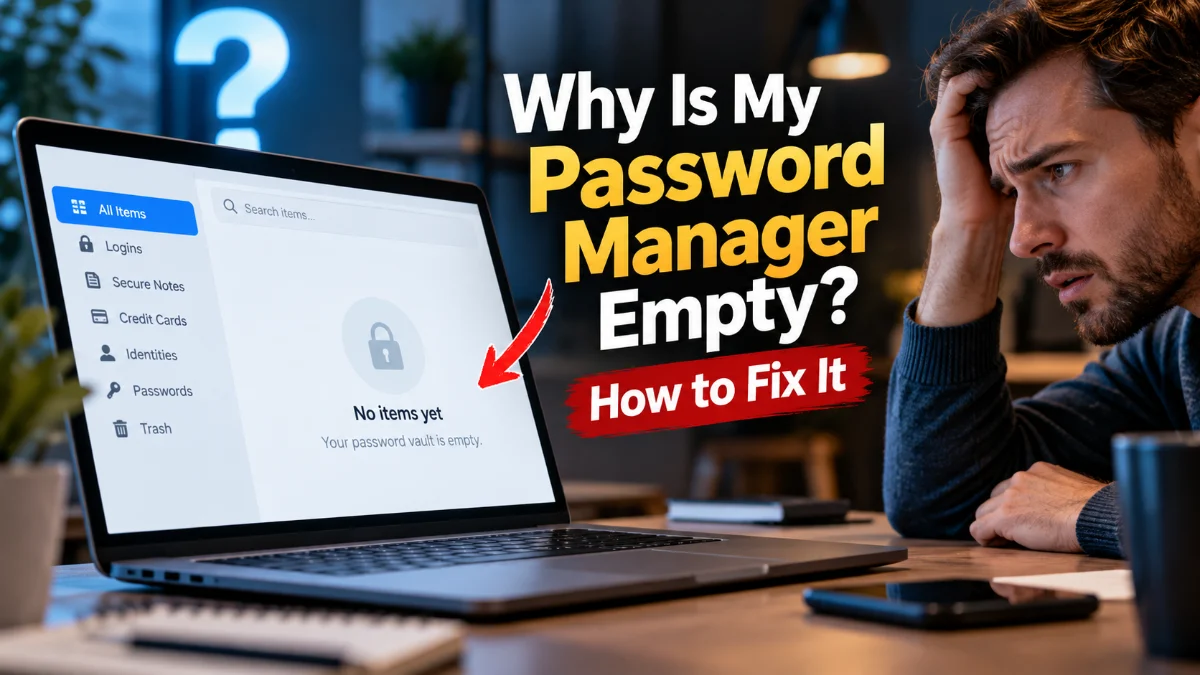
Opening your password manager only to find zero saved logins is alarming. In almost every case, your credentials have not been deleted permanently. Instead, an unsynced cloud profile, an accidental account switch, or a lingering search filter is hiding your data from view.
Whether you rely on Google Password Manager, Apple Passwords on iOS and macOS, or dedicated vaults like Bitwarden and 1Password, this guide walks you through diagnosing the root cause and restoring your credentials safely.
Verify You Are Signed In to the Correct Account
The single most common reason a password manager appears empty is that your browser or app is signed into an alternate profile. If you have separate personal and work email addresses, or if a family member used your computer, your browser may have automatically switched to a fresh profile containing no saved logins.
Check your active account profile across your devices:
- Google Chrome: Click your profile avatar in the top-right corner next to the three-dot menu. If it displays an alternate Gmail or says Guest, click your primary avatar or select Turn on sync with your primary credentials.
- Apple Passwords (iOS / macOS): Go to Settings > [Your Name] to confirm your primary Apple Account is logged in rather than a secondary account.
- Microsoft Edge: Click your avatar in the upper-left corner and ensure your main Microsoft account profile is active.
- Bitwarden or 1Password: Open the app settings to confirm your registered master email address matches the account holding your vault.
Check Cloud Synchronization and Reconnect the Vault
Password managers store your encrypted credentials in the cloud and cache a local copy on your device. If background sync fails due to an expired login session, network interruption, or disabled sync permissions, your local vault can appear completely blank.
To verify and reset synchronization status:
- Google Password Manager: Navigate to Settings > You and Google > Sync and Google services > Manage what you sync. Ensure Passwords and passkeys is toggled on. If you see a prompt stating Sync is paused, sign back in to renew your token.
- Apple Ecosystem: Open Settings > [Your Name] > iCloud > Saved to iCloud. Verify that Passwords is toggled on. If it is already on, toggle it off, wait thirty seconds, and toggle it back on to re-trigger local decryption.
- Bitwarden: Open the desktop app or browser extension, navigate to Settings > Account, and click Sync vault now.
Clear Active Filters, Folder Selections, and Search Bars
A subtle user interface glitch or accidental keystroke can give the illusion of an empty vault. If a search bar contains an invisible character or an empty folder is currently highlighted, your manager filters out every valid entry from the primary screen view.
Inspect your manager window closely:
- Click inside the search bar, press Ctrl + A (or Cmd + A on Mac), and press Backspace to remove hidden spaces or stray characters.
- In the sidebar of managers like Apple Passwords or Bitwarden, ensure you have clicked All Items or All Passwords rather than a specific empty folder, archive, or custom collection.
- If your password manager supports multiple vaults (such as a personal vault and a shared family vault), ensure the selector is set to view all vaults simultaneously.
Log In to the Web Portal to Check Server Data
If your local browser extension or desktop app displays zero entries, you must determine whether the problem is strictly local or account-wide. Logging directly into the official web portal bypasses corrupted local app databases.
Open an incognito or private browsing window and navigate to your provider's web vault:
- Google: Visit
passwords.google.comand authenticate with your master Google credentials. - Apple: Visit
icloud.com, sign in with your Apple Account, and open the Passwords web interface. - Bitwarden / 1Password: Log in directly via your provider's official browser vault URL.
If all your credentials appear correctly on the web portal, your stored data is safe. The issue lies purely in local device synchronization, cache corruption, or an outdated extension that requires reinstallation.
Inspect the Trash or Recently Deleted Folder
If your vault is truly empty both locally and on the web portal, entries may have been purged through accidental bulk deletion or automated cleanup actions. Leading password managers retain deleted items in a staging bin for 30 days before permanent destruction.
Check your recovery options immediately:
- Apple Passwords (iOS / macOS): Open the Passwords app, tap or click the sidebar menu, and select Recently Deleted. Select any missing entries and choose Recover.
- Bitwarden: Sign in to the web vault, navigate to Settings > Trash, locate your deleted credentials, and select the Restore icon.
- 1Password: Open your vault in a browser, click Archive or Recently Deleted in the left sidebar, and restore the items back to your active vault.
Repair Local Cache and Reinstall Browser Extensions
Corrupted local database files can prevent browser extensions from rendering decrypted records on your screen. When cache files break, the extension fails to read the encrypted local storage, displaying an empty list even when sync is active.
To fix extension and local cache corruption:
- Right-click your password manager extension icon in your browser toolbar and select Remove from Chrome (or your respective browser).
- Restart your browser completely to clear lingering background processes.
- Reinstall the extension directly from the official web store and log in with your master password or hardware key.
- Allow up to two minutes on a stable internet connection for the local database to complete initial end-to-end synchronization.
The bottom line
Seeing your password manager empty is stressful, but genuine data loss is exceptionally rare. By verifying your active account profile, reconnecting cloud sync, and checking your provider's web portal, you can restore your entire collection of logins quickly. Always make a habit of exporting an encrypted backup file periodically so you maintain complete control over your digital credentials.
Frequently asked questions
Did an update delete my saved passwords?
Operating system and browser updates rarely delete credentials because passwords are kept in secure, separate encrypted databases. However, major updates can temporarily disconnect your cloud session or toggle sync settings to off, making the vault appear empty until you re-authenticate.
Can I recover passwords if I deleted my browser profile?
If you had cloud synchronization enabled before deleting the local profile, your passwords remain safe. Simply create a new profile, sign in with your account credentials, and toggle sync on. If sync was never enabled, local-only passwords cannot be recovered once the profile directory is wiped.
Why are my passwords missing on Chrome but visible on my phone?
This mismatch indicates that Chrome Sync is paused or signed into a different account on your desktop. Go to Chrome settings on your computer, check the active email address, and confirm that Passwords and passkeys synchronization is toggled on.
Where does Apple Passwords store deleted logins?
Apple Passwords moves deleted credentials to a Recently Deleted folder for 30 days. You can access it by opening the Passwords app on iOS or macOS, clicking Recently Deleted in the sidebar or menu, and selecting the items you wish to restore.