How to Connect a Laptop to a TV
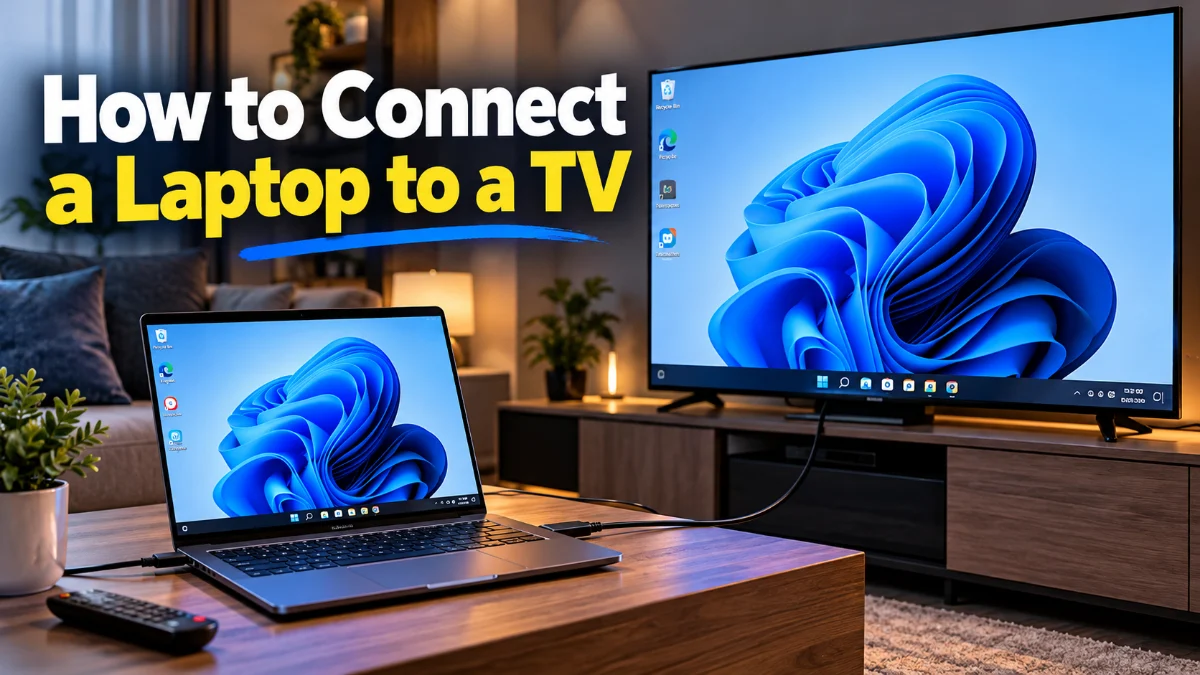
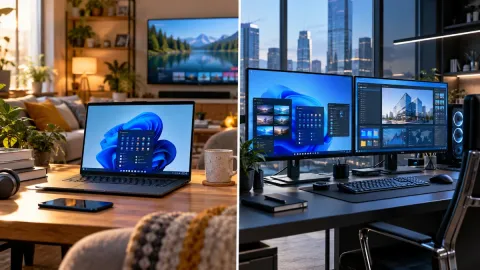
Connecting your laptop to a television turns your living room screen into a spacious second monitor for streaming movies, presenting slideshows, or playing PC games on a larger panel. Whether you want a plug-and-play wired setup or a clutter-free wireless feed across the room, modern versions of Windows provide native support for both approaches without demanding third-party utilities.
You can establish this link in minutes using a standard video cable or your home Wi-Fi network. Below, you will find practical instructions to connect your laptop to your TV, set up optimal display and audio settings in Windows 11 and Windows 10, and troubleshoot common playback snags like missing sound or blurred desktop text.
Choose Your Connection Method: HDMI vs Wireless
Before grabbing cables or toggling network menus, decide whether a wired or wireless connection fits your immediate needs. A physical HDMI cable remains the gold standard for latency-sensitive tasks like PC gaming, fast-paced video editing, and streaming high-bitrate 4K HDR media. Wired connections eliminate wireless interference, deliver uncompressed audio formats like Dolby Atmos, and require virtually no configuration once plugged in.
Wireless streaming, on the other hand, prioritizes convenience. If your laptop sits on a coffee table across the living room and you merely want to stream a web video, share vacation photos, or deliver a meeting presentation, Windows native casting via Miracast lets you project without trailing long cords across the floor. Keep in mind that wireless feeds introduce a slight delay between mouse movements and on-screen response, making them less ideal for competitive gaming.
How to Connect Your Laptop to a TV with an HDMI Cable
A direct HDMI connection is reliable and straightforward. Start by locating the HDMI output port on your laptop. Most mainstream gaming laptops and larger notebooks feature a full-sized HDMI port on the side or rear panel. If your machine is an ultraportable or thin-and-light laptop with only USB-C or Thunderbolt ports, you will need a USB-C to HDMI adapter or a dedicated USB-C to HDMI cable that supports DisplayPort Alternate Mode.
- Power on both your television and your laptop.
- Connect one end of the HDMI cable to your laptop or USB-C adapter, and plug the other end into an available HDMI input on the back or side of your TV. Take note of the port label, such as HDMI 1 or HDMI 2.
- Pick up your TV remote and press the Source or Input button. Select the corresponding HDMI port number you plugged the cable into.
- Your laptop screen will flicker briefly as Windows detects the secondary display, and your desktop image will appear on the TV screen.
If the television displays a 'No Signal' message after switching inputs, unplug the cable from both ends, wait five seconds, and firmly reseat the connectors. Some televisions also require enabling HDMI Enhanced or Deep Color modes in their internal settings to handshake properly with computer graphics cards.
How to Connect Wirelessly Using Cast on Windows
If you prefer a cable-free experience, Windows 11 and Windows 10 include built-in casting powered by Miracast technology. Most smart TVs running Google TV, Samsung Tizen, LG webOS, or Roku OS support Miracast or screen mirroring out of the box. Both devices must be powered on, and connecting them to the same local Wi-Fi frequency (preferably 5 GHz) ensures the smoothest transmission.
- Verify that your TV is turned on and ready to receive screen mirroring. On many smart TVs, the feature is always active in the background, while others require opening an app called Screen Share, Screen Mirroring, or AirPlay and HomeKit.
- On your Windows laptop, press Win + K on your keyboard to bring up the Cast quick menu on the right edge of your screen. Alternatively, press Win + A to open Quick Settings and select the Cast tile.
- Windows will scan for nearby displays. Once your TV model appears in the list, click on it.
- Look at your television screen. A prompt may ask you to approve the connection request or enter an on-screen PIN code. Use your TV remote to select Allow.
- Windows will establish the wireless session and begin mirroring your laptop desktop onto the TV.
To end the wireless broadcast at any time, open the Cast menu again using Win + K and click Disconnect.
Configure Display Modes with the Windows Project Menu
Once your laptop connects to the TV, Windows gives you four distinct ways to manage how your desktop behaves across the two panels. You can quickly switch between these viewing modes at any moment by pressing Win + P to reveal the Project flyout.
- PC screen only: Your TV remains blank or inactive while everything stays visible solely on your laptop panel.
- Duplicate: Both your laptop display and your television screen show the exact same content simultaneously. This mode works best for presentations and slideshows where you need to see what the audience sees.
- Extend: Your TV acts as an additional virtual workspace next to your laptop screen. You can drag open windows, browser tabs, or media players across to the TV while keeping notes, work documents, or chat apps on your laptop screen.
- Second screen only: Your laptop screen turns off completely, leaving your television as the sole active monitor. This option saves laptop battery and prevents distracting light in a dark home theater environment.
For most entertainment setups, Extend or Second screen only provides the cleanest experience because it allows the TV to run at its own native resolution rather than forcing it to match the laptop display proportions.
Fix Sound Playing from Laptop Instead of the TV
A frequent headache when connecting a laptop to a television is hearing audio play from the small laptop speakers rather than the TV sound system. Windows usually reroutes the default audio device automatically, but driver quirks or active background applications can prevent this handoff.
To correct the audio output path manually in Windows 11:
- Click the volume icon in the system tray on your taskbar or press Win + A.
- Click the Select a sound output icon next to the main volume slider.
- Select your television or the audio receiver connected to your TV (often identified by your TV brand name or labeled as Intel Display Audio, NVIDIA High Definition Audio, or AMD High Definition Audio Device).
If the TV does not show up in the quick audio selector, navigate to Settings > System > Sound. Scroll down to the Advanced section and select More sound settings to open the classic Sound control panel. Under the Playback tab, right-click an empty area and ensure both Show Disabled Devices and Show Disconnected Devices are checked. Locate your TV, right-click it, and select Set as Default Device.
Adjust Resolution, Refresh Rate, and Scaling for Crisp Video
When Windows connects to a television, it attempts to guess the best visual layout. However, mismatched resolutions can leave text looking fuzzy or video looking stretched. To fine-tune the picture quality, navigate to Settings > System > Display.
At the top of the Display page, click on the rectangle that represents your television (usually labeled 2). Scroll down to Display resolution and ensure it matches your TV native capability, such as 3840 x 2160 for 4K panels or 1920 x 1080 for standard Full HD sets. Next, inspect the Scale dropdown. If text and app icons look uncomfortably small from your couch, increase the scaling percentage to 150% or 200%.
If fast video playback looks jittery, scroll down and click Advanced display. Check the Choose a refresh rate selector and confirm your TV is operating at 60 Hz or 120 Hz instead of dropping down to 30 Hz. Additionally, if the desktop edges appear cropped off or zoomed past the television frame, pick up your TV remote, open the TV picture settings, and change the aspect ratio from 16:9 to Just Scan, Screen Fit, or 1:1 Pixel Mapping to disable overscan.
Troubleshoot Common Laptop-to-TV Detection Issues
If your laptop fails to detect the TV, or if the connection keeps dropping, methodical hardware and driver checks will resolve the vast majority of problems. Start by ruling out handshake errors. Unplug the HDMI cable, restart both the laptop and the television, and reconnect the cable only after Windows finishes booting to the desktop.
| Symptom | Probable Cause | Recommended Action |
|---|---|---|
| TV displays 'No Signal' | Incorrect input selected or poor cable seat | Confirm the selected HDMI port on the TV remote and test with an alternate HDMI cable. |
| Edges of desktop cut off | TV overscan enabled | Set TV aspect ratio setting to 'Just Scan' or 'Screen Fit' instead of 16:9. |
| Wireless cast fails to connect | Wi-Fi band mismatch or firewall restriction | Connect both devices to the same 5 GHz network; toggle Wi-Fi off and on. |
| No audio from TV speakers | Audio output routed to laptop speakers | Select the TV in Windows Sound settings and set it as Default Device. |
Outdated graphics drivers can also disrupt video handshakes. Right-click the Start button, select Device Manager, expand Display adapters, right-click your active GPU (such as Intel Iris Xe, AMD Radeon, or NVIDIA GeForce), and select Update driver. If you are casting wirelessly, make sure your Wi-Fi adapter drivers are equally up to date through Windows Update.
The bottom line
Knowing how to connect laptop to TV gives you complete flexibility over your workspace and entertainment center. A direct HDMI cable offers rock-solid reliability with zero input lag for demanding video and gaming, while Windows Cast provides a tidy, wireless bridge for spontaneous streaming and presentations. By verifying your sound output path and adjusting screen scaling in Windows Display settings, you can enjoy crisp visuals and room-filling sound on any television panel.
Frequently asked questions
Can I connect my laptop to a TV without an HDMI port?
Yes. If your laptop lacks an HDMI port, you can use a USB-C or Thunderbolt port paired with a USB-C to HDMI adapter or multi-port hub. Alternatively, you can connect completely wirelessly using the built-in Windows Cast feature (Win + K) if your smart TV supports Miracast or screen mirroring.
Why is the TV screen black when connected to my laptop?
A black screen is usually caused by an incorrect input source on the TV, a loose cable, or an unsupported refresh rate. Press the Input button on your TV remote to verify you are on the right HDMI channel. On your laptop, press Win + P and ensure either Duplicate or Extend is chosen, rather than PC screen only.
Can I close my laptop lid while it is connected to the TV?
Yes, but you must prevent Windows from going to sleep when the lid shuts. Open the classic Control Panel, go to Power Options, click 'Choose what closing the lid does' in the left pane, and set 'When I close the lid' to 'Do nothing' under the Plugged in column. Then press Win + P and pick Second screen only.
Why does the mouse cursor lag when casting wirelessly to my TV?
Wireless display casting relies on network compression and Wi-Fi transmission, which introduces 50 to 200 milliseconds of latency. This delay is normal for wireless Miracast connections. To minimize lag, connect both devices to a 5 GHz Wi-Fi frequency, move closer to the router, or switch to an HDMI cable for real-time responsiveness.
Does connecting my laptop to a 4K TV drain the battery faster?
Yes. Driving a secondary ultra-high-definition monitor forces your laptop graphics hardware to render substantially more pixels and power external video controllers. To prevent your battery from draining rapidly during a movie or presentation, keep your laptop connected to its AC power adapter.