How to Fix Samsung Phone Screen Not Working
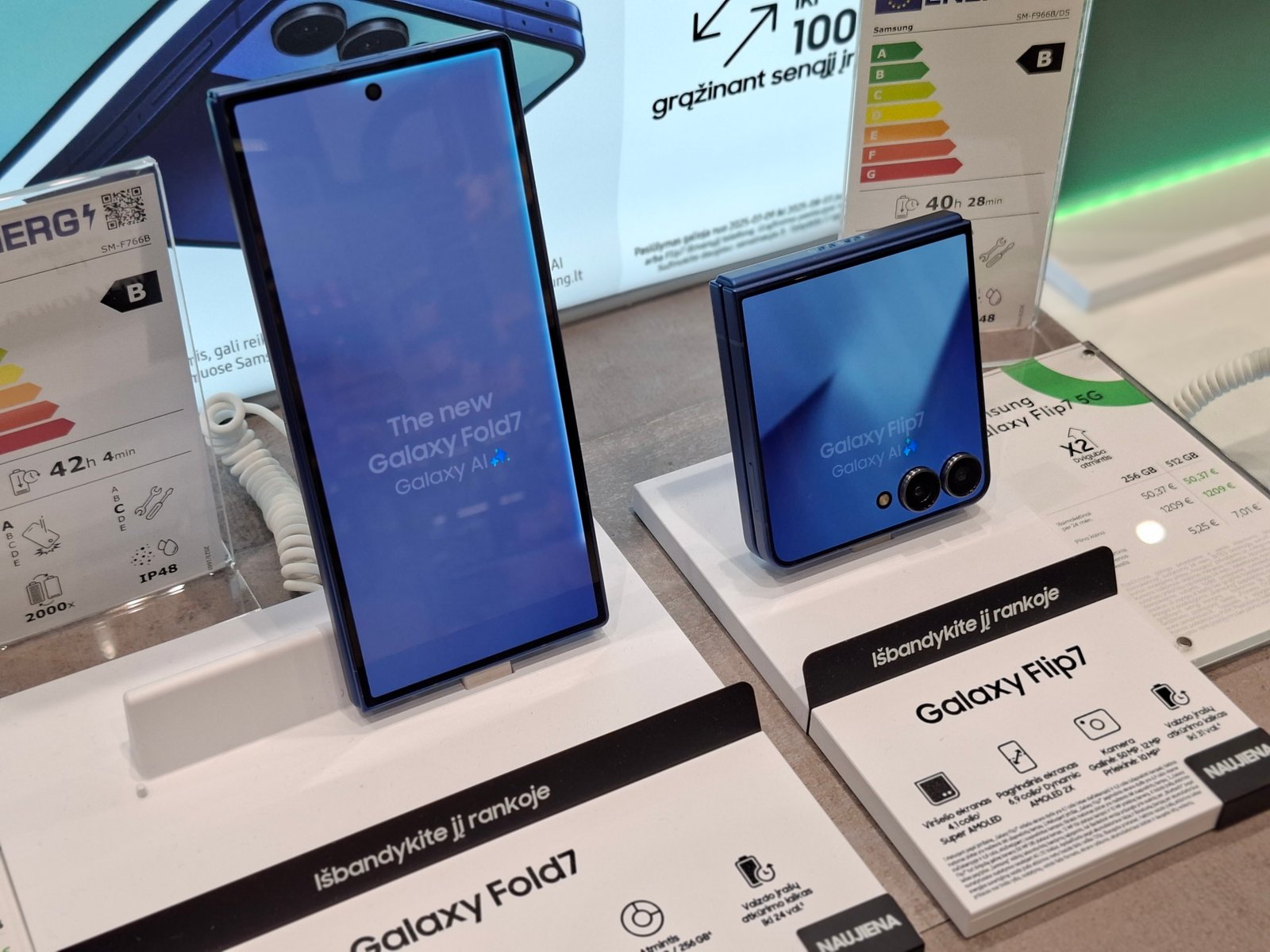
Dealing with a Samsung phone screen that refuses to respond can be incredibly frustrating, especially when you need your device for daily tasks. Whether the display is completely frozen, black, or ignoring your touch inputs, understanding the root cause is the first step toward getting it working again.
Force Restart Your Samsung Phone
When your Samsung phone screen stops working entirely, a temporary system glitch or software crash is frequently the culprit. The operating system may be running in the background while the display interface has frozen, making the phone appear completely dead or unresponsive to touch. Performing a standard shutdown usually requires interacting with the screen, which is impossible if touch recognition has failed. Fortunately, Samsung devices feature a hardware key combination that forces the phone to cut power and reboot immediately. To force restart your phone, press and hold both the Side button and the Volume Down button simultaneously for at least 10 to 15 seconds. Keep holding the buttons down until you feel a vibration and the Samsung logo appears on the display. This process does not delete any personal data, photos, or apps, making it the safest and quickest diagnostic step. If the screen responds normally after the reboot, the issue was likely a minor background glitch that cleared out during the fresh boot cycle.
Remove Damaged Screen Protectors and Clean the Display
Physical interference is another extremely common reason why a Samsung phone screen stops registering touch inputs. Tempered glass screen protectors, especially cheap or poorly installed ones, can trap dust, moisture, or air bubbles underneath, creating dead zones where touch is not recognized. Furthermore, physical cracks or deep scratches on a screen protector can confuse the digitizer, which is the underlying hardware layer responsible for sensing touch. Begin by thoroughly washing and drying your hands, then carefully peel off any screen protector currently attached to your phone. Inspect the protector for trapped debris or underside damage before discarding it safely. Next, take a clean microfiber cloth and gently wipe the actual glass screen of your Samsung phone to remove oily smudges, sweat, or liquid residue. Avoid using harsh chemical cleaners, window sprays, or abrasive paper towels, as these can strip away the oleophobic coating on modern smartphone displays. Once the screen is completely clean and dry, test the touch sensitivity again across various apps to see if the responsiveness has been fully restored.
Boot into Safe Mode to Diagnose Rogue Apps
Clear the Cache Partition via Recovery Mode
Perform a Factory Reset for Persistent Software Issues
Evaluate Hardware Damage and Professional Repair Options
When software fixes, cache clearing, and factory resets fail to resolve the problem, you are dealing with a physical hardware malfunction. Smartphone displays consist of multiple delicate layers, including the top glass, the touch-sensitive digitizer, and the underlying OLED or AMOLED panel. Dropping your phone, exposing it to water, or placing heavy pressure on the chassis can damage internal display connectors or crack the delicate ribbon cables linking the screen to the motherboard. If you notice strange flickering, permanent discoloration lines, ink-like black bleeding patches, or a completely black screen that chimes when receiving notifications, the display hardware is physically broken. Do not attempt to repair modern glued smartphone enclosures at home without specialized heating equipment and professional tools, as you risk puncturing the lithium-ion battery and causing a fire. Take your Samsung phone to an authorized service center or a certified repair technician to have the display assembly professionally inspected and replaced.
The bottom line
Fixing an unresponsive Samsung phone screen requires a systematic approach, starting with simple force restarts and progressing to software checks and hardware evaluations. By following these structured troubleshooting methods, you can quickly identify whether the issue stems from a minor software glitch or requires professional repair.
Frequently asked questions
Why did my Samsung phone screen suddenly stop working?
A Samsung phone screen can stop working due to a temporary software glitch, a frozen operating system, a malfunctioning third-party app, a damaged screen protector, or physical hardware damage to the internal display cables.
How do I force restart a frozen Samsung phone?
Press and hold both the Side button and the Volume Down button simultaneously for 10 to 15 seconds until the phone vibrates and the Samsung logo appears on the screen.
Will clearing the cache partition delete my photos?
No, clearing the cache partition only removes temporary system files and does not touch your personal photos, messages, contacts, or downloaded apps.
How can I tell if an app is causing my screen to freeze?
Boot your phone into Safe Mode by pressing and holding the power off icon in the power menu. If your screen works normally in Safe Mode, a downloaded app is causing the issue.
What should I do if my screen is black but the phone vibrates?
If the phone vibrates or makes sounds but the display stays black, the hardware display panel or its connector cable is likely broken, and you should take the device to an authorized repair center.