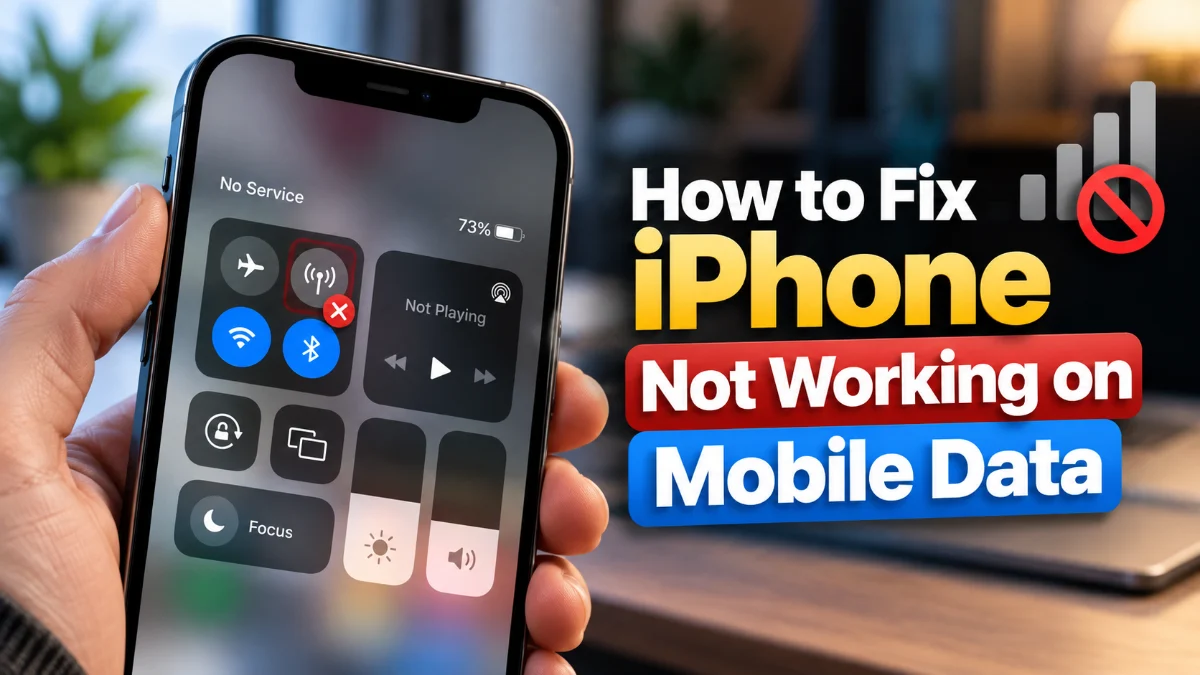
If your iPhone is suddenly unable to load web pages, send messages via cellular, or use apps without Wi-Fi, dealing with a broken mobile data connection can be extremely frustrating. This issue usually stems from temporary network glitches, incorrect carrier settings, or minor software bugs.
Fortunately, you can quickly diagnose and resolve the problem using a few straightforward troubleshooting methods built right into iOS. Here is how to get your mobile data back up and running in no time.
1Toggle Airplane Mode to Reset Connections
The quickest and easiest way to fix minor cellular glitches is by toggling Airplane Mode on and off. This action forces your iPhone to disconnect from all cellular towers and completely refresh its radio signals, often clearing up temporary connection blocks without needing a full restart.
To do this, swipe down from the top-right corner of your screen to open the Control Center. Tap the Airplane Mode icon to turn it on, wait about ten to fifteen seconds, and then tap it again to turn it off. Alternatively, you can go to Settings > Airplane Mode, toggle it on, wait, and toggle it back off. Once your iPhone reconnects to your carrier tower, check if your mobile data works by opening a web browser or a data-dependent app.
If this quick toggle does not solve the problem, do not worry. There are several deeper software settings and physical components to check next, ranging from your SIM card status to carrier configurations.
2Check Your Cellular Data Settings
Sometimes mobile data stops working simply because the master switch has been accidentally disabled or a specific app has lost permission to use cellular data. Checking these settings ensures your phone is actually allowed to transmit data over your cellular network provider.
Navigate to Settings > Cellular and make sure the primary Cellular Data toggle is switched on and glowing green. Below this master switch, you will see a comprehensive list of all installed apps on your device. Scroll through this list to verify that the specific apps you want to use—such as your browser, messaging apps, or social media—have their individual toggles enabled.
If an app toggle is turned off, it can only access the internet when you are connected to a Wi-Fi network. Enabling these switches immediately restores cellular connectivity for those specific programs, resolving data issues related to individual app permissions.
3Restart Your iPhone Completely
A standard device reboot clears temporary system caches, stops unresponsive background processes, and reloads core iOS modules that control network hardware. Many stubborn cellular connection bugs disappear completely after a simple power cycle.
To restart an iPhone with Face ID, press and hold the Side button and either the Volume Up or Volume Down button simultaneously until the power-off slider appears on the screen. Drag the slider to the right, wait approximately thirty seconds until the device screen turns completely black, and then turn it back on by holding the Side button until the Apple logo appears.
For older iPhone models equipped with a Home button, press and hold the Side or Top button until the slider appears, then drag it. After your iPhone finishes booting up back to the lock screen, wait a moment for it to re-establish a handshake with your mobile carrier and test your cellular data connection.
4Update Your Carrier Settings
Mobile network operators frequently push updates to improve network compatibility, voice clarity, and data speeds. If your carrier settings are outdated, your iPhone might struggle to communicate properly with cellular towers, leading to intermittent or complete data failure.
To check for available updates, open Settings > General > About. If a carrier update is available, a prompt will automatically appear on your screen within fifteen to thirty seconds offering you the option to update. Tap Update to install the latest configuration files.
Note that you usually need an active Wi-Fi connection or a working secondary network connection to download and apply these carrier patches. Once the installation finishes, restart your iPhone to ensure the new network profiles take full effect.
5Reset Network Settings
When individual troubleshooting steps fail to resolve persistent connection failures, performing a full reset of your network configurations is often the most effective solution. This process clears all saved Wi-Fi networks, Bluetooth pairings, VPN configurations, and cellular preferences back to their factory defaults.
To reset your network settings, go to Settings > General > Transfer or Reset iPhone > Reset > Reset Network Settings. Your iPhone will ask you to enter your device passcode to confirm the action. Once confirmed, the phone will restart automatically.
Keep in mind that you will need to reconnect to your home and work Wi-Fi networks and re-enter passwords afterward, but this deep clean frequently eliminates corrupted network data that blocks cellular internet access.
6Check Your Physical SIM or eSIM
A loose, damaged, or unresponsive SIM card can cause your iPhone to drop cellular data entirely while still showing signal bars. Inspecting your physical SIM or checking your eSIM status is a crucial troubleshooting step for hardware-related data dropouts.
If your iPhone uses a physical nano-SIM, use a SIM ejector tool or a small paperclip to open the SIM tray located on the side of your device. Carefully remove the SIM card, inspect it for dust or visible scratches, wipe it gently with a clean cloth, and reinsert it securely. Ensure the tray clicks fully back into place.
For users utilizing an eSIM, go to Settings > Cellular, tap your active cellular plan, and verify that the line is turned on. If necessary, toggle the line off and back on to force a reconnection to your carrier profile.
Frequently asked questions
Why does my iPhone show full signal bars but mobile data still does not work?
This usually happens due to a temporary glitch with your carrier's data gateway, an expired data plan, or corrupted network settings. Toggling Airplane Mode or restarting your phone typically resolves this issue.
Will resetting network settings delete my personal photos or apps?
No. Resetting network settings only affects Wi-Fi passwords, Bluetooth connections, VPN profiles, and cellular settings. Your personal photos, messages, apps, and other data remain completely safe.
Do I need Wi-Fi to update my carrier settings?
Yes, downloading carrier updates generally requires an active internet connection, so connecting to a stable Wi-Fi network is recommended before checking for updates in Settings.
What should I do if none of these fixes work?
If you have exhausted all software troubleshooting steps and verified your SIM card, contact your mobile network provider. They can check if there are ongoing tower outages in your area or if your account has any provisioning errors.